Gifting season ends and the reporting begins. Someone wants a pick list for the warehouse. Someone else wants a spreadsheet of what sold. Your accountant wants the whole period in a format their software will accept.
A WooCommerce gift registry makes that job harder than a normal trading period. One event generates dozens of small orders instead of a handful of large ones. All the data is already in your store. Getting it out in a usable shape is where the afternoon disappears.
I’ve seen this catch out stores that otherwise run a tight operation. The orders themselves are fine. The reporting is what breaks, because nobody set the export up before the rush started.
This guide covers how to pull clean order data during and after a gifting season. It also covers what changes once your store starts taking registry orders. The registry side runs on the SaveTo Wishlist Gift Registry Addon. The export side is ours, so I’ll be clear about which tool does what.
Table Of Contents
- What It Means To Export Orders From Your Store
- Why WooCommerce Gift Registry Orders Are Harder To Export Cleanly
- Setting Up A WooCommerce Gift Registry With The SaveTo Wishlist Addon
- How To Export Registry And Gift Orders With Store Exporter Deluxe
- Using The Gift Registry Addon With Store Exporter Deluxe
- Scheduling Exports For A Gifting Season
- What To Report On After A Gifting Season
- Start Exporting Your WooCommerce Gift Registry Orders
- Frequently Asked Questions
What It Means To Export Orders From Your Store
Exporting orders means pulling order records out of your database into a file another system can read. That usually means CSV, XLS, XLSX, TSV, or XML. The point isn’t backup, it’s handover. The file goes to a warehouse, a bookkeeper, a shipping partner, or a spreadsheet you can analyse in.
A useful export comes down to three choices:
- Scope: which orders, usually limited by a date range or a product filter.
- Fields: which columns, in what order, with what labels.
- Delivery: where the file goes, whether that’s your machine, an email, an FTP server, or cloud storage.
Get those three right and the export becomes something you repeat rather than rebuild. Get them wrong and you’ll reformat the file by hand every time. That’s where most stores end up.
WooCommerce can produce a basic order export. However, a gifting season asks harder questions of your data. You’ll want a specific date window, only certain products, and columns renamed to suit a third party. You’ll also want the same file next week without reconfiguring anything.
That’s the gap a purpose-built export tool fills. In practice, it’s why this step is worth setting up before a busy period.
Why WooCommerce Gift Registry Orders Are Harder To Export Cleanly
Gift orders complicate exports in ways ordinary orders don’t. The buyer and the recipient are different people. The shipping address often isn’t the billing address. Plus, a single event can generate dozens of small orders that all relate to each other.
The volume behind this is real. According to The Knot Worldwide’s 2026 Real Weddings Study, the average 2025 US wedding had around 117 guests. That figure comes from self-reported responses from 10,474 US couples married during 2025. So one event can mean a hundred separate gift orders in a short window.
Those orders also arrive under time pressure, which is when data problems get expensive. A fulfilment mistake on a gift is hard to walk back, because the gift has a date attached. By contrast, a normal order can usually be fixed quietly next week.
🔍️ One thing we commonly see: stores export a gifting period using a fixed date range. Then they re-run it a week later with the same fixed dates. Naturally, the newer orders are missing. Use a relative date filter, or a scheduled export, and the problem disappears.
Setting Up A WooCommerce Gift Registry With The SaveTo Wishlist Addon
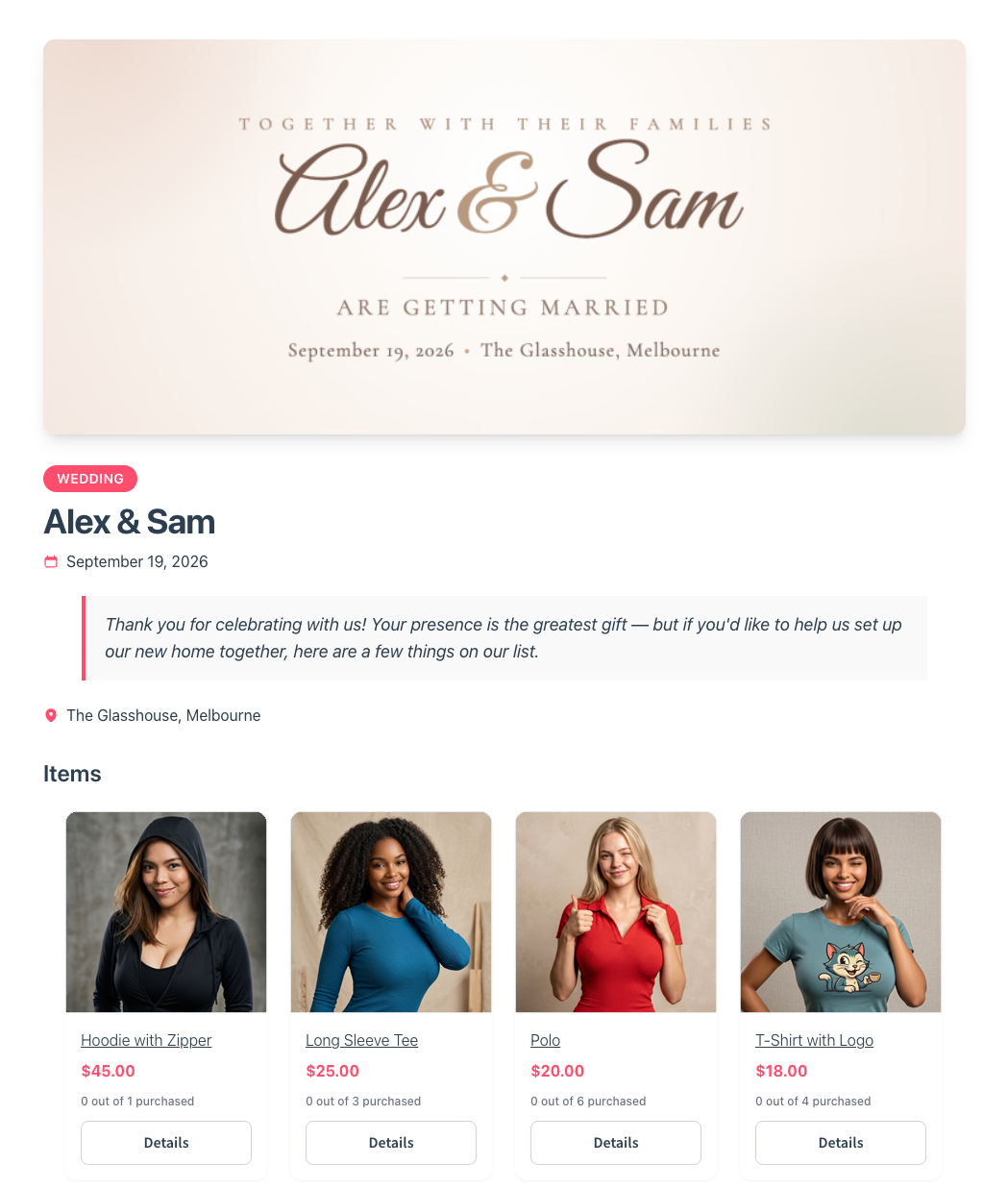
Before any of this reporting exists, something has to generate the orders. The SaveTo Wishlist Gift Registry Addon lets customers turn any wishlist into a shareable gift registry. That’s what turns one customer’s event into dozens of guests arriving with something specific to buy.
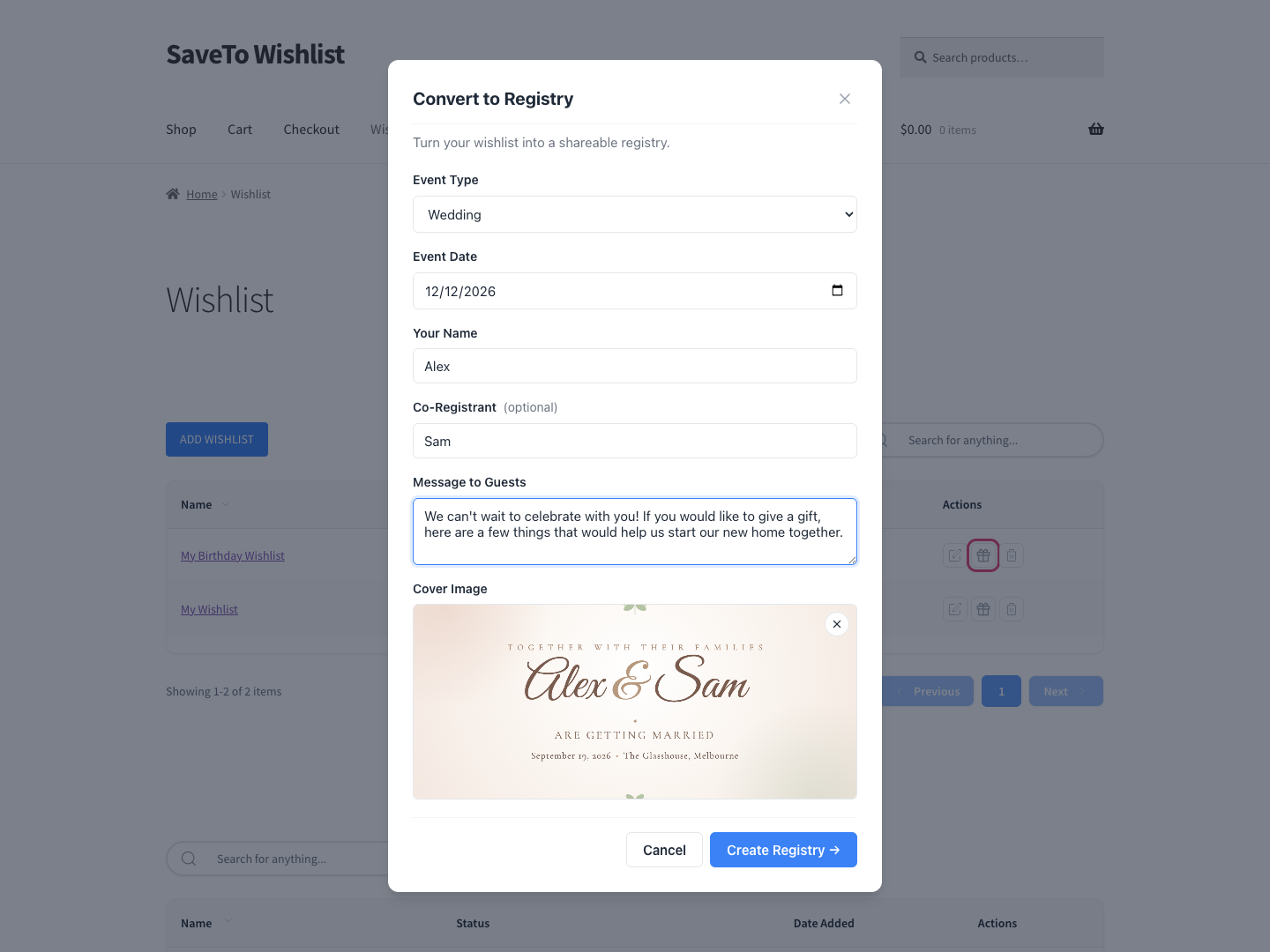
Here’s what it adds on the registry side:
- Registries built from any wishlist, with an event type, event date, registrant names, a cover image, and a welcome message.
- A public registry page with its own link, shared by copied link, pre-filled email, Facebook, X, or WhatsApp.
- Per-item quantity tracking showing how many were requested, how many were bought, and how many are still needed.
- A “Fully purchased” badge that replaces the add-to-cart control once an item is fully bought.
- An owner dashboard in My Account showing the buyer’s name and email, the purchase date, and the order number.
- Thank-you tracking, so the registry owner can tick off who’s been thanked and add a note.
- A central Registries screen in the admin to view, edit, archive, or soft-delete any registry.
- Email notifications to the owner on purchase or refund, and to the admin when a registry is created.
Here’s the part that matters for exporting. A guest buying from a registry checks out like any other customer. They place a standard WooCommerce order, so it exports exactly like the rest of your orders. Nothing special is needed to include them.
The addon is included with the SaveTo Wishlist Plus and Business plans. Plus is $99.50 for the first year, renewing at $199. Business is $199.50, renewing at $399.
There’s also a free Lite tier, plus a Growth plan at $49.50 renewing at $99. Neither of those includes the Gift Registry Addon. Renewals are always at the regular price, so budget for the second year.
How To Export Registry And Gift Orders With Store Exporter Deluxe
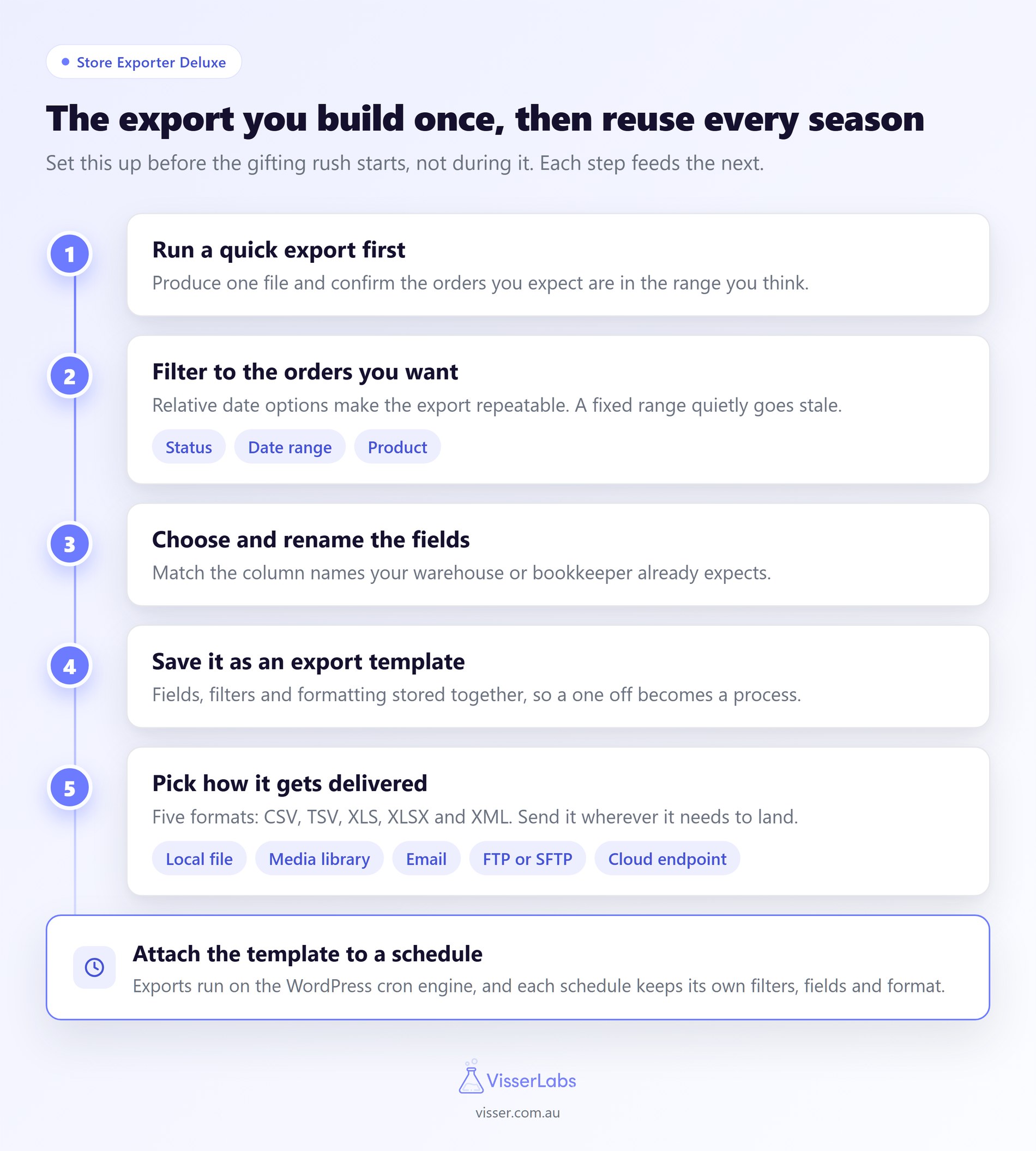
We built Store Exporter Deluxe for exactly the kind of export a gifting season demands. Here’s the approach that saves the most repeat work.
Step 1: Start with a quick export to see your data
Use the Quick Export screen to produce a first file and check what you’re working with. It’s the fastest way to confirm the orders you expect are in the range you think. Do this before you invest time in a template.
Step 2: Filter to the orders you actually want
Store Exporter Deluxe filters orders by status, date range, and the products on the order. Date filtering is the one you’ll use most for a gifting period. Importantly, there are relative options like last week or last month, not just fixed dates. That’s what makes an export repeatable.
Filtering by product helps when a specific gift line needs its own pick list. It also helps when you want to hand a supplier only the orders containing their items.
Step 3: Choose and rename your fields
Pick the columns you need, then set custom labels, sorting, and formatting. Renaming fields is the step most people skip. However, it’s the one that decides whether the person receiving the file has to reformat it.
Say a warehouse expects a column called SKU and your export says Product SKU. That’s a small annoyance the first time and a recurring cost every time after.
Step 4: Save it as an export template
Save the configuration as an export template so the whole setup is reusable. A template stores the fields, filters, and formatting together. As a result, a one-off export becomes a process you can hand to someone else.
Step 5: Pick your delivery method
Store Exporter Deluxe can save the file locally or to your media library. It can also email the file as an attachment. Beyond that, it can upload to an FTP or SFTP server, or post to a cloud endpoint.
Formats include CSV, TSV, XLS, XLSX, and XML. Match the format to whoever receives it rather than defaulting to CSV out of habit.
Those five steps are the whole setup. Done once, they hold for every season after.
Using The Gift Registry Addon With Store Exporter Deluxe
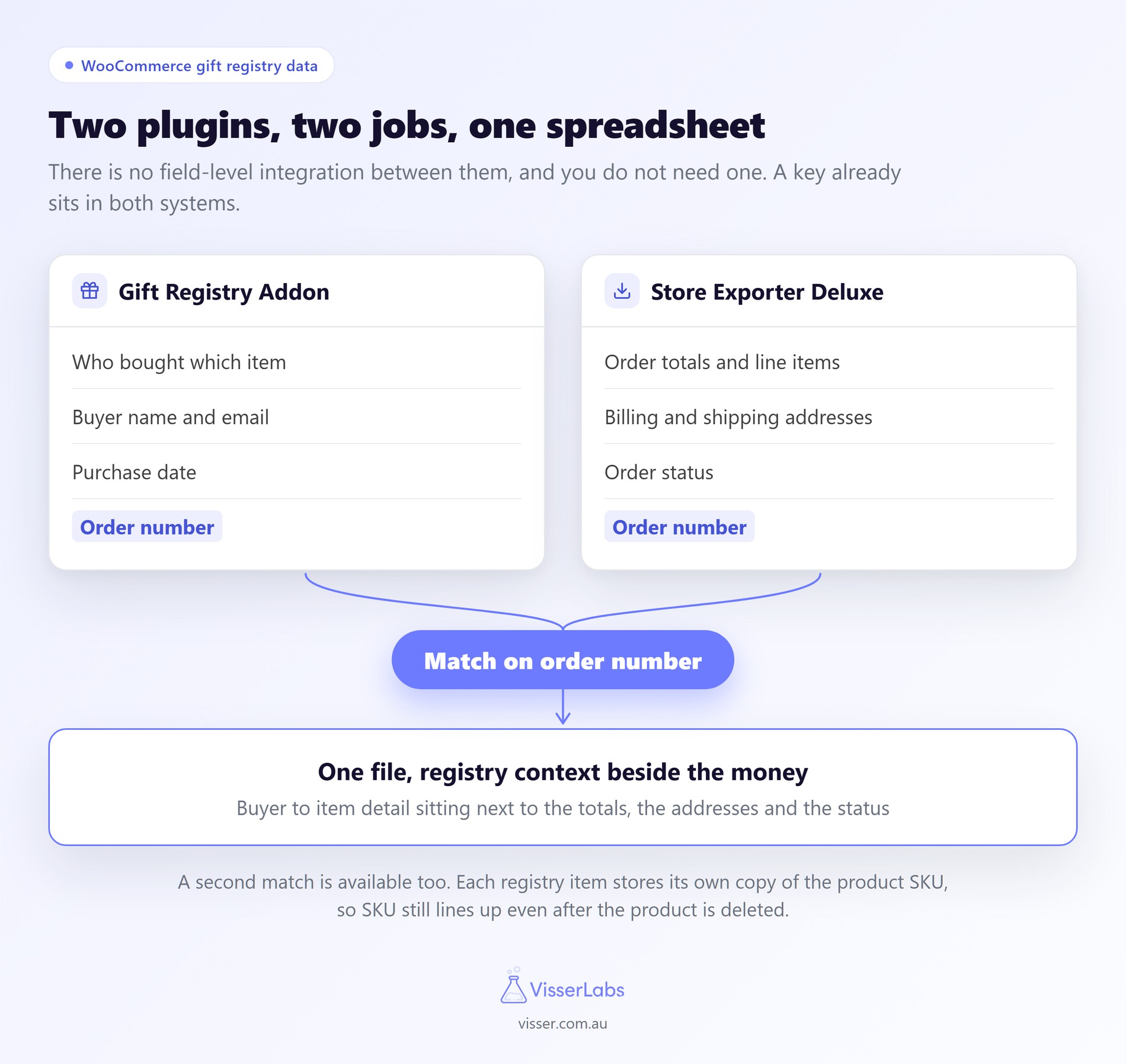
Two plugins, two jobs, and the handover between them is simpler than people expect. The Gift Registry Addon owns the registry side. It knows who registered, what they asked for, and who bought which item. Store Exporter Deluxe handles the order data your bookkeeper and warehouse need.
There’s no field-level integration between the two. In practice you don’t need one, because a shared key already sits in both systems. That key is the order number.
The addon’s owner dashboard lists the order number against every purchased item. It’s also a standard column in any order export. Match on it and registry context lands next to order data in one spreadsheet.
Here’s how the split works in practice:
| What you need | Where it lives | How you get it |
|---|---|---|
| Who bought which item, for which registry | Gift Registry Addon | Owner dashboard, or the admin Registries screen |
| Buyer name, email, and purchase date per item | Gift Registry Addon | Owner dashboard |
| Order totals, line items, and billing and shipping addresses | WooCommerce orders | Store Exporter Deluxe |
| Sales by product or SKU for next season’s buying | Products and orders | Store Exporter Deluxe |
| Registry context beside order data | Both | Export the orders, then match on order number |
A practical version of that last row is straightforward. Export the gifting period’s orders with the order number column included. Then open the addon’s Registries screen alongside the file. You now have buyer-to-item detail sitting next to the money and the addresses.
Two details make this join more reliable than it sounds. Each registry item keeps its own saved copy of the product title, SKU, and image. So SKU still works as a match even if you later delete the product.
One filtering caveat is worth knowing. Registry purchases are credited even when an order sits in Processing, which covers cash on delivery, bank transfer, and cheque. So an export filtered to Completed orders only will miss registry sales the addon has already counted.
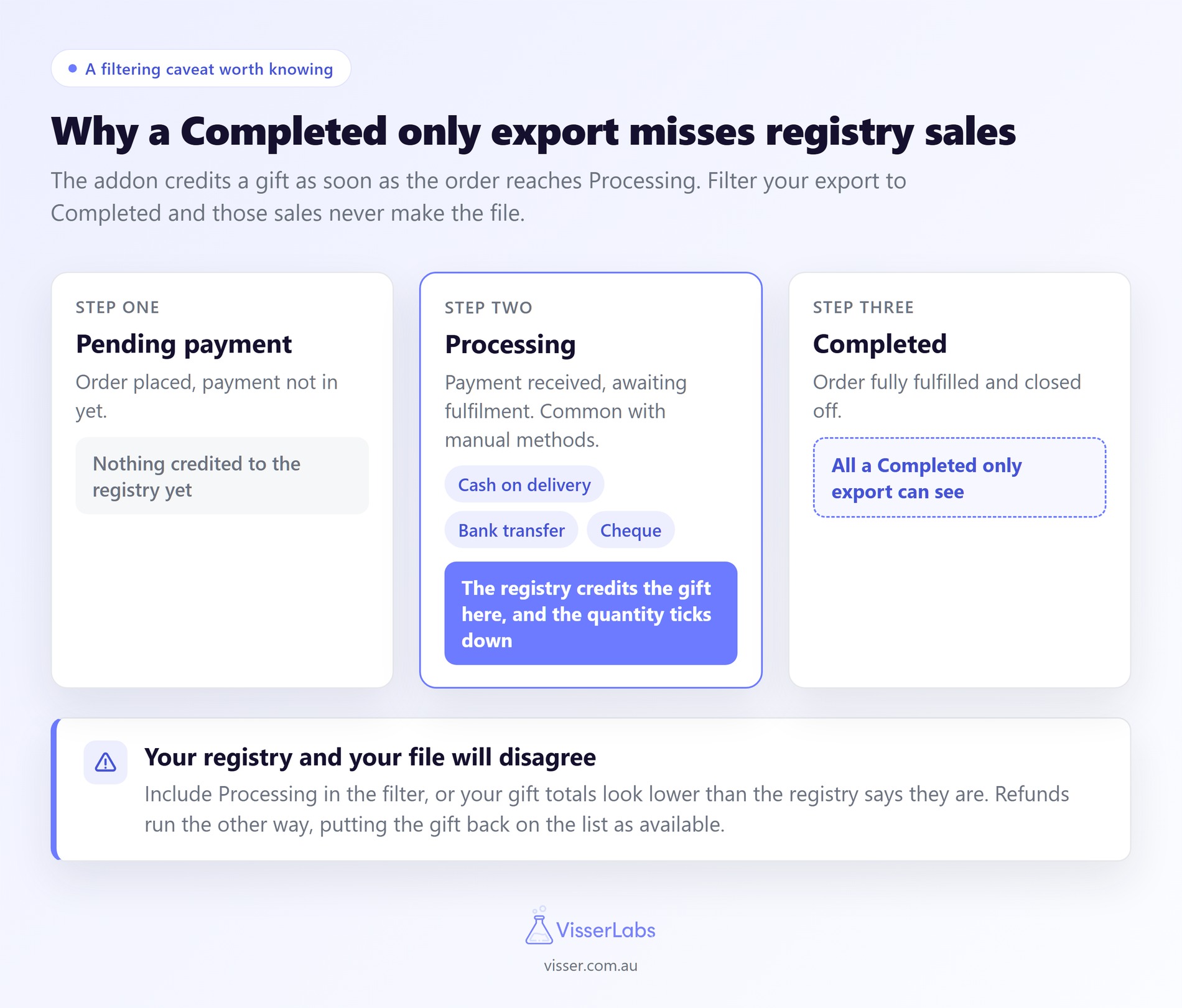
Refunds work in reverse, too. A refund puts the gift back on the registry as available. That’s worth remembering when your refund report and your registry counts disagree. Advanced Coupons has a good guide on store credit versus a cash refund.
One shortcut is also worth knowing. If a registry covers a distinct set of products, a product filter gets you close to that registry’s orders. That skips the addon entirely for a rough pick list.
Scheduling Exports For A Gifting Season
Scheduled exports are the difference between reporting on a gifting season and living inside it. Set the schedule up before the period starts and the files simply arrive. Meanwhile, you get on with the actual selling.
Here’s a reasonable pattern for a gift-heavy store. Treat it as an example and adapt it to your own operation.
| Export | Frequency | Recipient | Format |
|---|---|---|---|
| Unfulfilled orders pick list | Daily | Warehouse | CSV via FTP |
| All orders, previous 7 days | Weekly | Store owner | XLSX by email |
| Full period, all fields | Once post-season | Bookkeeper | CSV |
| Product sales by SKU | Weekly | Buying team | XLSX |
Each of those can use its own export template. That way the warehouse gets a lean file and the bookkeeper gets everything. Store Exporter Deluxe schedules exports on the WordPress cron engine. Each schedule carries its own filters, fields, and format.
What To Report On After A Gifting Season
Report on fulfilment accuracy first, because it’s the number that affects refunds. Compare items ordered against items shipped for the period. Then look at where the gaps cluster.
Four other things are worth pulling from your order export:
- Sales by product for the period: which gift lines actually moved, and what next season’s buying rests on.
- Order volume by week: shows where the peak really fell, which is rarely where you assumed.
- Refunds and returns by product: gift purchases return at different rates than self-purchases.
- New customers acquired: gift buyers are often first-time customers, which is the basis for any follow-up campaign.
Store Exporter Deluxe also exports products, customers, coupons, and subscriptions, not just orders. Plus, it integrates natively with 125+ WordPress and ecommerce plugins. So most of what a report needs is already reachable.
Start Exporting Your WooCommerce Gift Registry Orders
Exports are the least glamorous part of a gifting season. They’re also the part that most reliably saves you a whole day. The configuration work is genuinely one-time. Build the templates once, schedule them once, and the files just show up.
Here’s the short version of what to do:
- Give customers a real registry to buy from, because that’s what generates the orders.
- Decide scope, fields, and delivery before you start exporting.
- Expect many small related orders with split billing and shipping addresses.
- Run a quick export first, then filter, rename fields, and save a template.
- Set your schedules up before the season starts, not during it.
- Match on order number when you need registry context beside order data.
- Check fulfilment accuracy before any other report.
If you haven’t set up a registry yet, that’s the piece to start with. There’s nothing to export until guests have something to buy from. The addon is what puts a shareable, quantity-tracked registry in front of them.
The SaveTo Wishlist Gift Registry Addon is included with the Plus and Business plans.
Get the Gift Registry Addon today!
On our side, getting filtering, templates, and scheduled delivery in place takes an afternoon. Store Exporter Deluxe is $49 per year on a single site licence.
One more thing is worth reading before a gifting season. AdTribes has a companion guide on optimising your gift feeds for registry traffic.
Frequently Asked Questions
Do WooCommerce gift registry orders export differently from normal orders?
No. A guest buying from a registry places a standard WooCommerce order. It appears in your order exports like any other order, with no special configuration. What doesn’t carry across is registry-level context, such as which registry the purchase belonged to.
Which WooCommerce gift registry addon generates these orders?
The SaveTo Wishlist Gift Registry Addon, included with the Plus and Business plans. It lets customers convert any wishlist into a shareable registry that guests buy from. Each purchase is credited back to the registry, so quantities tick down automatically. Those guest purchases are ordinary WooCommerce orders, which is why they export normally.
Can I export one registry’s orders as a single file?
Not as one automatic export, because registry membership lives in the addon rather than on the order. Export the orders for the event’s date window instead. Then match them to the addon’s Registries screen on order number. A product filter gets you close if the registry covers a distinct product set.
How do I export only the orders from a specific date range?
Store Exporter Deluxe filters orders by date, including relative options rather than only fixed dates. Relative filtering is what you want for anything you plan to re-run. A fixed range will silently miss orders placed after you first set it up.
Can I rename the columns in my export?
Yes. You can set custom labels, sorting, and formatting on the fields you export. This matters most when a warehouse or bookkeeper expects specific column names. Renaming at the export stage removes a manual reformatting step every time.
Can exports run automatically?
Yes. Store Exporter Deluxe schedules exports on the WordPress cron engine. Each schedule keeps its own filters, fields, and format. Delivery can go to a local file, your media library, an email address, an FTP server, or a cloud endpoint.
What file formats can I export to?
CSV, TSV, XLS, XLSX, and XML. Choose based on who receives the file rather than habit. Spreadsheet formats suit a person reading the data. CSV or XML usually suit another system ingesting it.