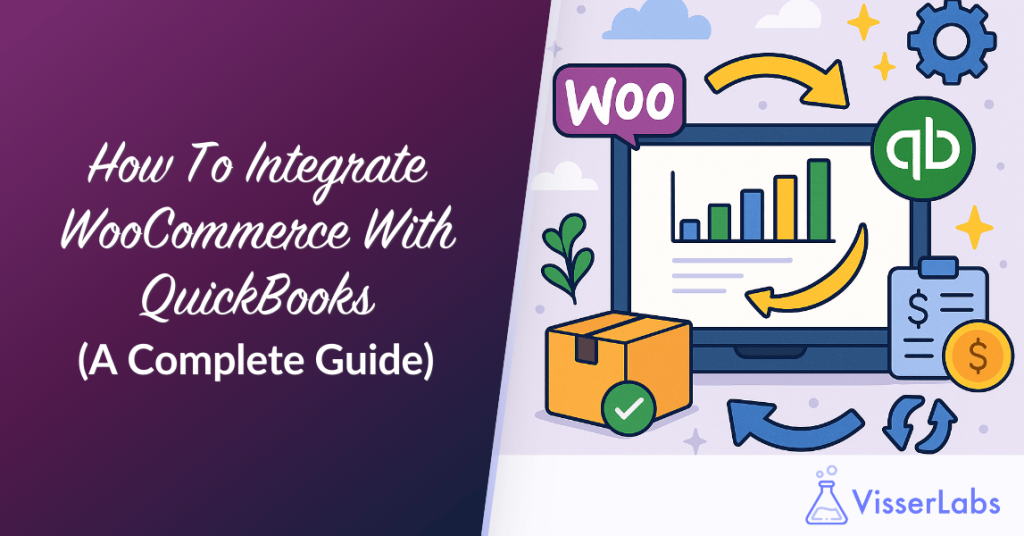
A WooCommerce QuickBooks integration can work one of three ways: manual entry, a direct connector or sync plugin, or an export-based workflow where you export your records and import the file into QuickBooks. The export-based route, using a tool like Store Exporter Deluxe, is the reliable option that keeps the data file in your hands.
If you sell online, your store and your accounting system have to agree. Every order, refund, and tax line that lands in WooCommerce eventually needs a home in QuickBooks, and getting it there by hand wears thin fast.
The trouble is that “WooCommerce QuickBooks integration” can mean very different things depending on which path you take. This guide breaks down all three methods, shows you the direct connector route and the export-based route step by step, and helps you decide which one actually fits how your store runs.
Table of Contents
Why You Should Connect WooCommerce And QuickBooks
Keeping WooCommerce and QuickBooks in sync protects your reporting accuracy and saves hours of repetitive bookkeeping. When sales, tax, and customer data move across cleanly, your accounts reflect what your store actually did.

The scale of the platform is part of why this matters. According to Statista, there were more than four million live WooCommerce stores worldwide as of September 2024, each generating order and tax records that need to reach an accounting system. QuickBooks is one of the most widely used small-business accounting platforms, which is why this pairing comes up so often.
Manual entry is where most of the pain starts. Re-keying orders is slow, and small slips in totals or tax codes lead to reports that don’t match reality. Hand-entered data reliably carries a higher error rate than an imported file, and in accounting those mistakes tend to surface at the worst time, usually during reconciliation or tax season.
Getting the connection right also improves your inventory management and frees you to work on the business instead of the books.
Three Ways To Reconcile WooCommerce With QuickBooks
There are three practical methods for moving WooCommerce data into QuickBooks, and each trades off cost, control, and reliability differently. Here’s how they compare so you can see where each one fits.
- Manual entry: Free and flexible, but slow and error-prone. You re-type each order, refund, and customer into QuickBooks by hand. Fine for a handful of sales a month, painful at any real volume, and the most likely to introduce mistakes.
- Direct connectors and sync plugins: Automatic and convenient. A plugin or service pushes data between the two platforms on a schedule or in real time. The catch is that you depend on a third-party service or subscription, and a connector can break when either platform updates, leaving gaps you have to chase down.
- Export-based workflow: Reliable and fully in your control. You export your orders, products, and customers to a file with a tool like Store Exporter Deluxe, then import that file into QuickBooks using QuickBooks’ own import tools. You own the file, there’s no live connection that can break, and it works with both QuickBooks Online and QuickBooks Desktop.
For stores that value reliability and data ownership, the export-based workflow is the path we’d point you to first. It doesn’t depend on a live connection staying healthy, and the exported file is a clean record you can review before anything touches your books.
That said, a direct connector still makes sense for some stores, so both routes are covered below in full.
What You Need Before You Start
You don’t need technical skills for a WooCommerce QuickBooks integration, just access to both systems and a plan for your data.
Before you connect anything, make sure you have:
- A live WooCommerce store
- A QuickBooks Online or QuickBooks Desktop account
- Admin access to both platforms
Whichever method you choose, starting from clean data pays off. Exporting your orders and products first lets you review them, fix inconsistencies in bulk, and avoid carrying mistakes into your accounts. For a full walkthrough, see our complete guide on exporting WooCommerce data.
The Direct Connector Route (One Option)
A direct connector keeps WooCommerce and QuickBooks in sync automatically once it’s configured. This is one valid path, not the only one, and it suits stores that want hands-off syncing and accept an ongoing service dependency.
You can connect your WooCommerce store to QuickBooks Online using the QuickBooks Connector by Intuit (the official QuickBooks Integration for WooCommerce), available from the WooCommerce Marketplace. It syncs orders, customers, and products, and supports automated invoice generation, two-way product syncing, partial refunds, and tax syncing.
Note: This official plugin works with QuickBooks Online, not QuickBooks Desktop.
Step 1: Download and install the plugin
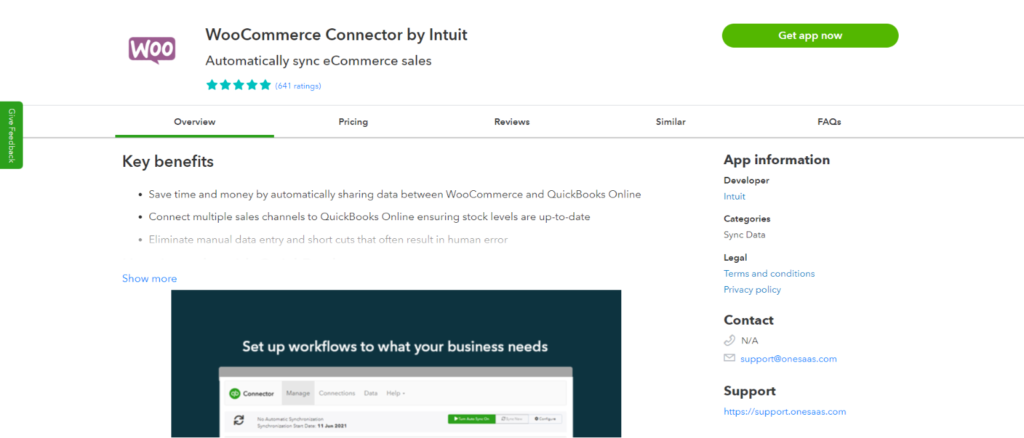
Visit the WooCommerce Marketplace and get the QuickBooks Integration for WooCommerce plugin. Once downloaded, upload it under Plugins > Add New > Upload Plugin, then install and activate it.
Step 2: Connect to QuickBooks Online
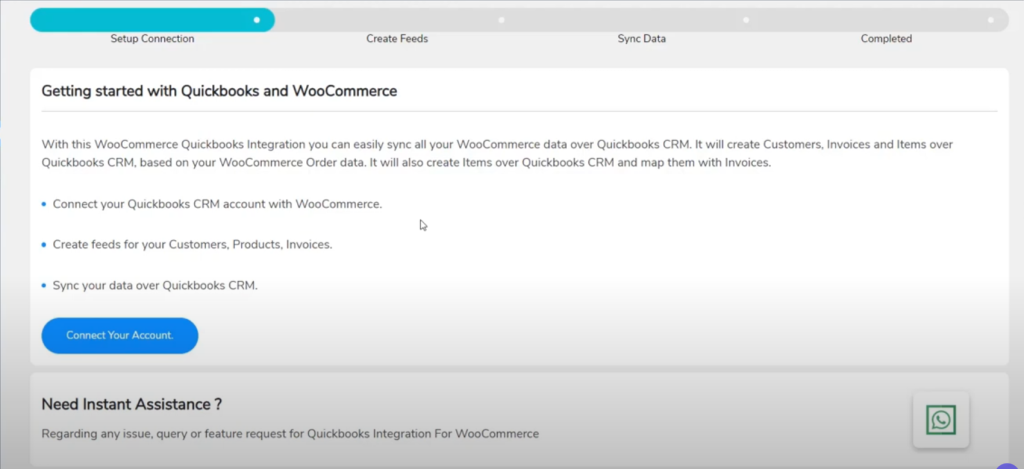
Open the new plugin menu in your dashboard and choose Connect Your Account to begin authentication. Log in to QuickBooks Online and approve the authorization request to link your store to your accounting platform.
Step 3: Create and configure feeds
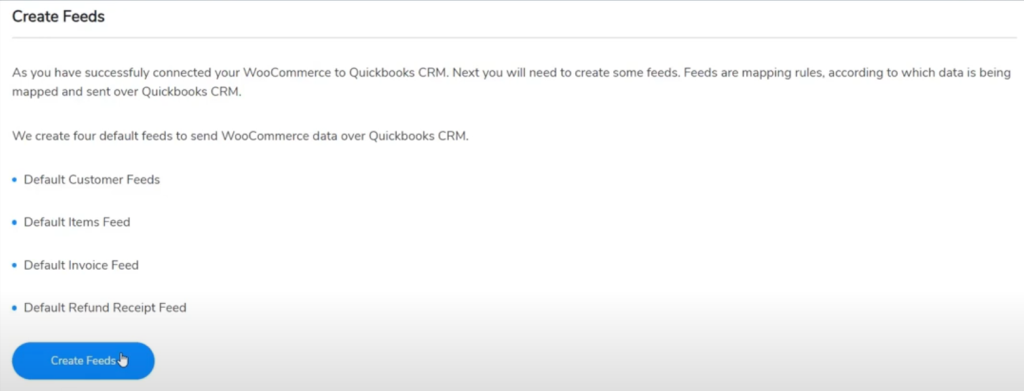
Feeds control what data syncs. You can create feeds for customers, products, invoices, sales receipts, and estimates. Within each feed you can add conditions and filters, map WooCommerce fields to QuickBooks fields, choose the event that triggers a sync, and pick which QuickBooks account to sync to.
Step 4: Set field mapping and sync settings

Map how SKUs, taxes, discounts, payment info, and shipping charges move between systems. You can enable two-way product syncing, two-way deletion, category syncing, and currency handling. Map each field carefully so the right values land in the right place.
Step 5: Sync historical data (optional)
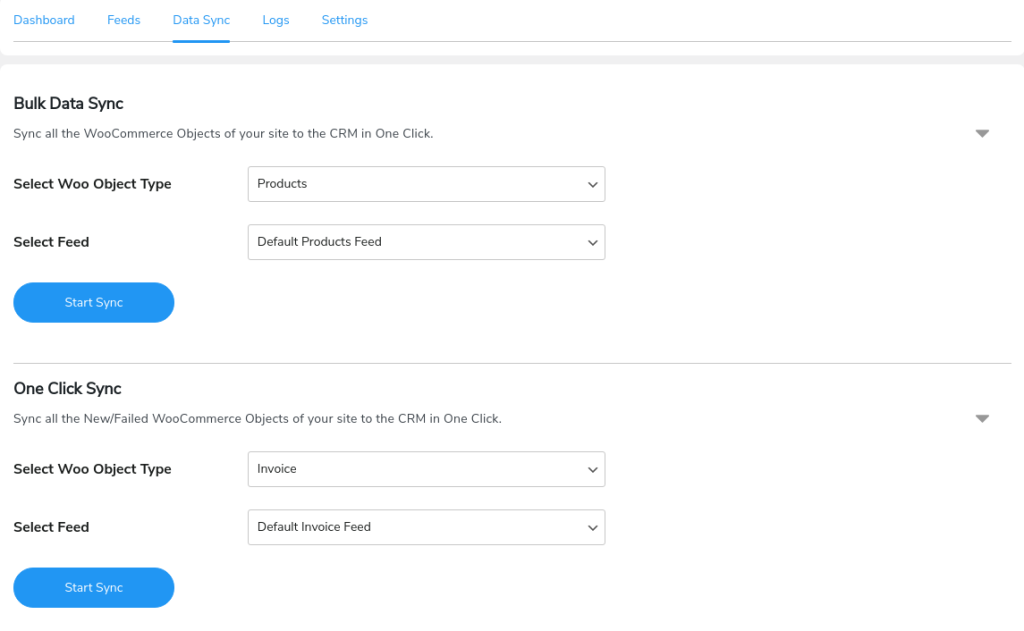
To bring past orders, customers, or products into QuickBooks, use the historical sync tools: one-click sync for recent or failed data, and bulk data sync for entire categories. Select the object type and the relevant feed.
Step 6: Test and enable instant sync
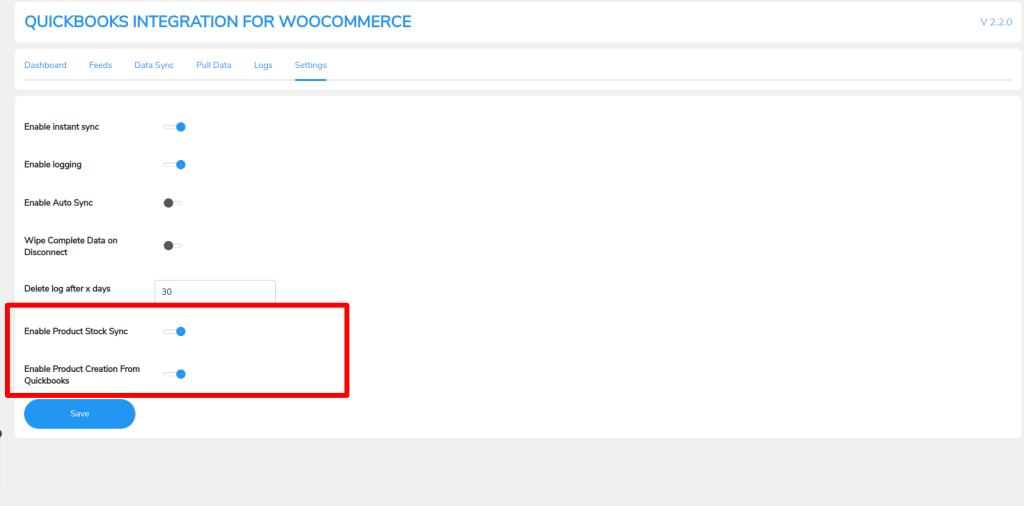
Run a few test transactions to confirm everything syncs, and check the sync logs if anything fails. Then enable Instant Sync to push new WooCommerce activity automatically. You can switch it off if you prefer manual or batch syncing.
What We’ve Seen: store owners set up a direct connector, watch the first few orders sync, and assume it’s handled. Then a platform update or a renamed tax rule quietly breaks a feed, and the gap only shows up weeks later at reconciliation. If you run a connector, check the sync logs on a schedule rather than trusting it to stay healthy on its own.
The Export-Based Method With Store Exporter Deluxe
The export-based method puts you in control: you export your WooCommerce data to a file, then import it into QuickBooks yourself. It avoids a permanent live connection, so there’s no sync service to break, and it works with both QuickBooks Online and QuickBooks Desktop.
Store Exporter Deluxe by Visser Labs handles the export side. To be clear about what it does and doesn’t do: it exports your store data to a file, it does not sync directly to QuickBooks or connect to it automatically. The workflow is export, then import.
- Export your records. In Store Exporter Deluxe, choose what to export (orders, products, or customers) and pick a format. It supports CSV, TSV, XLS, XLSX, and XML, so you can match whatever your QuickBooks import accepts.
- Schedule it (optional). Store Exporter Deluxe includes scheduled, recurring exports, so a fresh file can be generated automatically rather than running it by hand each time.
- Review the file. Open the export and check totals, tax lines, and SKUs before anything reaches your books. This review step is exactly where export-based wins on accuracy.
- Import into QuickBooks. Use QuickBooks’ own import tools to bring the file into QuickBooks Online or QuickBooks Desktop, mapping the columns to the right fields during import.
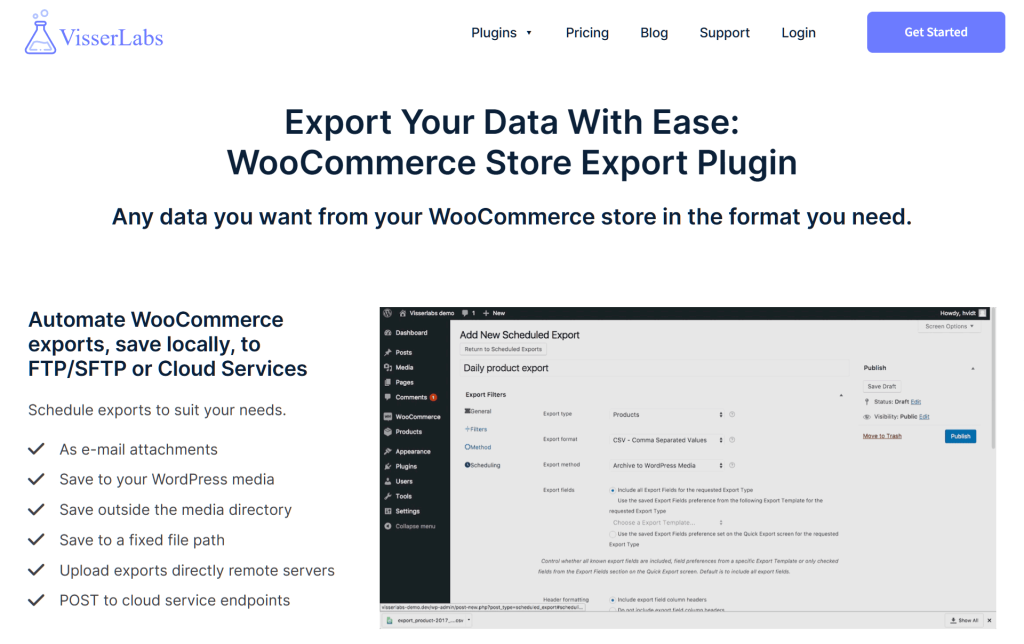
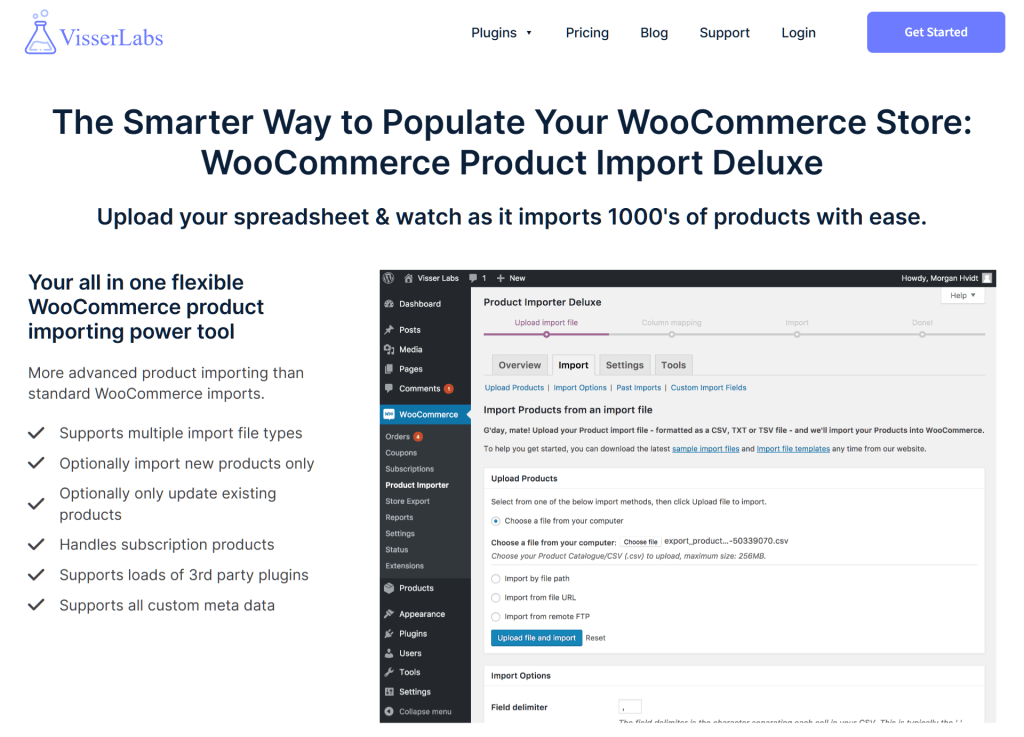
If your catalog needs tidying before any of this, Product Importer Deluxe can bulk import and update products so your data is consistent first. Cleaner WooCommerce data means a cleaner file going into QuickBooks.
Export-Based Vs Direct Sync: Which Fits Your Store?
Choose export-based if you value reliability and data ownership; choose a direct connector if you want continuous hands-off syncing and accept an ongoing dependency. The decision usually comes down to four factors.
- Store volume: Lower or steady order volumes are well served by scheduled exports. Very high-volume stores that need near-instant figures in QuickBooks may lean toward a connector, as long as they monitor it.
- Accounting complexity: Complex tax setups and custom field mapping can be handled carefully in an export-and-import flow, where you see the file before it lands. Connectors automate this but hide the data until after it syncs.
- Connector reliability history: If you’ve had a sync plugin break after a platform update before, an export-based workflow removes that fragility entirely. There’s no live connection to fail.
- Data ownership: With the export-based method you hold the actual file, a portable record you can store, audit, or re-import. A connector keeps the data flowing through a third-party service you don’t control.
For most stores that want to set up a WooCommerce QuickBooks integration and not worry about it silently failing, the export-based method is the dependable choice.
QuickBooks In 2026: Online Vs Desktop
QuickBooks comes in two main flavors, QuickBooks Online and QuickBooks Desktop, and the method you pick affects which ones you can use. This matters because not every approach supports both.
The official QuickBooks Connector by Intuit works with QuickBooks Online. If you’re on QuickBooks Desktop, a direct connector built only for QuickBooks Online won’t help you. The export-based method works with both: you export a file from WooCommerce and import it into whichever version of QuickBooks you run. We won’t claim more than that, since your exact import steps depend on your QuickBooks version’s own import tools.
If You’re On Xero Or MYOB Instead
QuickBooks isn’t the only accounting platform WooCommerce stores use. If you run Xero or MYOB, the same export-based thinking applies: export your WooCommerce data to a clean file, then import it into your accounting tool. For a wider look at how these tools fit together, see our guide to the best WooCommerce accounting plugins.
Frequently Asked Questions
Does Store Exporter Deluxe sync directly with QuickBooks?
No. Store Exporter Deluxe is an export tool, not a sync tool. It doesn’t connect to QuickBooks or push data automatically. The workflow is export-based: you export your WooCommerce orders, products, or customers to a file, then import that file into QuickBooks using QuickBooks’ own import tools. That export-and-import approach is what gives you a record to review before anything reaches your books.
How often can I schedule exports?
Store Exporter Deluxe includes scheduled, recurring exports, so you can have files generated automatically on a regular basis instead of running each export by hand. That keeps a steady supply of fresh files ready to import into QuickBooks without manual effort each time.
What file formats can I export for QuickBooks?
Store Exporter Deluxe exports to CSV, TSV, XLS, XLSX, and XML. CSV and XLSX are the most common formats for importing into accounting tools, so you can match whatever your version of QuickBooks accepts during its import process.
Is export-based better than a direct connector?
For a WooCommerce QuickBooks integration where reliability and data ownership matter most, yes. An export-based workflow has no live connection to break and gives you a file you control and can review before importing. A direct connector offers continuous automatic syncing but depends on a third-party service or subscription that can fail when a platform updates.
Does it work with QuickBooks Desktop?
Yes. Because the export-based method produces a file rather than a live sync, it works with both QuickBooks Online and QuickBooks Desktop. You export from WooCommerce and import into whichever version you use, following that version’s own import steps.
Choose The Right WooCommerce QuickBooks Integration
The best WooCommerce QuickBooks integration is the one that keeps working without surprising you at reconciliation. A connector can be convenient, but an export-based workflow gives you something a live sync can’t: a file you own and can check before it ever touches your accounts.
- Compare the three methods and match one to how your store runs.
- Use a direct connector if you want hands-off syncing and will monitor it.
- Use the export-based method for reliability and full control of your data.
- Check Online vs Desktop so your method supports your QuickBooks version.
Ready to set up a WooCommerce QuickBooks integration you can trust? Get Store Exporter Deluxe and export clean, QuickBooks-ready files from your store on your schedule.