
If you need a backup of your active discount codes, a report on coupon usage, or a feed of coupon data for another system, you can pull that data straight out of WooCommerce with Store Exporter Deluxe. This article walks you through a one-time coupon export with Quick Export, then shows how to set up a recurring one with Scheduled Exports.
Prerequisites
| Requirement | Details |
|---|---|
| Plugin | Store Exporter Deluxe 5.4.5 or later is active and licensed |
| WooCommerce | Active, with at least one coupon created |
| Administrator access | You’ll need an account with access to the WordPress admin dashboard |
Step 1: Choose Coupons as the export type
- Go to WooCommerce → Store Export.
- Click Quick Export in the sidebar.
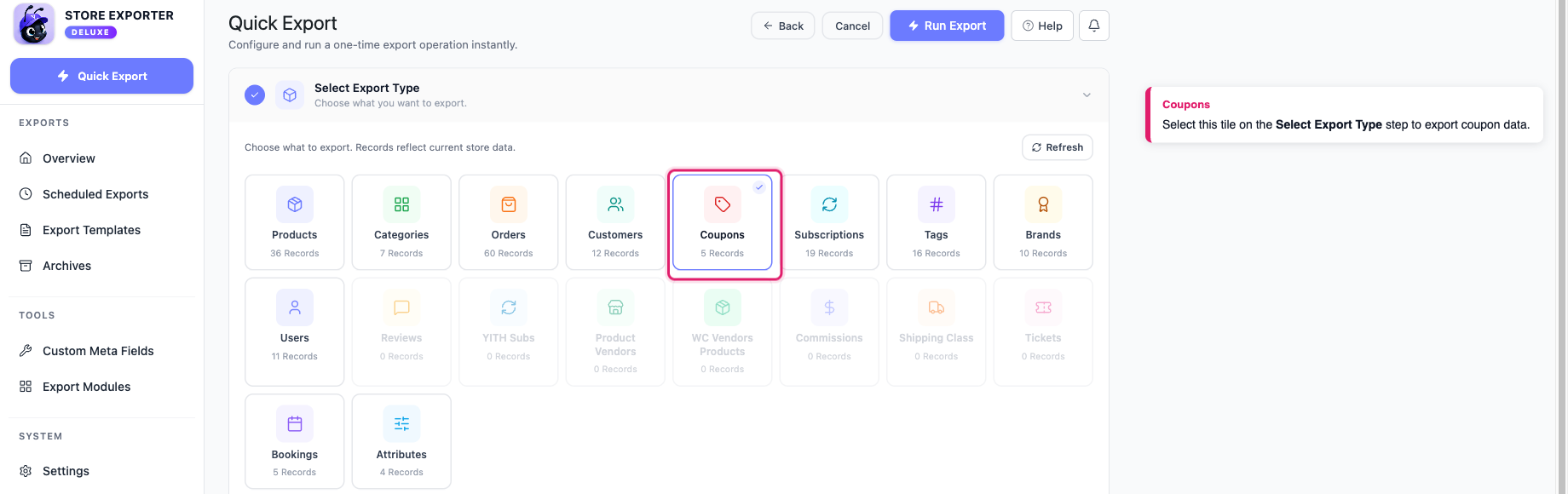
- Under Select Export Type, click the Coupons tile.
The Export Fields step opens automatically once you pick the tile.
Step 2: Choose the coupon fields
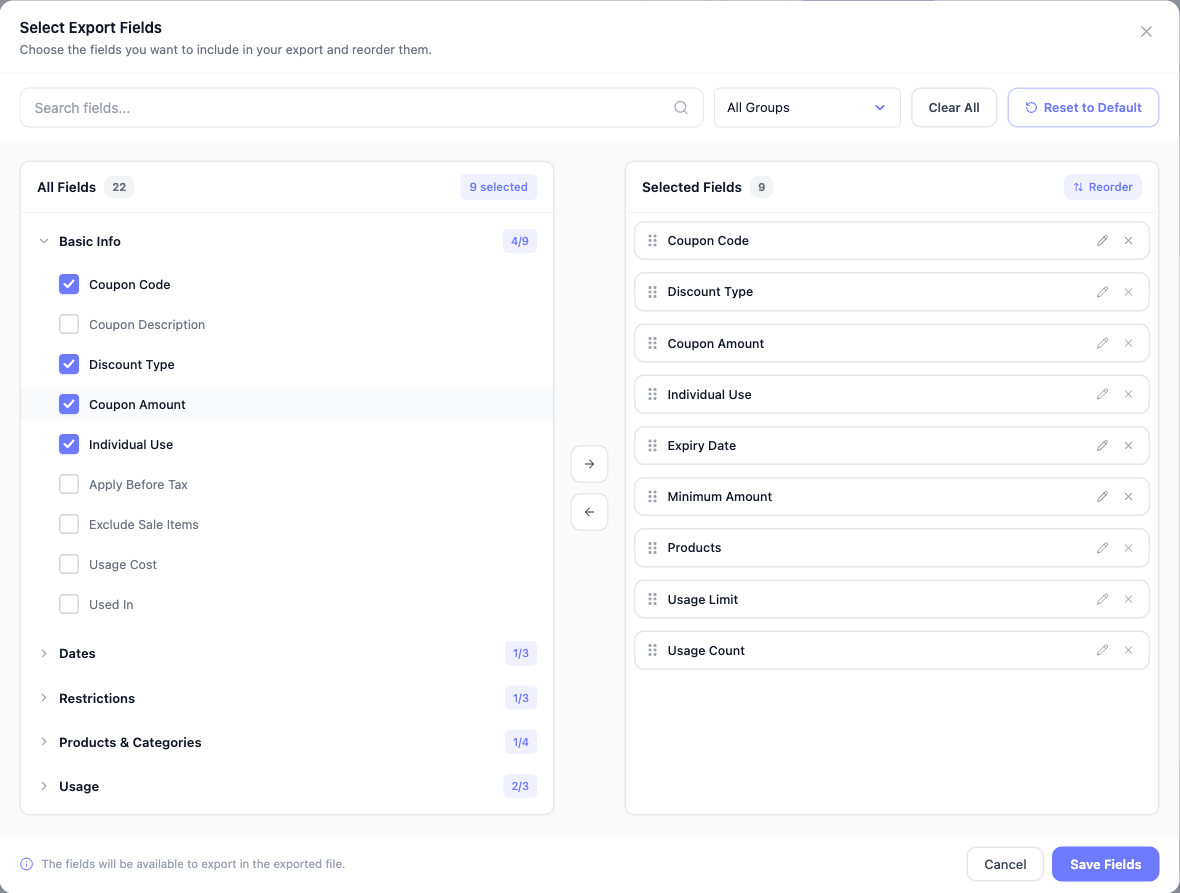
- In the Export Fields step, review the fields that are already selected.
- Remove any field you don’t need.
- Click Add more fields to open the full field picker, then search by name or filter by group to add more columns.
- (Optional) Click the Rename (pencil) icon next to a field and type a new column header.
A new export starts with nine fields already selected: Coupon Code, Discount Type, Coupon Amount, Individual Use, Expiry Date, Minimum Amount, Products, Usage Limit, and Usage Count. Renaming a column helps when a downstream system expects specific column names. See Available coupon fields below for the full list.
Step 3: Filter and sort the coupons (optional)
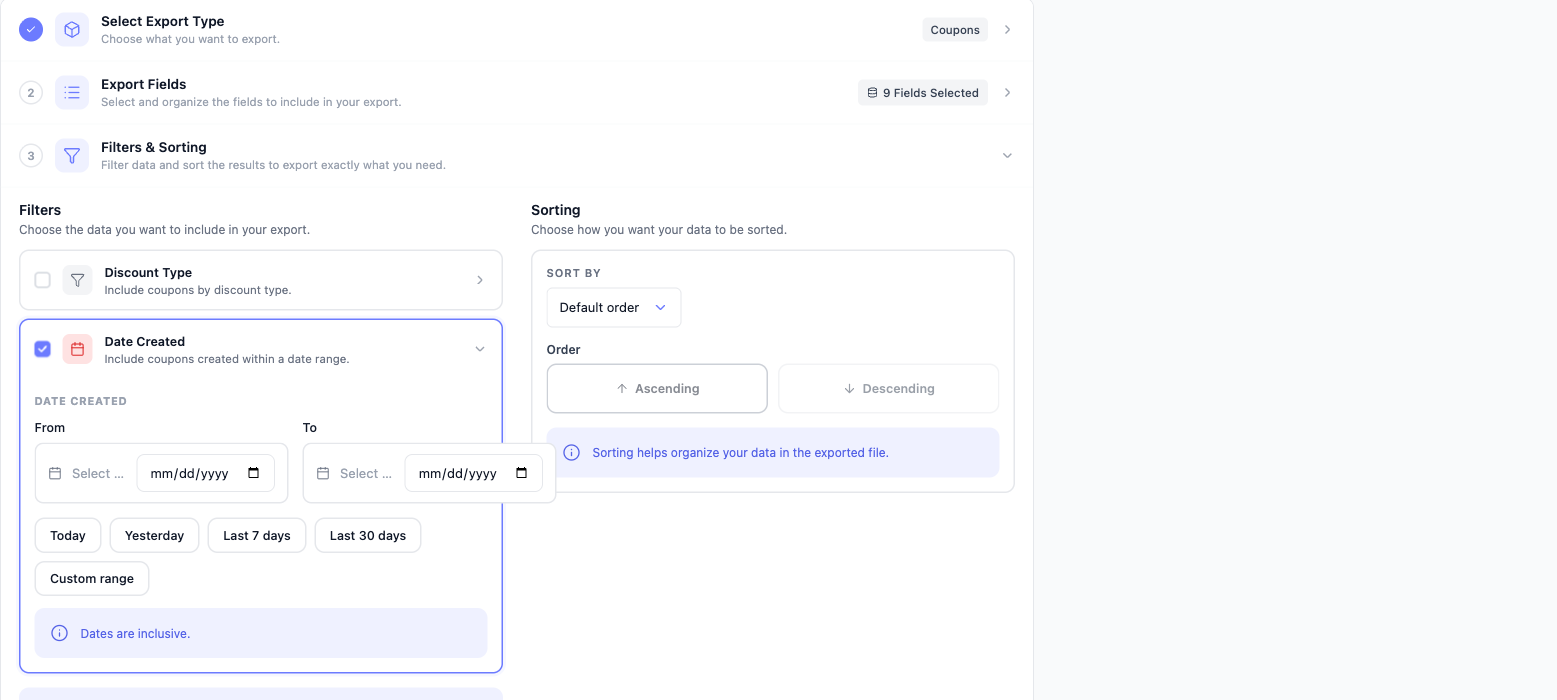
- Click Filters & Sorting to open the step.
- Click the Discount Type card to expand it.
- Tick the discount types you want to include.
- Click the Date Created card to expand it.
- Enter a From and To date, or click a preset.
- Under Sorting, choose a Sort by option.
- Click Ascending or Descending.
- Discount Type lists every discount type registered on your store, such as Percentage discount, Fixed cart discount, and Fixed product discount.
- Date Created presets are Today, Yesterday, Last 7 days, Last 30 days, and Custom range. Dates are inclusive.
- Sort by offers Default order, ID, Code, Date Created, Date Modified, and Random. The Ascending and Descending buttons only become available once you choose something other than Default order.
Step 4: Choose the file format
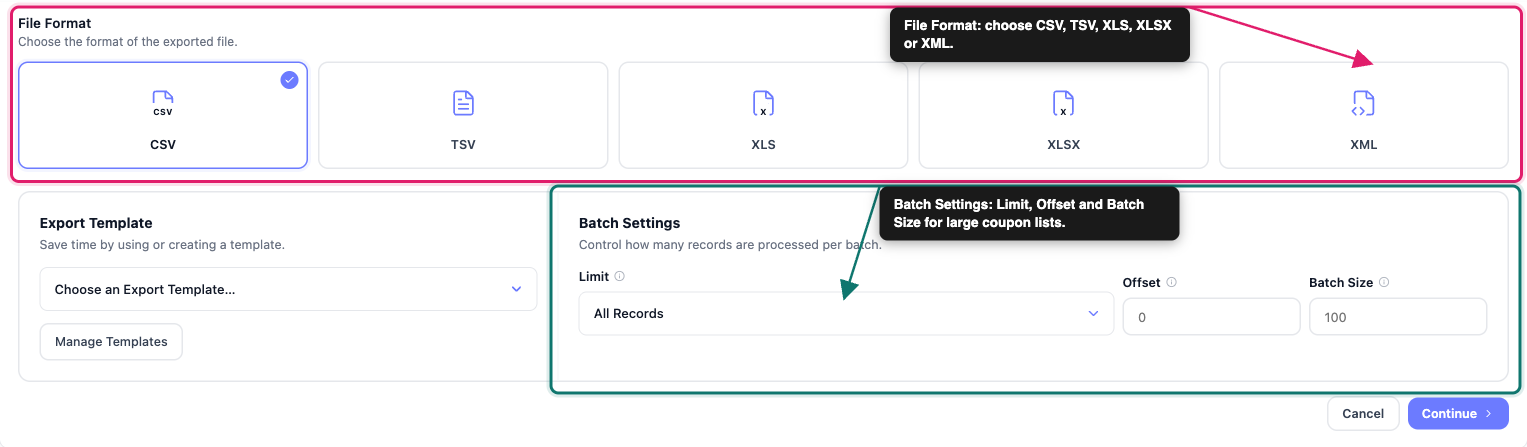
- Click Export Options to open the step.
- Under File Format, pick CSV, TSV, XLS, XLSX, or XML.
- (Optional) Under Batch Settings, set Limit, Offset, and Batch Size if you’re exporting a large number of coupons.
See Batch exporting large coupon lists below for how the batch settings work together.
Step 5: Run the export
- Click Run Export.
- Wait for the Export in Progress dialog to finish.
- Click Download File to save the export.
Run Export is available as soon as you pick an export type. Any step you don’t open keeps its default settings.
Available coupon fields
The Export Fields step groups the 22 available coupon columns into these categories:
- Basic Info: Coupon Code, Coupon Description, Discount Type, Coupon Amount, Individual Use, Apply Before Tax, Exclude Sale Items, Usage Cost, Used In.
- Dates: Coupon Published, Coupon Modified, Expiry Date.
- Restrictions: Minimum Amount, Maximum Amount, Customer E-mails.
- Products & Categories: Products, Exclude Products, Product Categories, Exclude Product Categories.
- Usage: Usage Limit, Usage Count, Used By.
Batch exporting large coupon lists
For stores with a large number of coupons, use the Batch Settings on the Export Options step:
- Limit: the total number of records in this export. Leave it on All Records to export everything.
- Offset: the number of records to skip from the start. Use 0 for your first export.
- Batch Size: how many records are processed at once.
To export in batches, run the export several times, and increase Offset by your Limit value each time until you’ve covered your full coupon list.
Schedule a recurring coupon export
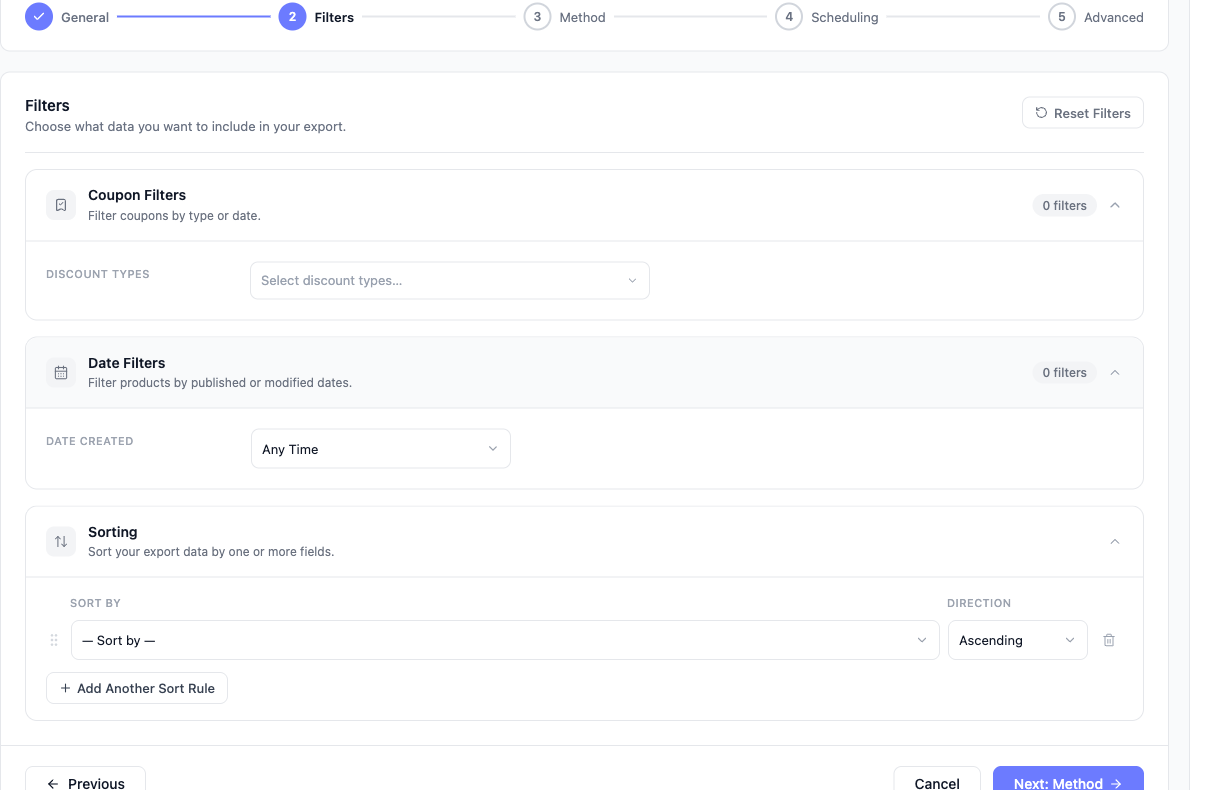
To set up a recurring coupon export, go to WooCommerce → Store Export, click Scheduled Exports in the sidebar, then click New Schedule. On the General step, give the schedule a name, set Export Type to Coupons, and choose an Export Format.
On the Filters step, you get the same two coupon-specific filters as Quick Export, under different names:
- Coupon Filters: Pick one or more Discount Types to include.
- Date Filters: Set Date created to Any Time, Last 7 Days, Last 30 Days, Yesterday, Today, or Custom Range.
A Sorting panel is also available here, with a separate Sort by list and Direction list for each rule, plus Add Another Sort Rule if you need more than one. From there, continue through Method and Scheduling to set the delivery method and frequency, the same way you would for any other scheduled export. For detailed instructions, see How to schedule exports.
Supported export formats
Quick Export offers CSV, TSV, XLS, XLSX, and XML for coupon exports. Scheduled Exports offers all of those plus RSS 2.0 and JSON. If you need JSON or RSS output, set up a scheduled export instead of using Quick Export.
Troubleshooting
Frequently asked questions
Related resources
Need more help?
If you’re using Store Exporter Deluxe and run into an issue this article doesn’t cover, open a support ticket and our team will help you get your coupon export working.
If you’re using the free Store Exporter plugin, ask on the WordPress.org support forum and our team will get back to you there.
