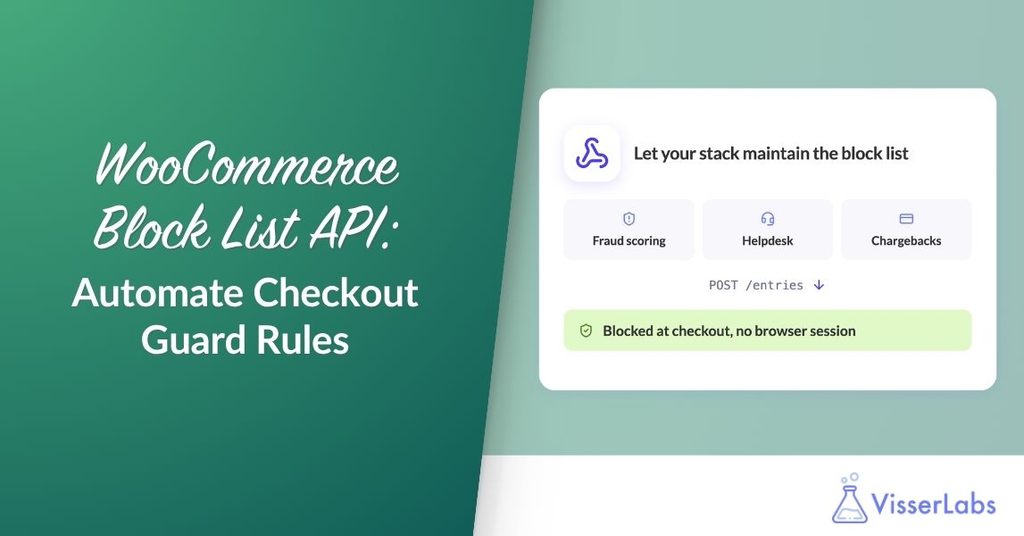
Checkout Guard now has a documented WooCommerce block list API. Your fraud tool, helpdesk or sync script can add, remove and look up blocking rules without a browser session. A customer can be blocked the moment something else in your stack decides they should be.
The WooCommerce block list API is documented for the first time in Checkout Guard 1.0.2, which also adds the /check and batch endpoints, under the cgfw/v1 namespace. It is the same set of routes the plugin’s own admin screen uses, which matters more than it sounds. There is no second implementation to drift out of step with what actually happens at checkout.
Table Of Contents
- What The WooCommerce Block List API Is For
- Authenticating With An Application Password
- The Endpoints
- What A Rule Can Contain
- Creating Rules Without Creating Duplicates
- Syncing A Whole List In One Request
- Asking Whether A Customer Would Be Blocked
- Finding Rules, And Knowing Where They Came From
- What The API Will Refuse
- Conclusion
- Frequently Asked Questions
What The WooCommerce Block List API Is For
Most block lists start by hand. Someone places an order you did not want, you open the admin, and you add them.
That works while the volume is low and the decisions are yours. It stops working when the signal lives somewhere else. A fraud-scoring service flags an order. Your helpdesk agent closes a ticket about an abusive customer. A chargeback lands in your payment provider. In each case something already knows the person should be blocked, and the only missing piece is a way to say so without a human opening WordPress.
That is the gap this closes. The WooCommerce block list API is built for machine callers: no cookie, no nonce, no admin screen.
Authenticating With An Application Password
Automated callers authenticate with a WordPress Application Password over HTTP Basic Auth. There is no separate Checkout Guard key to create.
Per the WordPress documentation on application passwords, you create one under Users → Profile → Application Passwords, give it a name such as Checkout Guard automation. Copy the generated value. It is shown once, in the form xxxx xxxx xxxx xxxx xxxx xxxx, and the spaces are part of it. Use the account’s login name as the Basic Auth username and that password as the Basic Auth password.
One requirement is easy to miss. Every route on the WooCommerce block list API checks the manage_woocommerce capability, so the account behind the Application Password has to be an Administrator or a Shop Manager. A password belonging to any other user authenticates perfectly well and is then refused with a 403. Missing credentials give you a 401 instead, which is a useful way to tell the two failures apart.
Application Passwords need WordPress 5.6 or newer and a site served over HTTPS. Checkout Guard itself supports WordPress 5.2, so on a 5.2 to 5.5 site this authentication path does not exist.
The Endpoints
Eight routes make up the WooCommerce block list API, covering the block list and its settings.
| Method | Route | Purpose |
|---|---|---|
| GET | /entries | List entries, optionally filtered |
| POST | /entries | Create an entry, idempotent |
| POST | /entries/batch | Bulk create and delete |
| PUT | /entries/{id} | Update an entry by id |
| DELETE | /entries/{id} | Delete an entry by id |
| POST | /check | Would this customer be blocked? |
| GET | /settings | Read settings |
| POST | /settings | Update settings |
The base URL is https://your-store.example.com/wp-json/cgfw/v1. If those URLs return a 404, check your site’s REST prefix, because /wp-json/ is the default rather than a guarantee. A site on plain permalinks uses the ?rest_route= form instead.
Listing the namespace shows two more routes, /license and /license/activate. Those belong to the plugin’s own licence activation screen rather than the block list, and they are not part of the API described here.
What A Rule Can Contain
A blocked entry carries an id, an optional first and last name, an optional email, an optional IP address, and optional notes of up to 140 characters. It also records the id of the user who created it, and a provenance field. At least one of the name, email or IP fields has to be filled in. The IP field is new in 1.0.2, and our guide to blocking an IP address in WooCommerce covers how the address is resolved at checkout.
An entry blocks a customer when any of its populated fields match. Both names match, or the email matches, or the IP address matches. Names and emails compare case-insensitively. The customer’s IP at checkout is resolved through WooCommerce’s geolocation helper so a proxy or CDN in front of your store does not break the comparison.
Name, email and IP values each accept a * wildcard, so one rule can cover a whole email domain or an IPv4 range. IP wildcards are narrower than the others: IPv4 segment form only, so 192.168.1.* works and 2001:db8::* does not. Our guide to blocking an email domain in WooCommerce covers what the asterisk does and the values Checkout Guard refuses to save.
The notes field deserves a note of its own. It is an API field. It appears as a column in the Blocked Entries table, and it is where that column gets its content, but there is no notes input in the add-entry dialog. If you want your rules to explain themselves later, the API is the way to set that.
Creating Rules Without Creating Duplicates
POST /entries is idempotent, which is the property that makes it safe to call from something you do not fully control.
If an entry with the same email already exists, it is updated with whatever non-empty fields you send and returned to you. With no email, the same first and last name identifies the entry. With neither, the same IP address does. Calling it twice with the same email gives you exactly one entry, not two.
curl -X POST https://your-store.example.com/wp-json/cgfw/v1/entries \
  --user "shopmanager:xxxx xxxx xxxx xxxx xxxx xxxx" \
  -H "Content-Type: application/json" \
  -d '{"email":"[email protected]","notes":"chargeback fraud"}'
Blocking purely on a connection works the same way.
curl -X POST https://your-store.example.com/wp-json/cgfw/v1/entries \
  --user "shopmanager:xxxx xxxx xxxx xxxx xxxx xxxx" \
  -H "Content-Type: application/json" \
  -d '{"ip_address":"203.0.113.42","notes":"repeat spammer"}'
What we’ve seen: the integrations that cause trouble are the ones that assume a create is a create. A retry after a network timeout, a webhook delivered twice, a nightly job that re-sends yesterday’s rows, and suddenly a block list has four copies of the same person and no one can tell which one is current. Idempotency on email, name and IP is what stops that, so send the identifying field every time rather than only on the first call.
Syncing A Whole List In One Request
POST /entries/batch takes a create array and a delete array, which is the shape you want when another system owns the list and WordPress is the follower.
{
  "create": [
    { "email": "[email protected]", "notes": "ring leader" },
    { "first_name": "Jane", "last_name": "Doe" }
  ],
  "delete": [ "11112222-3333-4444-5555-666677778888" ]
}
Creates run first, each through the same idempotent path as a single create, then deletes by id. At least one of the two arrays has to be non-empty. The response tells you what happened rather than making you diff the list yourself:
{
  "created":   [ { "id": "…", "email": "[email protected]" } ],
  "deleted":   [ "11112222-3333-4444-5555-666677778888" ],
  "not_found": [],
  "skipped":   0
}
not_found collects delete ids that matched nothing. skipped counts create payloads that were ignored because they carried no name, email or IP, or because their IP was non-empty and invalid. A batch containing bad rows still returns 200, so read skipped rather than trusting the status code alone.
Asking Whether A Customer Would Be Blocked
POST /check answers the question directly, and it runs the same matching code as the live checkout guard. The answer cannot drift away from what a real shopper experiences, which is the point of it existing rather than you reimplementing the logic.
curl -X POST https://your-store.example.com/wp-json/cgfw/v1/check \
  --user "shopmanager:xxxx xxxx xxxx xxxx xxxx xxxx" \
  -H "Content-Type: application/json" \
  -d '{"email":"[email protected]"}'
The response is { "blocked": true, "matched_entry": { … } }, with matched_entry set to null when nothing matched. Knowing which rule caught someone is usually more useful than knowing that something did.
This endpoint is deliberately stricter than the others. A candidate is a real customer value, never a pattern, so a * in any field is rejected with a 400. Rule lookups go the other way: GET /entries?email=*@example.com finds that exact stored rule, because lookups compare literally and never expand a wildcard.
Finding Rules, And Knowing Where They Came From
GET /entries with no parameters returns everything. Add email, first_name, last_name or ip_address to filter, combined with AND when you send more than one, and compared case-insensitively.
Each entry also carries a source field recording where it came from: api when it was created through an Application Password, and admin otherwise. When a block list is maintained by both people and machines, that distinction is what lets you audit one without disturbing the other.
The settings endpoints round things out, though there is only one setting to read or write. checkout_denial_message is the message a blocked shopper sees, and it cannot be empty.
What The API Will Refuse
Four rejections are worth knowing before you wire anything up, because each one is deliberate.
- A malformed IP address is rejected with a
400on create and update, and skipped and counted on a batch. - Bare wildcards are refused everywhere. Stripping the asterisks, whitespace and separators from
*,*@*or*.*leaves nothing, and a rule matching every customer is an outage rather than a block. - More than five wildcards in a single value fails for the same reason.
- An entry with no name, no email and no IP is rejected, since there would be nothing to match on.
Conclusion
The WooCommerce block list API turns your rules from something you maintain into something your stack maintains for you. Same rules, same matching, same behaviour at checkout, reachable from whatever already knows a customer is trouble.
If you are new to the plugin, our introduction to Checkout Guard covers what the block list does. For the wider picture, our guide to WooCommerce data automation workflows and our walkthrough of exporting WooCommerce data to Zapier cover the other places automation pays off.
One last thing worth saying plainly. Blocked entries are personal data, and an IP address is an online identifier under the GDPR, which Recital 30 names directly. An API makes it easy to accumulate a great many of them quickly, so decide how long you keep them before you turn the tap on.
The WooCommerce block list API is available in Checkout Guard 1.0.2.
Frequently Asked Questions
How do I authenticate with the WooCommerce block list API?
Use a WordPress Application Password over HTTP Basic Auth. Create one under Users → Profile → Application Passwords, then send the account’s login name as the username and the generated password as the password. No cookie or nonce is needed.
Why am I getting a 403 when my credentials are correct?
Every route requires the manage_woocommerce capability. An Application Password belonging to a user without it authenticates successfully and is then refused. Use an Administrator or Shop Manager account. A 401 means no credentials arrived at all.
Will calling the create endpoint twice add a duplicate?
No. POST /entries is idempotent. An entry with the same email is updated and returned rather than duplicated. The same applies to a matching first and last name when no email is given, or a matching IP address when neither is given.
Can I sync my whole block list from another system?
Yes. POST /entries/batch accepts a create array and a delete array in one request and returns a summary of what was created, deleted, not found and skipped. Creates run before deletes.
Does the WooCommerce block list API use the same blocking logic as the checkout?
Yes. POST /check reuses the same matching code as the live checkout guard, so its answer cannot drift from what a real customer experiences. It returns whether the customer is blocked and which entry matched.
Can I use wildcards through the API?
Yes, in rule values. Name, email and IP fields accept a * wildcard on create and update. The /check endpoint is the exception and rejects wildcards, because a check candidate is a real customer value rather than a pattern.