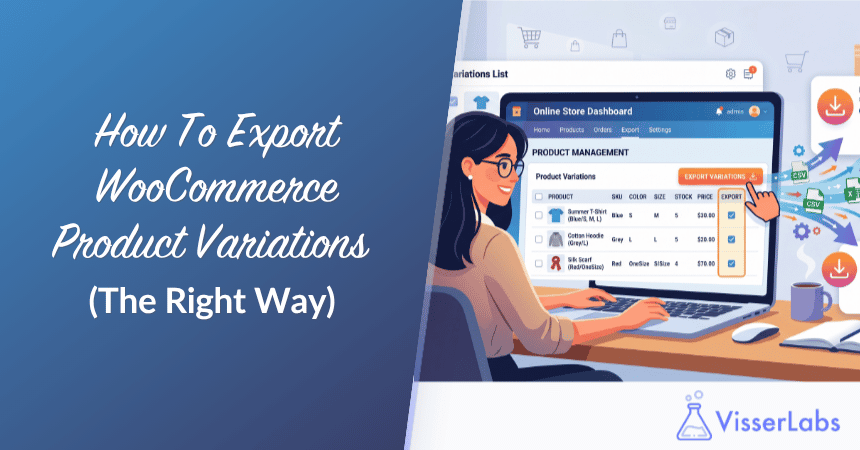
Trying to export WooCommerce product variations cleanly trips up a lot of store owners, and we see the same pattern over and over in support tickets and forums. A store owner needs a full report of which SKU-size-color combinations are selling and which are collecting dust. They spend hours stitching together the WooCommerce native export with a free plugin or two, and they still can’t get the parent products to line up with their variations. The fix usually comes down to one thing: using an export tool that understands variable product structure from the start.
Variable products have a nested structure that most export tools weren’t built for. You have a parent (the t-shirt) and children (each size and color combination), and the attribute values, per-variation prices, per-variation stock levels, and variation-specific images all live on the children rather than the parent. Flatten that into a single row and you lose the detail that made the export worth running in the first place.
In this article, we’ll cover why variable product exports are different, what a proper variation export looks like, the step-by-step method using Store Exporter Deluxe, a worked t-shirt example, and the most common use cases (supplier feeds, store migrations, bulk price edits, and variation-level sales reports).
Table of Contents
- Why Variable Product Exports Are Different
- What You’ll Get in a Proper Variation Export
- Method 1: Export Variations With Store Exporter Deluxe
- Worked Example: Exporting a T-Shirt With 12 Variations
- Method 2: Native WooCommerce Export and Why It Falls Short
- Use Case: Building a Supplier Catalog or Product Feed
- Use Case: Migrating to a New Store
- Use Case: Bulk Editing Variation Prices
- Use Case: Variation-Level Sales Reports
- Exporting Images for Variations
- What To Do With the Exported CSV
- Frequently Asked Questions
- Start Exporting WooCommerce Product Variations
Why Variable Product Exports Are Different
A variable product in WooCommerce is two records, not one: a parent record (the “Classic Cotton Tee”) and a child record for each variation (small/black, small/white, medium/black). The parent carries the shared data like title, description, category, and parent SKU. The children carry the variation-specific data: variation SKU, regular and sale price, stock quantity, weight, dimensions, and featured image.
WooCommerce also stores attributes in two ways. Global attributes (like “Color” and “Size”) are defined once at the site level and applied across many products. Per-product attributes are defined on a single product for one-off specs like “Edition” or “Bundle Contents”. A clean export needs to handle both correctly.
The native WooCommerce CSV export was built around simple products, and variation support is inconsistent. Depending on your WooCommerce version and the options you tick, variations can end up on separate rows, merged into the parent row, or missing entirely. That’s the gap a dedicated export tool fills.
What You’ll Get in a Proper Variation Export
Before jumping into the steps, here’s what the output should look like when the export is done right.
- Row structure: parent product sits on its own row, and each variation sits on its own row directly below. No merged cells, no nested headers.
- Attribute columns: one column per attribute (Size, Color, Material). The parent row leaves these empty. Each variation row has its specific value, like “Small” and “Black”.
- Per-variation pricing: regular price and sale price appear on each variation row, not on the parent.
- Per-variation stock: stock quantity and stock status per variation row, so you can see which specific size-color combination is low.
- SKUs: the parent SKU on the parent row (for example, TEE-CLASSIC), and a variation SKU on each child row (TEE-CLASSIC-S-BLACK, TEE-CLASSIC-M-NAVY, and so on).
- Featured images: the variation image URL on each child row where one is set. The parent image acts as the fallback.
- Parent-child link: a parent column referencing the parent SKU or post ID on every variation row, so reimport tools can rebuild the relationship on the destination store.
What We’ve Seen: The single most common failure when you export WooCommerce product variations is the lost parent-child relationship. A store owner ends up with a CSV full of variation rows and no way to tell which parent each one belongs to. Every time we trace this back across support tickets, it’s the same cause: the export tool flattened variable products into simple products and stripped out the nested data. Store Exporter Deluxe keeps the full structure because it was built with variable products in mind from the start.
Method 1: Export Variations With Store Exporter Deluxe
When you need to export WooCommerce product variations cleanly, this is the method we recommend whenever a store has more than a handful of variable products. Native support for the full parent-child structure, attribute columns that map correctly, and no post-processing needed before the file is usable.
Step 1: Install Store Exporter Deluxe
Purchase Store Exporter Deluxe and upload the ZIP through WordPress admin, Plugins, Add New, Upload Plugin. Activate the plugin, then enter your licence key and activation email on the Visser Labs license settings page.
Step 2: Open the Quick Export tab and find the Products section
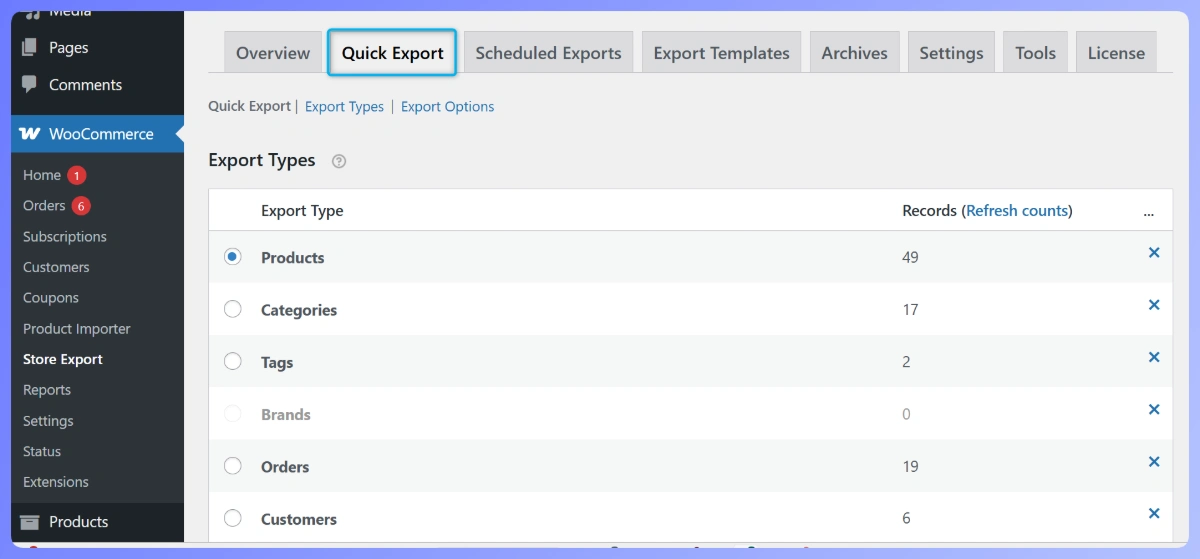
Go to WooCommerce, Store Export, then open the Quick Export tab and scroll to the Products section. Store Exporter Deluxe opens to a multi-panel screen with format, field, and filter options.
Step 3: Filter Product Type to variable and variation
In the Product Type filter, tick both “variable” and “variation”. The parent products carry the “variable” type, and the children carry the “variation” type, so you need both ticked to get the full structure. If you tick only “variable” you’ll get parent rows with no per-variation detail. If you tick only “variation” you’ll get child rows with no parent context.
Step 4: Select the fields you need
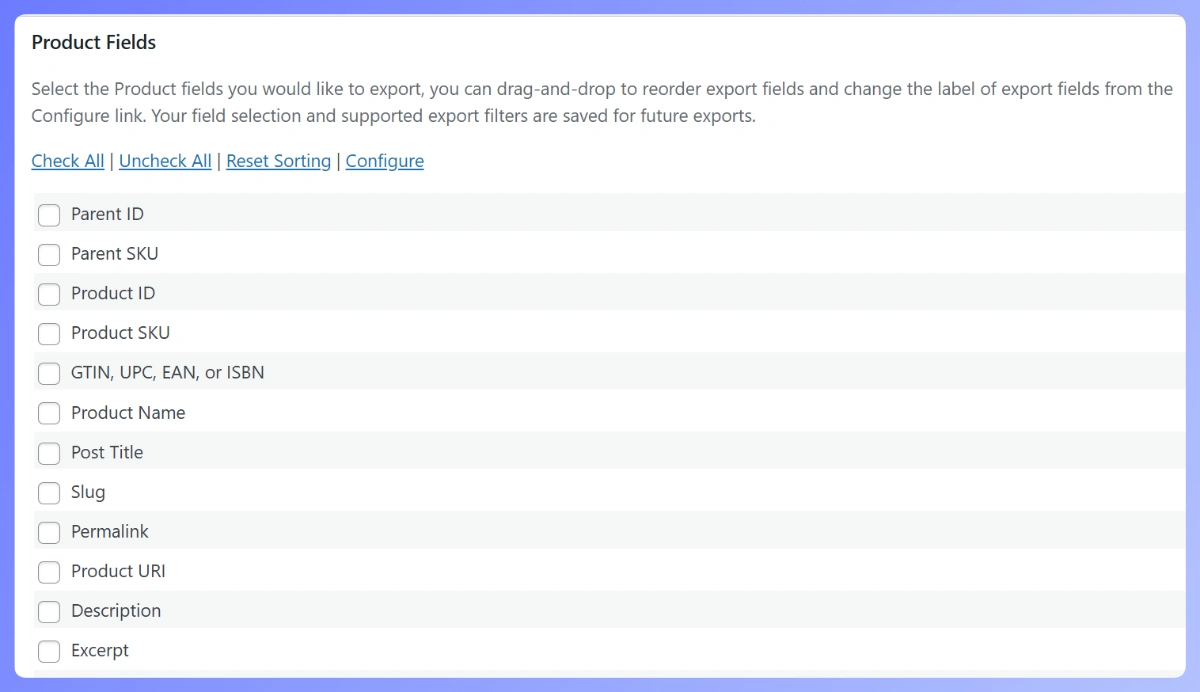
Tick the fields that matter for your use case. A solid starting set for a reimportable variation export: product name, SKU, parent SKU, product type, regular price, sale price, stock quantity, stock status, weight, dimensions, featured image URL, plus every attribute column your catalog uses (Size, Color, Material, Style, whatever applies).
If your catalog includes per-product attributes alongside global attributes, Store Exporter Deluxe handles both. Global attributes (defined under WooCommerce, Attributes) get their own dedicated columns named after the attribute. Custom per-product attributes (defined ad-hoc on a single product) are folded into a single Product Attributes column, which keeps the spreadsheet tidy when most products only have one or two unique specs.
Step 5: Choose the right format
CSV is the right choice when you’re going to reimport the file or send it to a system that expects comma-separated data. XLSX is the right choice when the recipient is opening the file in Excel directly and you want dates and currency to render without fuss. Store Exporter Deluxe supports 7 formats (CSV, TSV, XLS, XLSX, XML, RSS, and JSON), so match the format to the downstream tool.
Step 6: Run the export
Click Export. Store Exporter Deluxe generates the file and offers it as a download. Open the file and scan the first few rows to confirm the parent product sits on its own row and the variations follow immediately below with attribute columns populated.
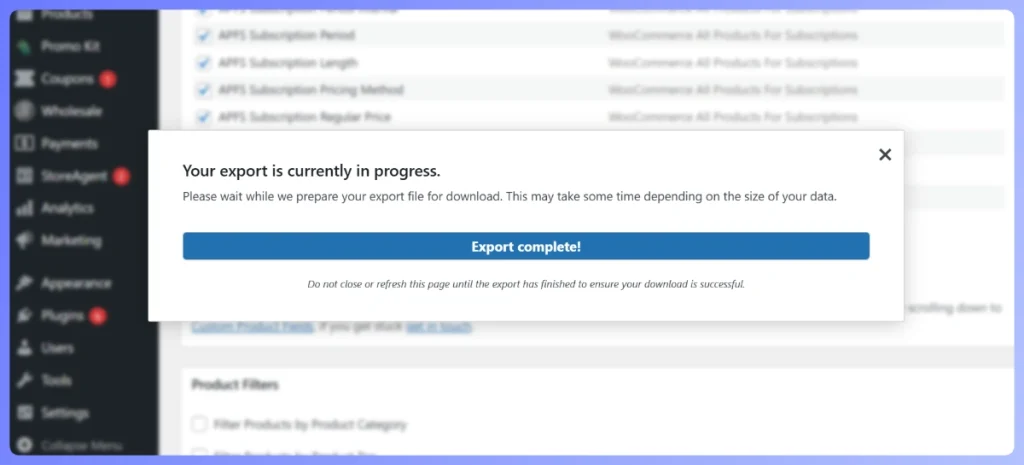
When you export WooCommerce product variations on a catalog with hundreds of variable products and thousands of total variations, the CSV comes out the same way: every parent on its own row, every variation immediately below, and all the attribute columns (Size, Color, Material, Style) populated correctly.
Worked Example: Exporting A T-Shirt With 12 Variations
A concrete example makes this easier to picture. Say you have one parent product called “Classic Cotton Tee” with 3 sizes (S, M, L) and 4 colors (Black, White, Navy, Heather). That’s 3 times 4 equals 12 variations, plus the parent itself equals 13 rows in your export.
Here’s how those rows look.
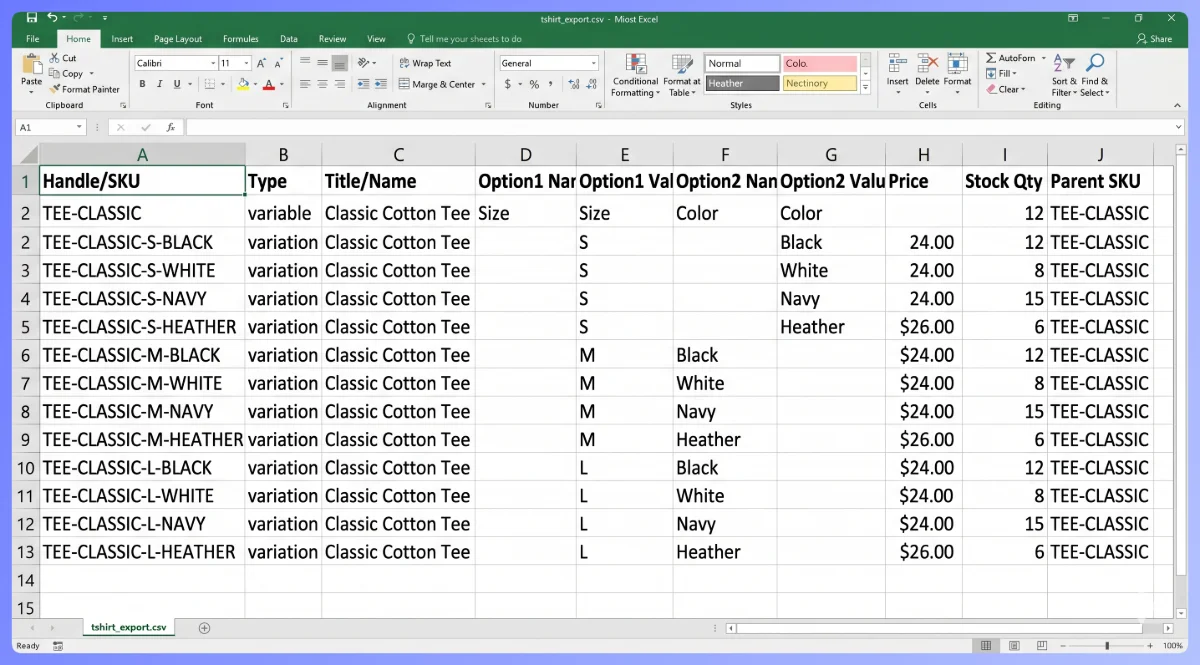
Row 1 (parent product):
- Name: Classic Cotton Tee
- SKU: TEE-CLASSIC
- Type: variable
- Size: (empty on parent row)
- Color: (empty on parent row)
- Regular price: (empty, per-variation only)
- Stock: (empty, per-variation only)
- Parent SKU: (empty, this is the parent)
Rows 2 to 13 (variations):
- TEE-CLASSIC-S-BLACK, type variation, Size S, Color Black, price $24.00, stock 12, parent SKU TEE-CLASSIC
- TEE-CLASSIC-S-WHITE, type variation, Size S, Color White, price $24.00, stock 8, parent SKU TEE-CLASSIC
- TEE-CLASSIC-S-NAVY, type variation, Size S, Color Navy, price $24.00, stock 15, parent SKU TEE-CLASSIC
- TEE-CLASSIC-S-HEATHER, type variation, Size S, Color Heather, price $26.00, stock 6, parent SKU TEE-CLASSIC
- TEE-CLASSIC-M-BLACK, type variation, Size M, Color Black, price $24.00, stock 22, parent SKU TEE-CLASSIC
- …and so on through L-Heather.
Title and description carry from the parent (you don’t duplicate them on every variation row). SKU, price, stock, weight, and featured image are per-variation only. The parent SKU column on each variation row is what lets a reimport tool rebuild the relationship on the destination store.
The easiest way to spot-check the export is to sort the CSV by parent SKU once it’s open in Excel. That groups each product family together and makes gaps obvious. Miss a size-color combo? You’ll see it immediately.
If your variation counts get large (50+ variations per product, thousands of variations across the catalog), export in chunks. Store Exporter Deluxe lets you filter by category or product range, so you can split a huge catalog into category-sized files that are easier to review and reimport.
Method 2: Native WooCommerce Export And Why It Falls Short
If you haven’t installed a dedicated export plugin yet, you can try the built-in WooCommerce export. It’s available under Products, All Products, Export. For simple products the output is fine. For variable products it gets messy.
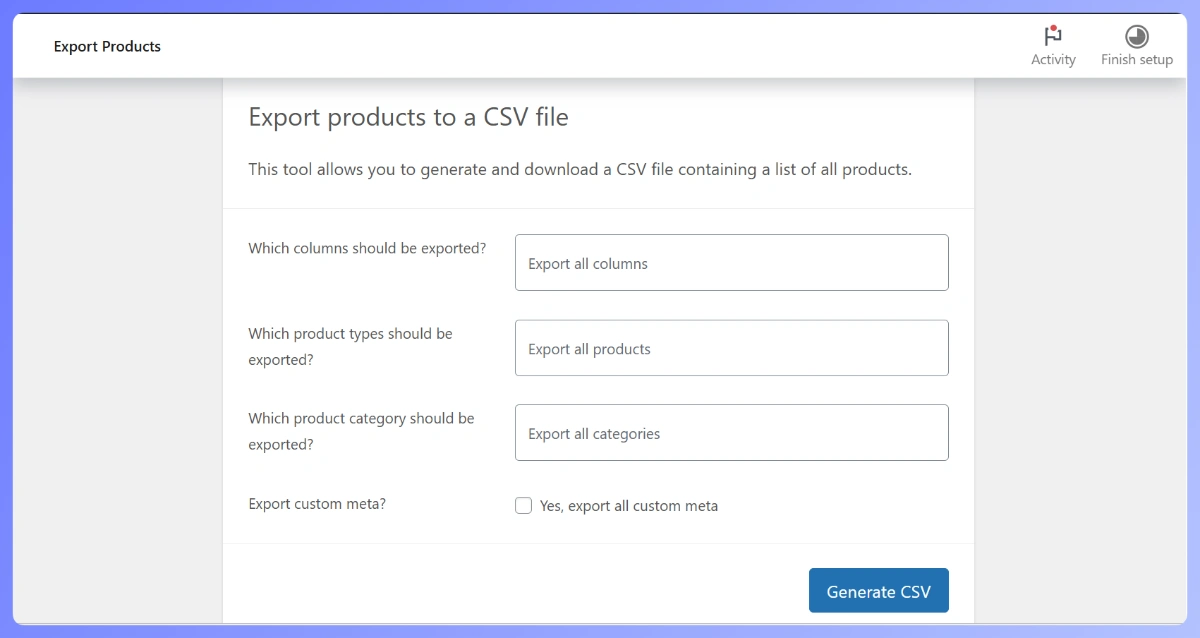
Here’s what typically happens. You click Export, choose the fields, and hit the button. The resulting CSV lists your variable products as rows, but variation-level detail is inconsistent. Depending on your WooCommerce version and how you configured the export, you may get attribute slugs instead of display values, variations dumped into a separate section at the bottom of the file, or per-variation stock and pricing missing entirely unless you explicitly ticked those options.
The attribute column gotcha catches people most often. The native export writes attribute values as slugs (like “navy-blue” and “small”) rather than display labels (like “Navy Blue” and “Small”). That’s technically correct for reimport, but it means your accountant or supplier sees a column of ugly slugs instead of clean product specs.
Honest assessment: the native export works for simple products. For variable products you’re going to spend more time cleaning up the file than it would have taken to install a proper export plugin. For the broader simple-product walkthrough, see the general product export walkthrough.
Use Case: Building A Supplier Catalog Or Product Feed
One of the most common reasons to export WooCommerce product variations is sending a catalog to a supplier, dropship partner, or marketplace. They want a CSV with every variation, every SKU, every price, and every attribute so they can load it into their warehouse or feed system.
Field selection for a supplier feed: SKU, parent SKU, title, description, attribute values per variation, per-variation regular price, per-variation stock, image URL. Skip internal-only fields like menu_order and WordPress post IDs. They clutter the file and aren’t useful to the supplier.
Filter to published products only. Drafts, private products, and trash don’t belong in a supplier feed. Store Exporter Deluxe has a product status filter in the same panel as the product type filter.
For a homewares store with a 600-variation catalog, exporting the feed as XLSX (when the supplier prefers Excel over CSV), ticking the “published only” filter, and sending the file through is a one-shot workflow. We’ve seen suppliers import these feeds straight into their warehouse system without a single mapping issue. One export, one send, done.
Use Case: Migrating To A New Store
Catalog migrations are the other big reason to export WooCommerce product variations. Moving from one WooCommerce install to another, or from Shopify to WooCommerce, or from a legacy platform to a fresh build all involve the same problem: get the full product structure out of the source, into a clean file, and back in at the destination.
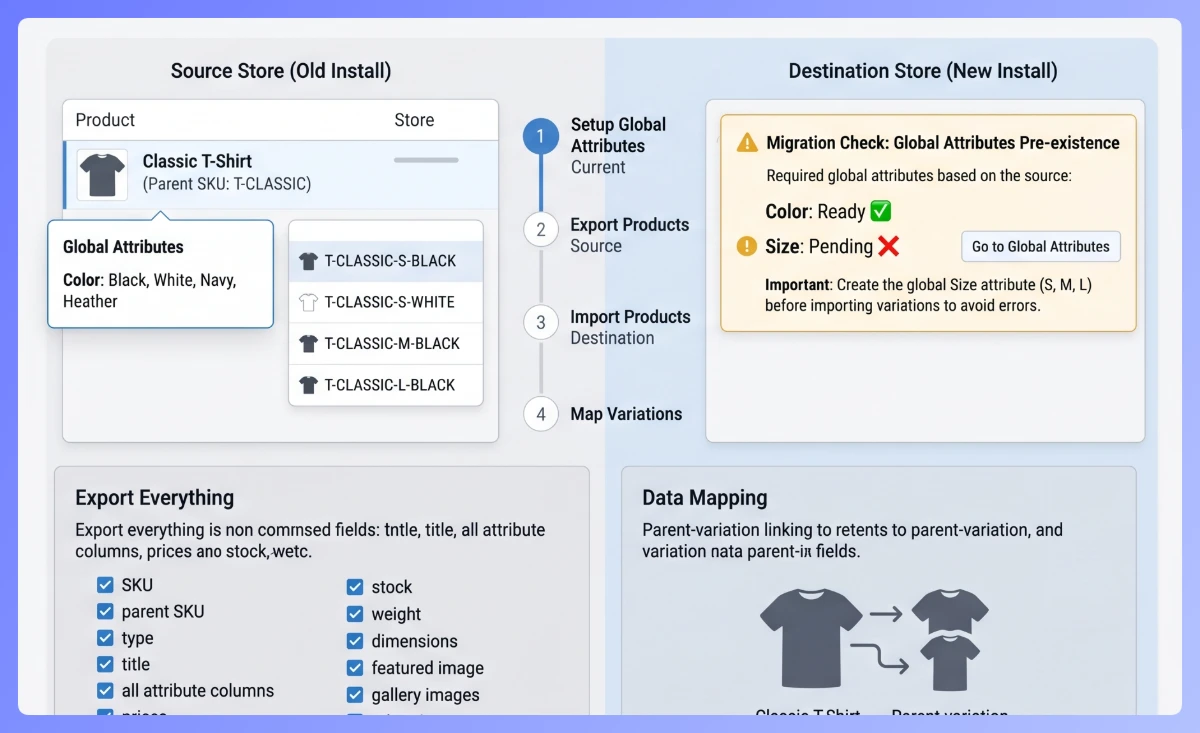
For a migration, export everything. Parent SKU, variation SKU, type, title, description, all attribute columns, regular and sale price, stock, weight, dimensions, featured image URL, gallery image URLs if they export. You can trim fields after the fact on the destination side, but you can’t go back and re-add data you didn’t export in the first place.
One migration gotcha that trips people up: global attributes need to exist on the destination store before variations can import cleanly. If your source has a “Color” global attribute with values like “Black”, “White”, “Navy”, and “Heather”, the destination needs the same attribute defined, ideally with the same slug, before you run the import. Set up the global attributes first, then run a small test import with 5 to 10 products to confirm mappings, then migrate the full catalog.
For the import side of the workflow, see importing variable products.
Use Case: Bulk Editing Variation Prices
A supplier cost change, a seasonal price adjustment, or a clearance sale across hundreds of variations are all painful to handle through the WooCommerce admin one variation at a time. Before pushing a price change like that, it’s worth sanity-checking the numbers — this wholesale pricing formula guide covers how to calculate wholesale prices that still protect your margin. The export-edit-reimport workflow turns an afternoon of clicking into a 20-minute job.
Export your variations to CSV. Open in Excel or Google Sheets. Apply a formula across the price column: =ROUND(D2*1.10, 2) for a 10% increase, or =ROUND(D2*0.85, 2) for a 15% sale discount. Copy the formula values back into the price column as plain values (paste special, values only), save the file, and reimport.
One safety tip worth following: always keep a copy of the original export before reimporting. Save it as “original-DATE.csv” and the edited file as “edited-DATE.csv”. If the reimport breaks something, you have the pre-change state to restore from.
Use Case: Variation-Level Sales Reports
Most stores ask “which products are selling?” The better question is “which specific variations are selling?” A variable product that looks healthy at the parent level can have one hero variation doing 80% of the revenue and eleven dead ones.
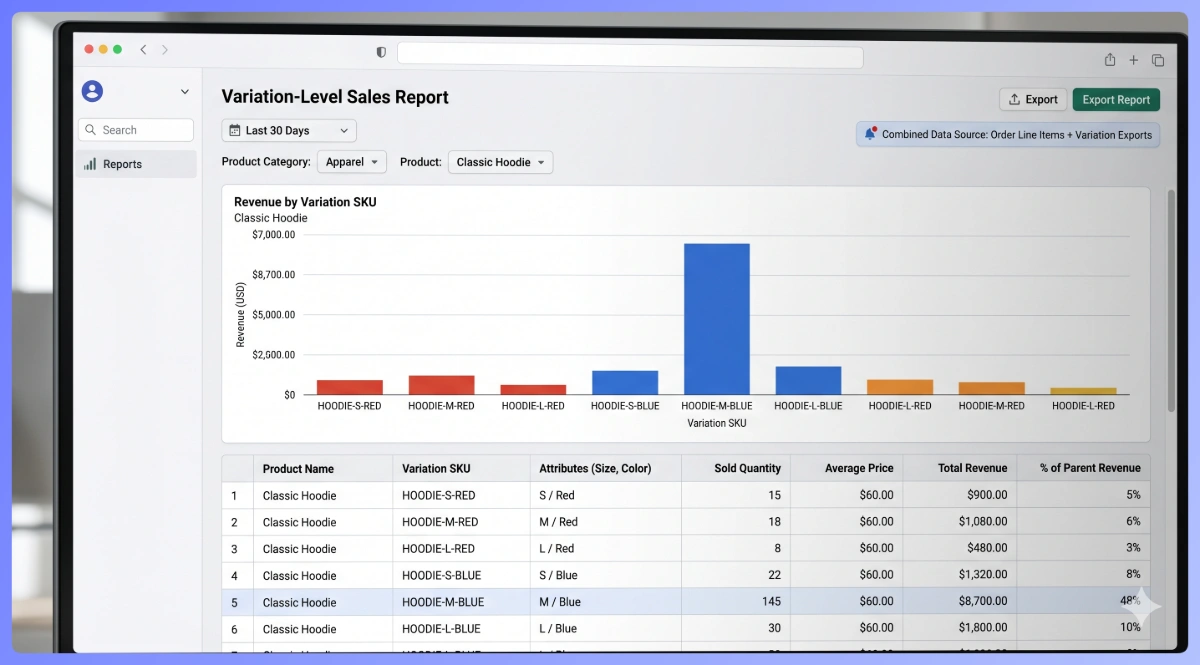
To run a variation-level sales report, you need two exports: a variation export from Store Exporter Deluxe for product structure, and an order line item export for sales data. Match on variation SKU using a VLOOKUP or pivot table. Each variation SKU maps to its sold quantity and revenue.
This kind of report changes decisions. We’ve seen apparel stores nearly discontinue a color based on parent-level sales numbers, only to find at the variation level that one specific size-color combination in that range was driving a big share of the revenue. The dead stock turned out to be three other variations entirely. Without variation-level data, the call would have gone the wrong way.
For the order side of the workflow, see exporting orders to Excel.
Exporting Images for Variations
Variations can have their own featured image, which is what swaps out the product image on the storefront when a shopper picks a size-color combo. The CSV should include the image URL per variation row so a reimport rebuilds that image mapping.
Global vs per-variation behavior: the parent featured image acts as a fallback when a variation doesn’t have its own image, provided the plugin’s variation formatting option is enabled. If every variation has a featured image set, the parent image is only used on the main product page before a shopper picks a variation.
For gallery images (multiple images per variation), you’ll want a dedicated gallery export. Store Exporter Deluxe supports this separately, and the variation export covers featured images only. For the gallery side, see exporting WooCommerce product gallery data. For general image URL export guidance, see exporting WooCommerce products with images.
What To Do With the Exported CSV
Once the file is out of WooCommerce, the downstream options open up.
- Excel or Google Sheets analysis: pivot tables on size, color, price tier. Conditional formatting on stock quantity to flag low-stock variations. Chart the revenue split by attribute value.
- Reimport as updates: edit prices, stock, descriptions, and push the file back into WooCommerce through a CSV import tool. Keep the parent SKU column intact so variations map to the right parents.
- Migration to a new store: import on the destination site with a tool that handles variable products natively.
- Send to accountant or supplier: XLSX is the preferred format for non-technical recipients. Excel opens it cleanly without import wizards.
- Archive: keep a monthly export as a catalog snapshot. Useful for compliance, historical reference, and reconstructing state if something goes sideways.
Scheduled exports turn the archive use case into a no-touch workflow. Store Exporter Deluxe supports scheduled exports with FTP or email delivery, so a monthly variation snapshot can land in your cloud storage or inbox without anyone opening WooCommerce.
Start Exporting WooCommerce Product Variations
Variable products need an export tool that understands their structure. The native export was built around simple products and flattens the parent-child relationship when you run it on a variable catalog. Store Exporter Deluxe keeps the parent on its own row, every variation on its own row, and every attribute column populated.
Here’s a quick recap of what we covered:
- Why variable products need a different export approach to simple products
- What a clean variation export looks like (parent row, variation rows, populated attribute columns)
- The six-step Store Exporter Deluxe method for a reimportable variation CSV
- A worked t-shirt example with 12 variations to validate your own structure
- Use cases for supplier feeds, store migrations, bulk price edits, and variation-level sales reports
- How to export featured images per variation and where gallery exports come in
With these steps in place, you can export WooCommerce product variations into a clean file in minutes, edit or analyse it in Excel, and reimport it without breaking the parent-child relationship.
If you’re ready to export WooCommerce product variations without the parent-child headaches, explore Store Exporter Deluxe plans and pricing today, with a 14-day money-back guarantee.
Does WooCommerce’s built-in export support variations?
Partially. The built-in export lists variable products and can include variations, but per-variation detail (stock, attribute values, featured images) is inconsistent and often requires manual fixing after the fact. For reimport-ready variation exports, a dedicated plugin handles the structure natively.
Can I export just the variations without the parent rows?
Yes. Store Exporter Deluxe lets you filter Product Type to “variation” only, which gives you variation rows without parent rows. For a reimport workflow, though, you’ll want the parent rows included so the destination store can rebuild the parent-child relationship. Variation-only exports are mainly useful for analysis (sales reports, stock audits) where the parent metadata isn’t needed.
How do I handle products with 50+ variations?
Same export flow. Store Exporter Deluxe handles high-variation counts without issue. The file will be larger, so expect a bigger CSV or XLSX download. If you’re on a slow server, increase your PHP memory limit before running very large exports.
What’s the difference between global attributes and per-product attributes in the export?
Global attributes are defined once at the site level (WooCommerce, Attributes) and shared across many products. They export as their own dedicated columns named after the attribute (Size, Color, Material). Custom per-product attributes are defined ad-hoc on a single product for one-off specs and are folded into a single Product Attributes column. Store Exporter Deluxe distinguishes between the two and labels columns accordingly.
Can I export variations for reimport into a different store?
Yes. To export WooCommerce product variations for reimport into a different store, include parent SKU, variation SKU, type, attribute columns, and all per-variation fields. On the destination store, set up matching global attributes first, then run the import. A 5 to 10 product test import is a good idea before migrating the full catalog.
Can I schedule variation exports to run automatically?
Yes. Store Exporter Deluxe lets you schedule exports to run automatically and supports delivery via email, FTP, or SFTP. This is useful when you need to export WooCommerce product variations on a recurring basis, like monthly catalog snapshots, weekly supplier feeds, or any other repeating workflow you’d otherwise run by hand.