
WooCommerce ships with a built-in product importer, and for a handful of simple products, it gets the job done. But when you need to import WooCommerce products in bulk, things get complicated fast. Variable products with multiple attributes, large catalogs, and updates to existing items without creating duplicates all push the built-in tool past its limits.
The native importer only supports CSV files, offers no scheduling, and frequently times out on large catalogs. Variable products are especially painful: attributes and variations can lose their mapping, leaving you with broken listings and hours of manual cleanup.
This guide walks you through every method available to import WooCommerce products, from the built-in importer to a dedicated plugin that handles the edge cases the native tool cannot. You will learn how to import simple products, variable products with full attribute mapping, and how to update existing products without duplicates. In this guide, you will find a clear breakdown of which approach fits your store’s needs.
- What Are Your Options For Importing WooCommerce Products?
- How To Import Products Using WooCommerce's Built-In Importer
- How To Import Products Using Product Importer Deluxe
- How To Import Variable Products In WooCommerce
- How To Update Existing Products Without Creating Duplicates
- Comparison: WooCommerce Built-In Importer Vs Product Importer Deluxe
What Are Your Options For Importing WooCommerce Products?
There are three main ways to import WooCommerce products into your store. Each comes with different trade-offs depending on your catalog size, technical comfort level, and how often you need to run imports.
| Method | Best For | File Formats | Variable Products | Scheduled Imports | Skill Level |
|---|---|---|---|---|---|
| WooCommerce built-in importer | Small catalogs, simple products | CSV only | Limited (often breaks) | No | Beginner |
| Product Importer Deluxe | Any catalog size, variable products, bulk updates | CSV, TXT, TSV | Full support with attribute mapping | Yes (via cron) | Beginner to intermediate |
| Direct database import (SQL) | Developer migrations | SQL | Manual setup required | Custom scripting | Advanced (developer only) |
For most store owners, the choice comes down to the built-in importer or Product Importer Deluxe. Direct database imports via SQL are technically possible, but they carry serious risk: one wrong query can corrupt your product data, and there is no undo button. We only recommend that approach if you have a developer managing the migration and a full database backup in place.
What We’ve Seen: The most common import mistake we see is store owners attempting to import variable products using the built-in WooCommerce importer and ending up with simple products instead. The attributes and variations fail to map correctly, and they spend hours manually recreating what should have been a 10-minute job. If your catalog includes variable products, using a dedicated import plugin saves significant time.
How To Import Products Using WooCommerce’s Built-In Importer
WooCommerce includes a basic product importer that works for straightforward scenarios. Here is how to use it.
Steps to import with the built-in tool
- In your WordPress dashboard, navigate to Products > All Products
- Click the Import button at the top of the page
- Upload your CSV file (this is the only format supported)
- Map the columns in your CSV to WooCommerce product fields
- Click Run the importer and wait for it to complete
For a small catalog of simple products, this process works well enough. That said, there are some important limitations you should know about before relying on it.
Limitations of the built-in importer
- CSV only: No support for TSV, TXT, or other delimited formats. If your supplier sends data in a different format, you need to convert it first.
- No scheduled imports: Every import must be triggered manually through the WordPress dashboard. There is no way to automate recurring imports.
- Variable products often break: Attributes and variations can lose their mapping during import, resulting in simple products instead of properly structured variable products.
- Times out on large catalogs: If you are importing hundreds or thousands of products, the built-in importer frequently times out before completing, especially on shared hosting.
- Limited merge/update capability: Updating existing products without creating duplicates requires careful setup and does not always work reliably.
- No remote file sources: You cannot import from a URL, FTP server, or server file path. The file must be uploaded directly through the browser.
Given these constraints, Product Importer Deluxe addresses all of them.
How To Import Products Using Product Importer Deluxe
Product Importer Deluxe is built specifically for WooCommerce stores that need more control over how they import WooCommerce products. It supports CSV, TXT, and TSV file formats, handles variable products with full attribute mapping, and gives you multiple import modes so you can add new products, update existing ones, or do both at the same time.
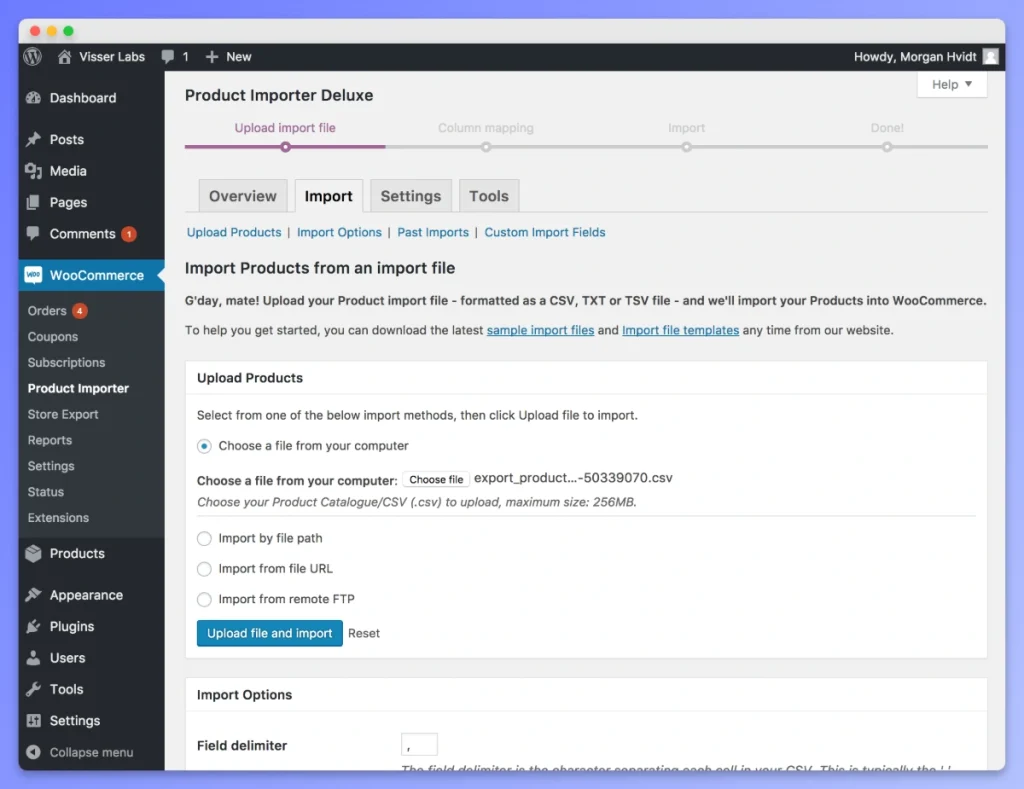
Here is how to set up and run your first import.
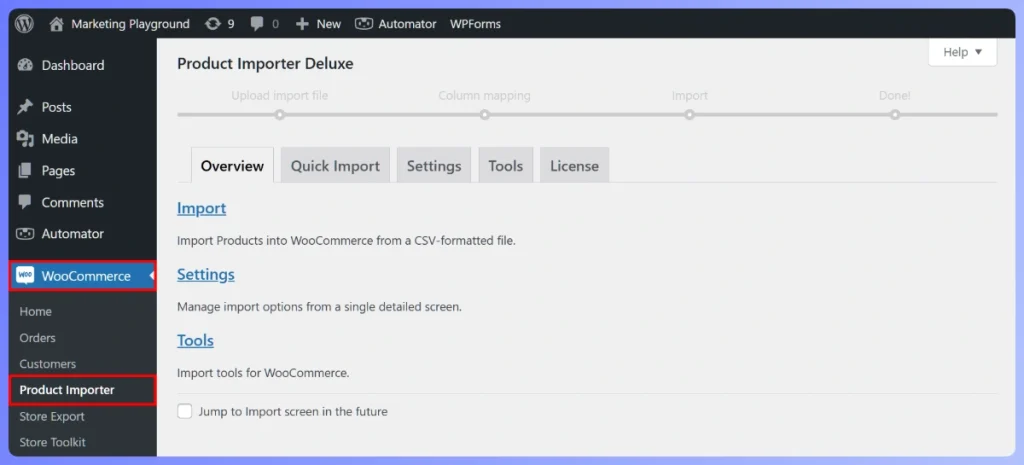
Install and activate
- Purchase Product Importer Deluxe from the Visser Labs pricing page — it is bundled with Store Exporter Deluxe at $79/year (intro pricing, normally $158/year)
- Download the plugin ZIP file from your account
- In WordPress, go to Plugins > Add New > Upload Plugin
- Upload the ZIP file and click Install Now
- Activate the plugin and enter your license key
A free version is also available on WordPress.org if you want to test the interface before purchasing.
Upload your import file (CSV, TXT, or TSV)
Product Importer Deluxe gives you four ways to provide your import file:
- Local upload: Upload a file directly from your computer through the browser
- Server file path: Point to a file already on your web server (useful for large files that would time out during upload)
- URL: Import directly from a remote URL (for example, a supplier’s product feed)
- Remote FTP/SFTP: Connect to an FTP or SFTP server to pull your import file
The plugin supports CSV, TXT, and TSV file formats. If your data source provides files in any of these formats, you can import them without conversion.
Map your columns
After uploading your file, Product Importer Deluxe reads the column headers and uses intelligent column and data type detection to automatically map them to WooCommerce product fields. In most cases, common headers like “SKU,” “Name,” “Price,” and “Description” are detected and mapped without any manual work.
For columns that do not match standard field names, you can manually assign them using the dropdown menus. This is also where you map custom metadata fields: any column that does not match a built-in WooCommerce field can be assigned to a custom meta key.
💡 For a full list of fields you can import, see the supported import fields documentation.
Choose your import mode (new, merge, update)
One of the most important decisions during import is choosing the right import mode. Product Importer Deluxe offers four modes:
- New products only: Only creates new products. Existing products (matched by SKU) are skipped entirely.
- New products + merge changes: Creates new products and updates existing products that match by SKU. This is the most common mode for ongoing imports.
- Merge changes only: Only updates existing products. No new products are created. Use this when you need to bulk-update prices, stock levels, or descriptions without adding new items.
- Delete referenced products: Removes products that match the data in your import file. Use this with extreme caution.
Fortunately, choosing the right mode prevents the most common import headache: duplicate products. If you are updating an existing catalog, use “merge changes only” or “new products + merge changes” to keep your store clean.
Handle product images
Product Importer Deluxe supports importing both featured images and product gallery images. Include the image URLs in your import file, and the plugin will download and attach them to each product during the import process.
The plugin also includes a feature image preview so you can verify that images are mapping correctly before running the full import. Gallery images can be specified as comma-separated URLs in a single column.
Run the import
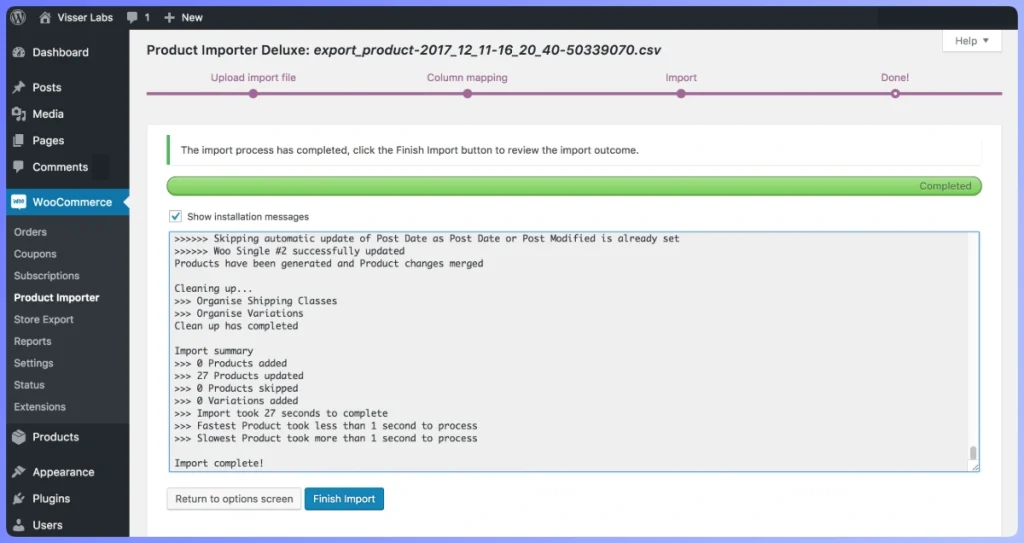
Once your columns are mapped and your import mode is selected, click the import button to start the process. Product Importer Deluxe provides real-time logging so you can monitor progress as each product is created or updated.
The log shows you exactly what happened with each row, whether a product was created, updated, or skipped, along with any warnings or errors. This makes troubleshooting straightforward compared to the built-in importer, which offers minimal feedback.
What We’ve Seen: The most frequent column mapping mistake we see is store owners mapping the product “Name” column to “Title” or vice versa, and mapping “Regular Price” to just “Price.” Product Importer Deluxe’s intelligent detection handles most of these automatically, but if you are working with a custom-formatted file from a supplier, always preview the first few rows after mapping to make sure the data looks correct before running the full import.
How To Import Variable Products In WooCommerce
Variable products are the single biggest pain point when you need to perform WooCommerce import products with complex structures. A variable product has a parent product (for example, a “T-Shirt”) and multiple variations (Small/Red, Medium/Blue, Large/Green), each with its own price, SKU, stock level, and image. Getting this structure right during import requires careful CSV formatting.
If you have worked with importing variable products in WooCommerce before, you already know the challenges. The built-in importer frequently drops attributes or flattens variable products into simple products. Product Importer Deluxe handles this reliably.
How the CSV structure works for variable products
In your import file, variable products require two types of rows:
- Parent row: This defines the variable product itself. Set the product type to “variable” and define the attributes (for example, Color and Size) with all possible values.
- Variation rows: Each variation gets its own row immediately after the parent. Set the product type to “variation” and specify the attribute values for that specific variation (for example, Color = Red, Size = Small), along with the variation’s price, SKU, and stock quantity.
In practice, this is what the structure looks like (example data):
| Type | SKU | Name | Attribute 1 Name | Attribute 1 Values | Regular Price |
|---|---|---|---|---|---|
| variable | TSHIRT-001 | Classic T-Shirt | Color | Red, Blue, Green | |
| variation | TSHIRT-001-RED | Classic T-Shirt – Red | Color | Red | 29.99 |
| variation | TSHIRT-001-BLUE | Classic T-Shirt – Blue | Color | Blue | 29.99 |
| variation | TSHIRT-001-GREEN | Classic T-Shirt – Green | Color | Green | 29.99 |
Product Importer Deluxe reads this structure and creates the parent product with its attributes, then attaches each variation correctly. The intelligent data type detection recognizes “variable” and “variation” product types and processes them accordingly.
Supported product types for import
Product Importer Deluxe supports importing the following product types:
- Simple products: Standard products with a single price and SKU
- Variable products: Products with attributes and variations
- Variations: Individual variations attached to a parent variable product
- External/Affiliate products: Products linked to an external URL
- Virtual products: Non-physical products that do not require shipping
- Subscriptions: Subscription products (requires WooCommerce Subscriptions)
This covers the full range of WooCommerce product types, including subscription products through the WooCommerce Subscriptions integration.
How To Update Existing Products Without Creating Duplicates
Updating existing products is just as important as importing new ones. Whether you need to bulk-update prices, adjust stock levels, or modify product descriptions, you want those changes applied to existing products, not creating a second copy of each item.
The key to avoiding duplicates is SKU matching. When Product Importer Deluxe processes your import file, it checks each row’s SKU against existing products in your store. If a match is found, the product is updated rather than duplicated.
Which import mode to use for updates
For updating existing products, you have two options:
- Merge changes only: The safest option for pure updates. Only products with matching SKUs are updated. Nothing new is created, and nothing is deleted. Use this when you want to update prices or stock across your existing catalog.
- New products + merge changes: Updates existing products by SKU match and creates any new products that do not have a matching SKU. Use this when your supplier file contains both new products and updates to existing ones.
Best practices for update imports
- Always include a SKU column: This is how the plugin matches rows to existing products. Without SKUs, the plugin cannot identify which products to update.
- Only include columns you want to change: If you only need to update prices, your import file only needs SKU and price columns. Empty columns in your file will not overwrite existing data.
- Test with a small batch first: Before running a large update, test with 5-10 products to confirm the results are what you expect.
- Export first, then import: Use Store Exporter Deluxe (bundled with Product Importer Deluxe) to export your current products. Edit the export file with your changes, then re-import it. This ensures your file structure matches perfectly.
This export-then-import workflow is one of the biggest advantages of having both tools bundled together. You can export your WooCommerce products in CSV, XLS, XLSX, or XML format, make your changes in a spreadsheet, and import the updated file back.
Comparison: WooCommerce Built-In Importer Vs Product Importer Deluxe
Here is a detailed comparison of the two main import methods so you can see exactly where each one fits and where it falls short.
| Feature | WooCommerce Built-In Importer | Product Importer Deluxe |
|---|---|---|
| File formats | CSV only | CSV, TXT, TSV |
| Variable product support | Limited (attributes often break) | Full support with attribute mapping |
| Import sources | Local file upload only | Local upload, server path, URL, FTP/SFTP |
| Import modes | Create new or update existing | New only, merge, new + merge, delete |
| Column detection | Basic header matching | Intelligent column and data type detection |
| Product images | Featured image only | Featured image with preview + gallery images |
| Real-time logging | No (minimal feedback) | Yes (detailed per-row status) |
| Scheduled imports | No | Yes (via cron) |
| Custom metadata | Limited | Full custom metadata support |
| Plugin integrations | None | WooCommerce Subscriptions, WPML, Yoast SEO, All-In-One SEO, YITH Brands, and more |
| Categories, tags, and brands | Basic category support | Full support for categories, tags, and brands |
| Price | Free (included with WooCommerce) | $79/yr (bundled with Store Exporter Deluxe) |
Our recommendation: The built-in importer is fine if you are importing a small number of simple products on a one-time basis. For everything else, including variable products, large catalogs, recurring imports, updating existing products, or importing from remote sources, Product Importer Deluxe is the tool you need. The $79/year investment pays for itself after a single import that would have failed or created duplicates with the built-in tool.
The bundled Store Exporter Deluxe adds even more value: you get export capabilities with 125+ plugin integrations, support for CSV, XLS, XLSX, and XML formats, and scheduled exports with email, FTP, and SFTP delivery. Together, they give you a complete import and export solution for your WooCommerce store.
Conclusion
Importing products into WooCommerce does not have to be a frustrating experience. The built-in importer works for basic, one-time imports of simple products in CSV format. For anything more demanding, including variable products, large catalogs, recurring imports, or updating existing products, it falls short.
Product Importer Deluxe handles every WooCommerce import products scenario that the built-in tool cannot. It supports CSV, TXT, and TSV files, imports from local files or remote sources (URL, FTP, SFTP), provides intelligent column detection, offers four import modes to prevent duplicates, and handles variable products with full attribute mapping. The real-time logging means you always know exactly what happened during your import.
At $79/year with Store Exporter Deluxe included, you get a complete import and export solution for your WooCommerce store, backed by a 14-day money-back guarantee. If your current import process is costing you time or creating problems, Product Importer Deluxe pays for itself after a single successful import.
Frequently Asked Questions
How do I import products to WooCommerce?
You can import products using WooCommerce’s built-in importer (Products > All Products > Import) or by using Product Importer Deluxe. The built-in tool supports CSV files only, while Product Importer Deluxe supports CSV, TXT, and TSV files with additional features like intelligent column mapping, multiple import modes, and real-time logging.
Can I import variable products to WooCommerce?
Yes, but the built-in importer often struggles with variable products: attributes and variations can lose their mapping. Product Importer Deluxe provides full support for importing variable products, including proper attribute mapping and variation creation. Your CSV needs a parent row (type “variable”) followed by variation rows with specific attribute values.
What file formats does WooCommerce support for product imports?
The built-in WooCommerce importer only supports CSV files. Product Importer Deluxe extends this to include CSV, TXT, and TSV file formats. If you need to understand the differences between common data import formats, that affects which tool you need.
How do I update existing products without duplicates?
Use the “merge changes only” import mode in Product Importer Deluxe. This matches products by SKU and only updates existing products without creating new ones. Always include a SKU column in your import file so the plugin can identify which products to update.
Can I import products from a URL or FTP server?
The built-in WooCommerce importer does not support remote file sources. Product Importer Deluxe, on the other hand, supports importing from a URL, FTP server, or SFTP server, as well as from a server file path. This is particularly useful for automated imports from supplier product feeds.
How do I import product images?
Include image URLs in your import file. Product Importer Deluxe supports both featured images (with a preview feature) and product gallery images. The plugin downloads images from the URLs during import and attaches them to the correct products automatically.
What is the best WooCommerce product import plugin?
Product Importer Deluxe is purpose-built for WooCommerce product imports. It supports CSV, TXT, and TSV formats, handles variable products reliably, offers multiple import modes (new, merge, update, delete), imports from remote sources, and integrates with plugins like WooCommerce Subscriptions, WPML, and Yoast SEO. It comes bundled with Store Exporter Deluxe at $79/year.
Can I schedule automatic product imports?
The built-in WooCommerce importer does not support scheduled imports. Product Importer Deluxe supports scheduled imports via cron, allowing you to automate recurring imports from a URL, FTP server, or server file path. This is ideal for stores that receive regular product feed updates from suppliers.