
A blocked customer rarely gives up after one failed order. They’ll retry checkout, sometimes more than once, and if nothing visibly stops them you’re left wondering whether your blocking rules are even working. Checkout Guard steps in the moment a checkout attempt matches one of your blocked entries, before the order is placed, so you don’t have to catch and cancel it yourself.
This article explains what actually happens behind the scenes when Checkout Guard blocks an order, on both the classic checkout and WooCommerce’s Block Checkout. For how to add, edit, or delete the entries Checkout Guard checks against, see Block customers by name or email in Checkout Guard.
How blocking works, step by step
Checkout Guard checks every checkout attempt against your Blocked Entries list in real time, so nothing needs to run in the background or refresh on a schedule. Here’s what happens on a typical order:
- A shopper adds items to their cart and goes to checkout.
- They fill in their billing name and email.
- Checkout Guard compares those details against your Blocked Entries list as the checkout page updates, and again the moment they try to place the order.
- If nothing matches, checkout continues as normal and Checkout Guard stays out of the way.
- If a match is found, Checkout Guard stops the order right there. Instead of an order confirmation, the shopper sees your checkout denial message, and their cart is emptied.
This flow is the same no matter what the shopper does. Whether they check out as a guest or a logged-in customer, or apply a coupon first, Checkout Guard still catches a match before the order is placed.
Classic checkout vs. Block Checkout
WooCommerce has two different checkout experiences, and Checkout Guard supports both, but it hooks into each one differently under the hood:
- Classic checkout (the older, shortcode-based checkout page): Checkout Guard checks your billing details live as the checkout page updates, for example when you change your shipping address. It checks again right when you click Place order, as WooCommerce validates the form. Either check can catch a match, so a blocked shopper is stopped as early as possible.
- Block Checkout (WooCommerce’s newer Cart and Checkout blocks, built from editable blocks): Checkout Guard checks your billing details through WooCommerce’s newer Store API instead, since Block Checkout doesn’t process orders the same way the classic checkout does. It checks at two separate points in that process, so a match is still caught even if a shopper’s checkout attempt doesn’t follow the usual pattern.
You don’t need to know which checkout type your store uses for Checkout Guard to work. It detects which one handled the order and applies the matching check either way.
What happens when an order is blocked
Once Checkout Guard finds a match, it takes the same core actions regardless of which checkout your store uses:
- The cart is emptied. Every item in the customer’s cart is removed immediately, so a blocked customer can’t just retry the same order.
- The session is reset. Checkout Guard also expires the customer’s WooCommerce session, so they start fresh rather than picking up where they left off.
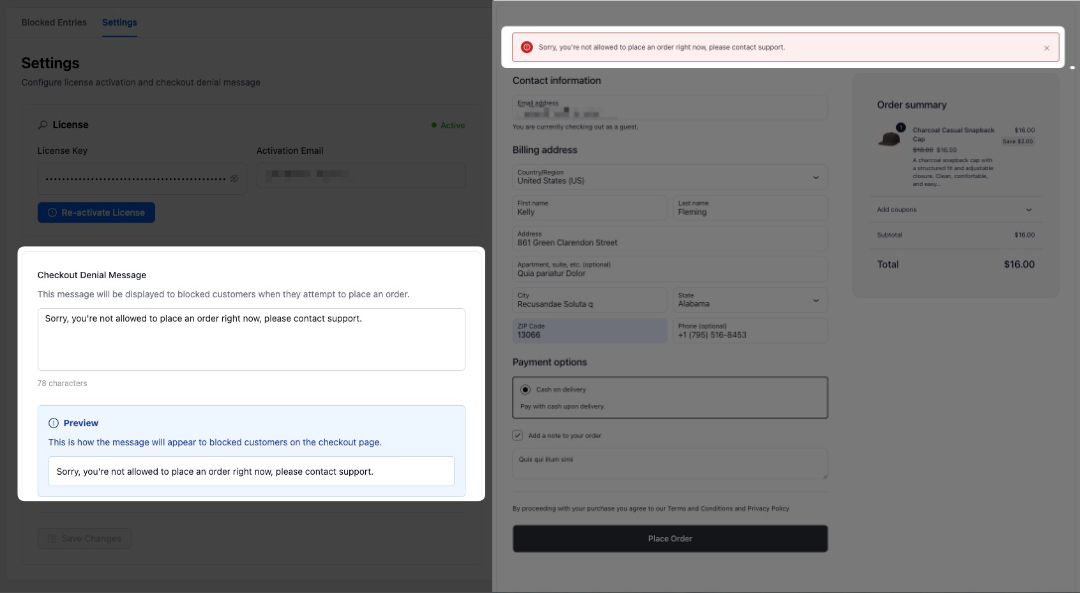
- The customer sees your denial message. Instead of an order confirmation, the customer sees the message you’ve set as a checkout error, and the order doesn’t go through.
On Block Checkout specifically, Checkout Guard also deletes the order record that WooCommerce had already started creating. The classic checkout doesn’t need this step, because Checkout Guard blocks the order before WooCommerce creates it.
Customizing the denial message
Go to WooCommerce → Checkout Guard, then open the Settings tab. Under Checkout Denial Message, edit the text a blocked customer sees at checkout, and use the live Preview below the field to check how it reads. Click Save Changes to apply it. If you leave this field blank, Checkout Guard shows a default message asking the customer to contact support.
What triggers a block
Checkout Guard compares the billing name and email entered at checkout against every entry in your Blocked Entries list, and this comparison isn’t case-sensitive. A match on either a full name pair or an email address is enough to trigger a block. For the full matching rules, including how partial name entries are handled, see Block customers by name or email in Checkout Guard.
FAQ
Need more help?
Checkout Guard is a licensed plugin. If you have questions about how blocking behaves on your setup, open a support ticket and our team will help you sort it out.
