
Your WooCommerce store creates data with every single sale. Every order, every customer, and every product view adds to a growing pile of information about how your business actually performs. That data is organized into WooCommerce reports, but many store owners struggle to find or understand them.
The good news is that WooCommerce reports are not as complicated as they first appear. You just need to know where to look and which numbers matter for your business.
In this guide, we will cover where to find your data, what to check each week, and how to export it when you need to do more.
Where To Find Store Data In WooCommerce?
WooCommerce gives you two places to find your store data. Each serves a different purpose.
- The reports tab: Go to WooCommerce and click Reports in your WordPress menu. This section has been around for years. It shows simple graphs and lists for sales, orders, customers, and stock. The data loads fast. If you need a quick look at yesterday’s sales or a list of your top products this month, start here.
- The Analytics dashboard: Go to WooCommerce and click Analytics. WooCommerce built this newer section to handle more data and give you better filters. You can look at revenue over time, see which product categories perform best, and dig into customer behavior. The graphs are interactive. You can change date ranges easily.
Both the classic and modern WooCommerce reports serve the same purpose: helping you understand your store performance. The difference is how deep you can go.
The Reports tab works best for quick snapshots. The WooCommerce Analytics dashboard works better for deeper questions.
What WooCommerce Reports Should You Check Every Week?
Most store owners focus on four key areas each week. These tell you if your business is healthy and where to pay attention.
1. Revenue and orders
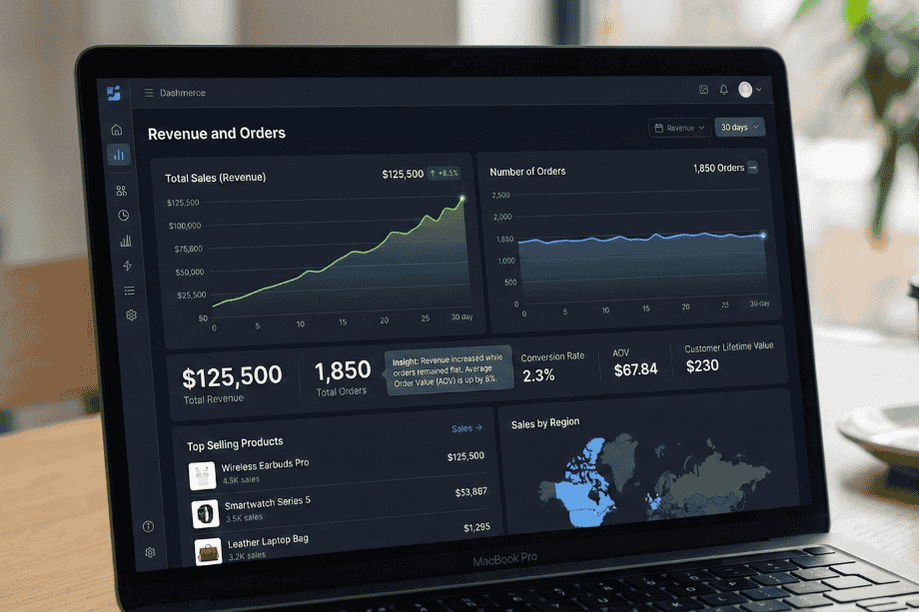
This report shows your total sales and how many orders created that number. Look at both together.
According to research by Frederick Reichheld of Bain & Company published in Harvard Business Review, increasing customer retention rates by just 5% can boost profits by 25% to 95%.
Here is what to watch for:
- If revenue goes up but orders stay flat, your average order value increased. That is usually good news
- If orders go up but revenue stays flat, you might be selling smaller items or running too many discounts
2. Top selling products
The WooCommerce top-selling products report shows which items customers buy most often. It also reveals which products sit on your virtual shelves without moving.
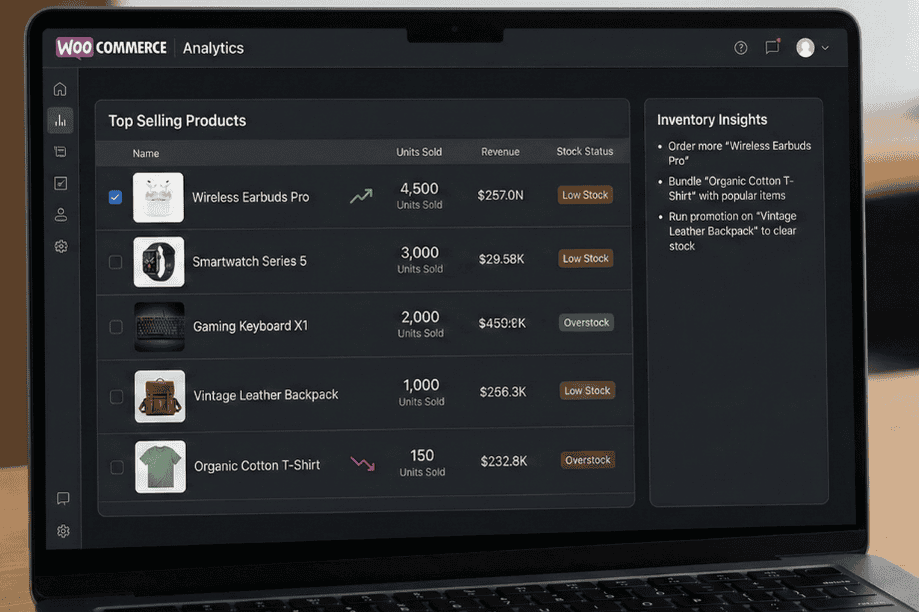
Use this report to plan your inventory:
- When you see a product climbing the list, order more before it sells out
- When you see products that never appear in the top sellers, think about bundling them with popular items
- Consider running small promotions on slow movers to clear them out
I have seen store owners double their sales just by paying attention to this one report. It is that powerful.
3. Customer reports
Beyond sales data, WooCommerce reports also show you who is buying and whether they are new or returning customers.
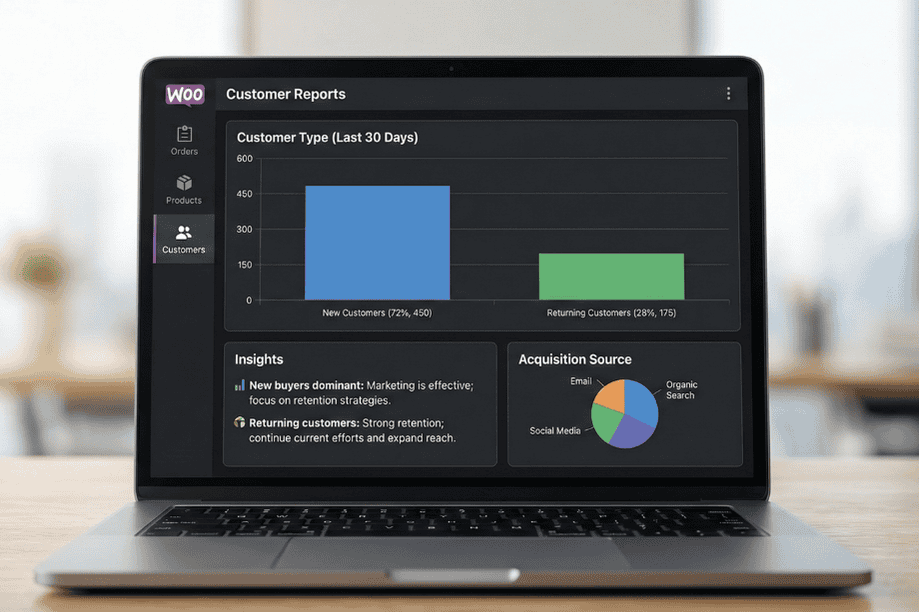
Here is what the data tells you:
- If your customer list shows mostly new buyers, your marketing brings people in. That is great, but you might need to work on bringing them back
- If you see mostly returning customers, your retention is strong. Keep doing what works while finding ways to reach new people
4. Coupon usage
If you run promotions, check which coupon codes actually get used. This report lives inside the Analytics section under Coupons.
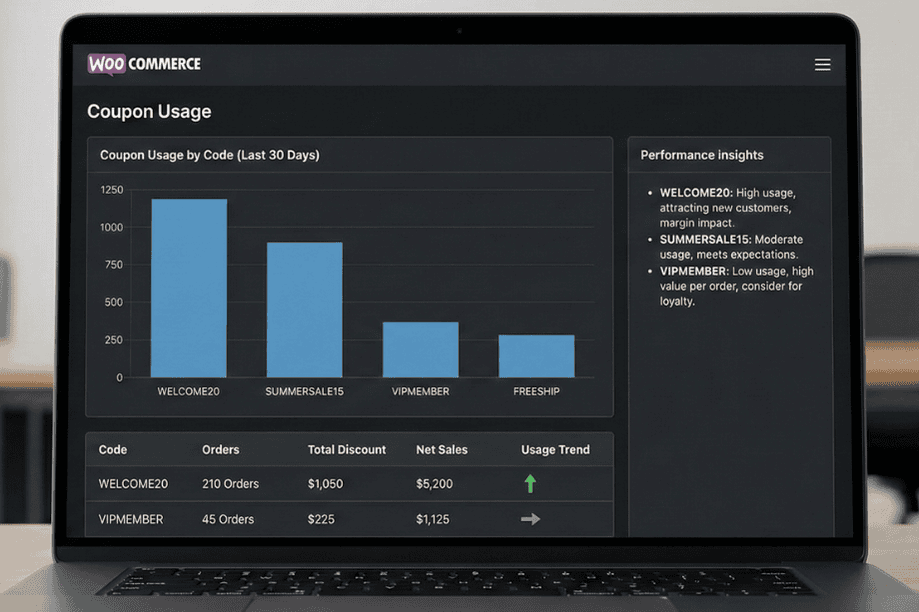
Look at each active coupon and decide if it is doing its job:
- Some codes you expect to perform well might sit unused
- Others might get heavy use and cut into your profits more than you planned
- A coupon that brings in new customers might be worth a thin margin
- A coupon that rewards existing buyers who would have purchased anyway might not be helping
For example, a 2026 study published in Omega Journal analyzing over 28 million customers found that product-specific coupons significantly boost new customer acquisition and sales volume without increasing product returns. The research showed these promotions work best for well-known brands and products with moderate discounts.
How To Export WooCommerce Sales Data?
Looking at reports on screen works for quick checks. But eventually you will need your data in a different format. For these tasks, you need to know how to export WooCommerce data for your own analysis.
The built in export tool in WooCommerce lives under Tools and then Export. It lets you download your products or orders as a CSV file. For a small store with simple needs, this might be enough. But the built in tool has limits:
- You cannot filter by date ranges easily
- You cannot choose specific fields to export
- Scheduling exports to run automatically is not an option
- Combining different types of data in one file requires manual work in a spreadsheet
Once your data lives in a spreadsheet, you can do things the dashboard cannot match:
- Sort your products by profit margin instead of revenue
- Build charts that combine sales data with marketing spend
- Create clean reports for your accountant that show exactly what they need
- Ask questions about your business that the dashboard never thought to answer
What Is The Best WooCommerce Reports Plugin For Custom Data?
At some point, most store owners hit a wall with the built in reports. The data they need exists in the database, but they cannot get it out in the right format. This is where dedicated tools make the difference between guessing and knowing. Finding the best WooCommerce reports plugin depends on what you need to do with your data.
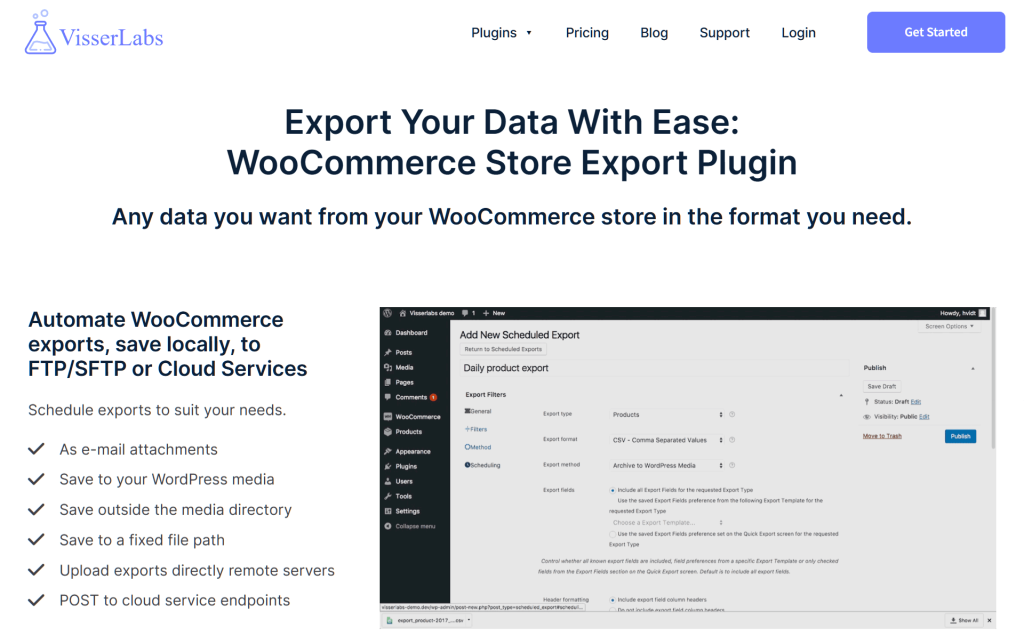
Store Exporter Deluxe from Visser Labs lets you export exactly what you need. Here is what it does:
- Choose which fields to include in your export
- Select which orders to pull based on status, date, or products
- Target specific customers for re-engagement campaigns
- Filter by almost any field in your database
Need a list of orders from last quarter that used a specific coupon? You can build that export in seconds. Need to send your accountant a monthly file with only completed orders? You can schedule that export to run automatically and land in their inbox every month.
Reports often reveal problems. Here are common issues store owners find:
- Products in a certain category lack descriptions
- Prices need updating across dozens of items
- Categories or tags are missing from important products
- Stock levels need bulk adjustments
Product Importer Deluxe handles bulk updates after you find problems in your reports. You export the products using Store Exporter Deluxe, make your changes in a spreadsheet, and then bring the updated file into Product Importer Deluxe. The changes sync back to your store in minutes.
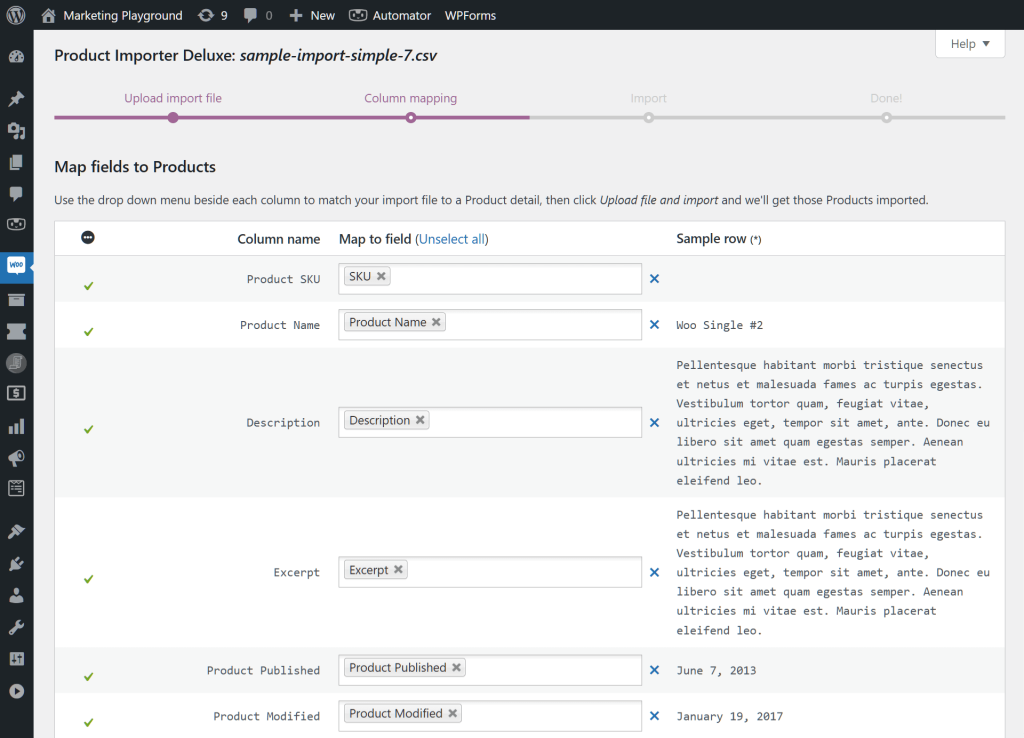
Editing products one by one takes forever. This approach lets you fix dozens or hundreds of items at once. Knowing how to efficiently bulk edit WooCommerce products using spreadsheet round-trips ensures you can execute massive inventory shifts without risking a site crash or accidental data loss.
Conclusion
Your WooCommerce store creates valuable data every single day. The reports built into WordPress give you a window into that data. But the real power comes when you take that data out and work with it on your own terms.
In this guide, we covered:
- Where to Find Store Data in WooCommerce
- What WooCommerce Reports to check
- How to Export WooCommerce Sales Data
- WooCommerce reports plugin for custom data
Ready to move beyond basic WooCommerce reports? Store Exporter Deluxe from Visser Labs gives you complete control over your store data with custom exports and automated scheduling. Start pulling the exact data you need today.
Frequently Asked Questions
Is there a limit to how much data WooCommerce reports can handle?
WooCommerce Analytics does not have a built-in data limit. It can process large volumes of orders. However, when exporting large datasets with many order items, WooCommerce may send the file by email instead of offering a direct browser download.
How do I find customers who have spent over a certain amount?
WooCommerce does not have a built-in filter for customers by total spend. This requires either custom development or a reporting plugin that adds customer lifetime value filtering. Some store owners export all customer data and sort by total spent in Excel or Google Sheets.
Can I combine data from multiple WooCommerce reports into one view?
No, WooCommerce reports are siloed. Each report lives in its own tab, and you cannot merge Revenue, Orders, and Customer data into a single dashboard without third-party tools. To cross-analyze data, you must export individual reports as CSV files and combine them manually in a spreadsheet.
Why do my WooCommerce report numbers not match my exported CSV file?
This is a known issue with the legacy Reports section. The on-screen totals for net sales and shipping amounts sometimes differ from the exported CSV values. The newer Analytics dashboard does not have this problem. If you need accurate numbers for accounting, use the Analytics section instead of the old Reports tab.