
Understanding WooCommerce export formats is more important than most store owners realize. Your accountant wants an Excel spreadsheet they can open immediately. Your fulfillment partner needs an XML feed their system can parse. Your quick-and-dirty spreadsheet workflow just needs a CSV.
Choosing the wrong export format creates unnecessary work. You end up manually converting files, dealing with broken special characters, or losing column formatting that took time to set up. When you’re exporting hundreds or thousands of rows of order, product, or customer data, those small friction points add up fast.
This guide explains the four WooCommerce export formats supported by Store Exporter Deluxe — CSV, XLS, XLSX, and XML — so you can pick the right one every time. We’ll cover what each format is, when to use it, common pitfalls, and how to set it up in the plugin. If you’re looking for help exporting order data specifically, see our complete guide to exporting WooCommerce orders.
Table Of Contents
WooCommerce Export Formats: Quick Comparison
Here’s a high-level overview of all four WooCommerce export formats before we dive into the details.
| Format | Best For | File Size | Compatibility | Key Limitations |
|---|---|---|---|---|
| CSV | Universal data exchange, Google Sheets, importing to other tools | Small | Virtually everything | No formatting, no multiple sheets, encoding issues with special characters |
| XLS | Legacy systems requiring Excel 97-2003 format | Large | Older Excel, some accounting software | 65,536 row limit, larger files, being phased out |
| XLSX | Sharing with Excel users, large datasets, preserving formatting | Medium (compressed) | Excel 2007+, Google Sheets, most modern tools | Less universal than CSV for system-to-system imports |
| XML | Integrations, product feeds, automated data processing | Large (verbose) | APIs, custom systems, data pipelines | Not human-readable, requires technical knowledge |
If you’re unsure which to pick, start with CSV. It works with nearly everything and is the easiest to troubleshoot.
CSV — The Universal Export Format
What it is
Of all the WooCommerce export formats, CSV is the most versatile. It’s a plain text file where each line is a row and each value is separated by a comma (or sometimes a semicolon, depending on your locale). There’s no formatting, no styling, and no formulas.
When to use CSV
- Google Sheets — CSV imports cleanly with no conversion needed
- Quick data analysis — open it in any spreadsheet app or text editor
- Importing to other platforms — most ecommerce tools, CRMs, and marketing platforms accept CSV as their default import format
- Backup snapshots — lightweight and easy to store
Limitations and common pitfalls
- No formatting — column widths, colors, and bold text don’t exist in CSV. What you see is what you get.
- No multiple sheets — a CSV file is a single flat table. If you need separate tabs for orders and customers, you need separate CSV files.
- Special character encoding — accented characters, currency symbols, and non-Latin scripts can break if the encoding isn’t set to UTF-8.
Tips for working with CSV exports
Use UTF-8 encoding. Store Exporter Deluxe exports in UTF-8 by default, which handles international characters correctly. The problem usually happens on the receiving end — when you or your recipient opens the file.
Don’t double-click to open in Excel. When you double-click a CSV file, Excel tries to guess the encoding and column types. It often guesses wrong — turning product SKUs into scientific notation or mangling accented characters. Instead, open Excel first, go to Data > From Text/CSV (or Data > Import in older versions), and select UTF-8 encoding during the import wizard.
What We’ve Seen: The most common support question we get about CSV exports is garbled special characters. Nine times out of ten, the export itself is fine — the issue is how the file was opened. If you see characters like “é” instead of “é” in your exported data, the fix is almost always to re-open the file with UTF-8 encoding selected explicitly. This is an Excel behavior, not a plugin issue.
XLS — Legacy Excel Format
What it is
XLS is the binary spreadsheet format used by Microsoft Excel from 1997 through 2003. It stores data in a proprietary binary format (BIFF — Binary Interchange File Format) rather than plain text.
When to use XLS
- Older systems — some legacy accounting or inventory software only accepts .xls files
- Specific recipient requirements — if a business partner or warehouse explicitly asks for .xls, this is your format
Limitations
- 65,536 row limit — if your export has more than 65,536 rows (roughly 65,000 orders or products), the file will silently truncate. You won’t get an error — you’ll just be missing data.
- Larger file size — the binary format produces bigger files than XLSX for the same data
- Being phased out — Microsoft has been pushing XLSX since 2007. Fewer tools add XLS support in new releases.
Our recommendation
Only use XLS if the system or person receiving the file specifically requires it. In every other situation, XLSX is the better choice — it handles more data, produces smaller files, and has broader modern support.
XLSX — Modern Excel Format
What it is
XLSX is the modern Excel format introduced with Microsoft Office 2007. Under the hood, it’s actually a compressed ZIP archive containing XML files — which is why XLSX files are smaller than the older XLS format despite holding more data.
When to use XLSX
- Sharing with people who use Excel — this is the format Excel users expect. It opens with a double-click, columns are properly formatted, and there’s no import wizard needed.
- Large datasets — XLSX supports over 1 million rows (1,048,576 to be exact), compared to the 65,536 limit in XLS
- Sending to your accountant or bookkeeper — they almost certainly use Excel and will appreciate not having to convert anything
- Reports that need to look polished — XLSX preserves column widths and basic formatting better than CSV
Advantages over XLS
| Feature | XLS | XLSX |
|---|---|---|
| Maximum rows | 65,536 | 1,048,576 |
| Maximum columns | 256 | 16,384 |
| File size | Larger (binary) | Smaller (compressed XML) |
| Modern support | Declining | Universal |
Limitations
XLSX isn’t as universally accepted as CSV for system-to-system data imports. If you’re importing data into another WooCommerce store, a CRM, or a marketing platform, most of those tools prefer CSV. XLSX is best when a human will be opening and reviewing the file.
XML — Structured Data For Integrations
What it is
XML stands for eXtensible Markup Language. It’s a structured data format that uses tags (similar to HTML) to define data fields and their relationships. Unlike CSV or Excel files, XML preserves data hierarchy — an order can contain nested line items, each with their own attributes.
When to use XML
- API integrations — many third-party systems consume XML feeds for inventory sync, order processing, or catalog management
- Product feeds — some advertising and marketplace platforms require XML product feeds
- Automated data pipelines — if another system is programmatically parsing your export, XML provides clean, predictable structure
- Data exchange between platforms — XML is a standard format for B2B data exchange
Limitations
- Not human-readable — opening an XML file gives you a wall of nested tags. You can read it, but it’s not pleasant like a spreadsheet.
- Verbose file sizes — XML files are larger than CSV for the same data because every value is wrapped in opening and closing tags
- Requires technical knowledge — setting up an XML-based integration usually requires a developer or someone comfortable with structured data
Tips for working with XML exports
XML really shines in automated workflows — scheduled exports sent via FTP/SFTP to a system that processes them automatically. Store Exporter Deluxe supports scheduled exports with delivery via email, FTP, SFTP, and cloud storage, which pairs well with XML-based integrations.
For a more detailed comparison of CSV and XML specifically — including when each is the better choice for data exchange — see our CSV vs XML comparison guide.
Which of the WooCommerce Export Formats Should You Use?
If you’re still not sure which format fits your situation, use this decision framework.
| Your Situation | Recommended Format | Why |
|---|---|---|
| Sharing with an accountant or bookkeeper | XLSX | Opens directly in Excel, looks professional, no conversion needed |
| Importing to another tool or platform | CSV | Most widely accepted import format across all software |
| Automated data pipeline or integration | XML | Structured, parseable, designed for machine consumption |
| Legacy system that requires .xls | XLS | Only if specifically required — otherwise use XLSX |
| Product feed for a marketplace | XML or CSV | Check what the marketplace requires — both are common |
| Quick look at your data in Google Sheets | CSV | Imports instantly with no conversion |
| Not sure what you need | CSV | Works with virtually everything — you can always convert later |
How To Choose Your Export Format In Store Exporter Deluxe
Setting your export format in Store Exporter Deluxe takes about five seconds. Here’s how.
Step 1 — Open the export screen
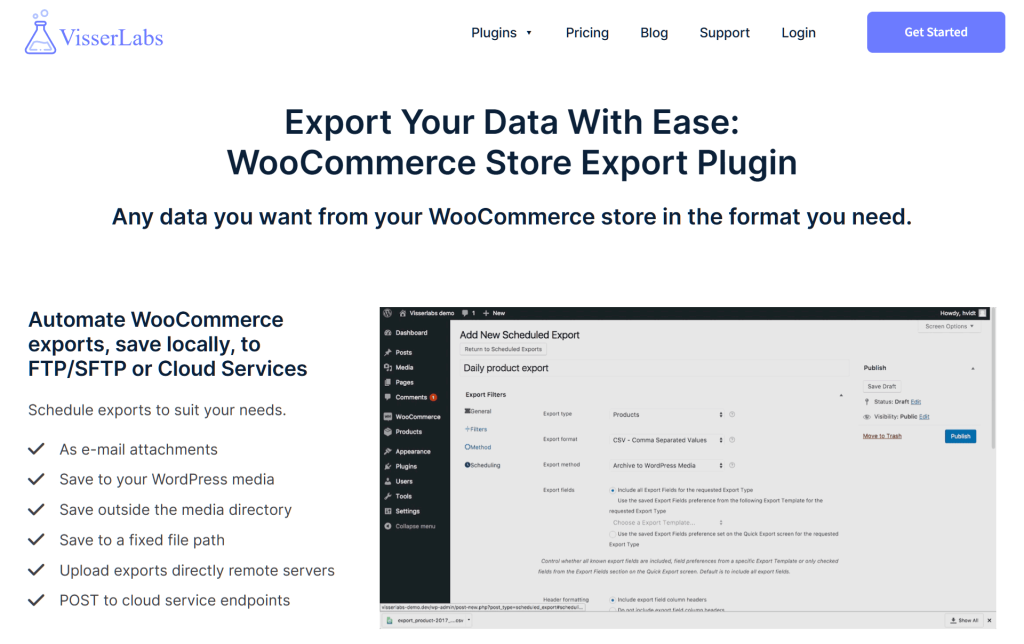
From your WordPress dashboard, go to WooCommerce > Store Export. Select the Quick Export tab, then choose your export type (Products, Orders, Customers, etc.) from the dropdown.
Step 2 — Select your format
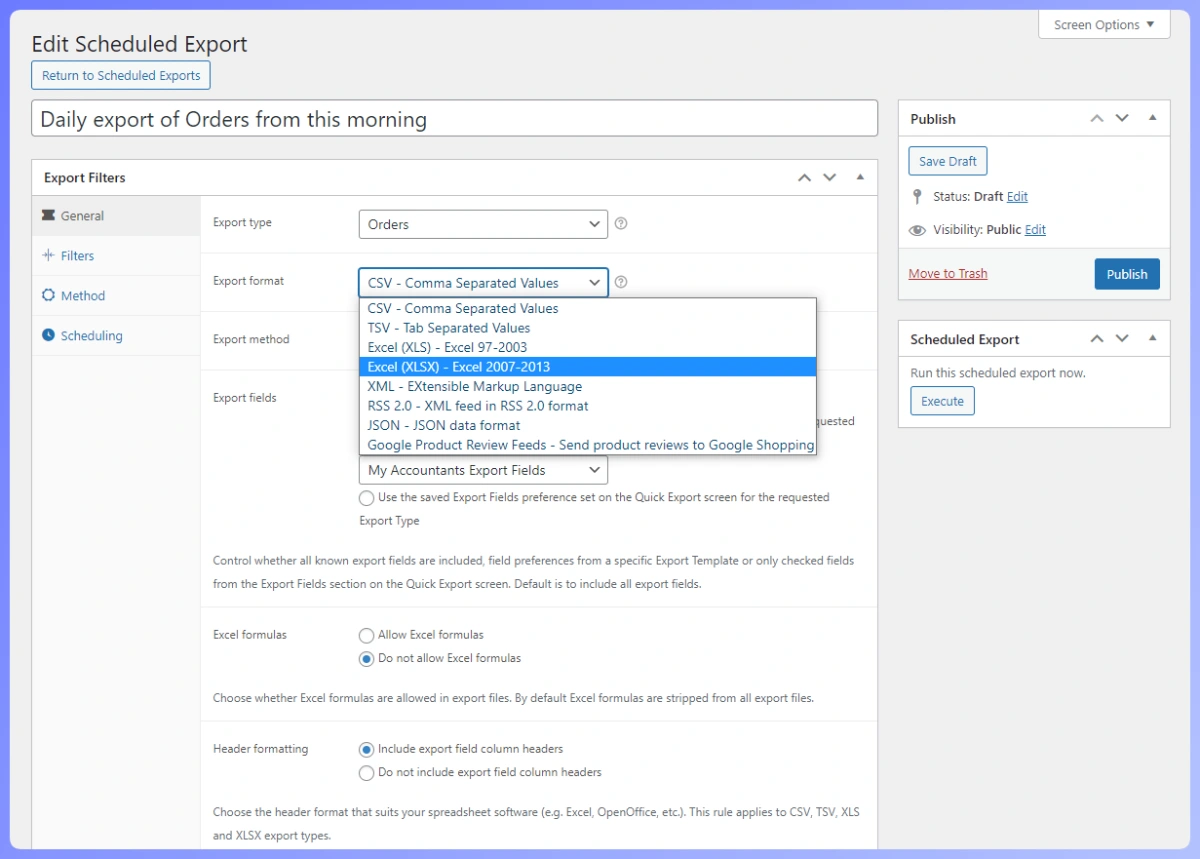
Scroll down to the Export format option. You’ll see a dropdown with four choices: CSV, XLS, XLSX, and XML. Select the one that matches your needs based on the recommendations above.
Step 3 — Run the export
Click Export and your file downloads in the chosen format. That’s it.
Saving different formats for different workflows
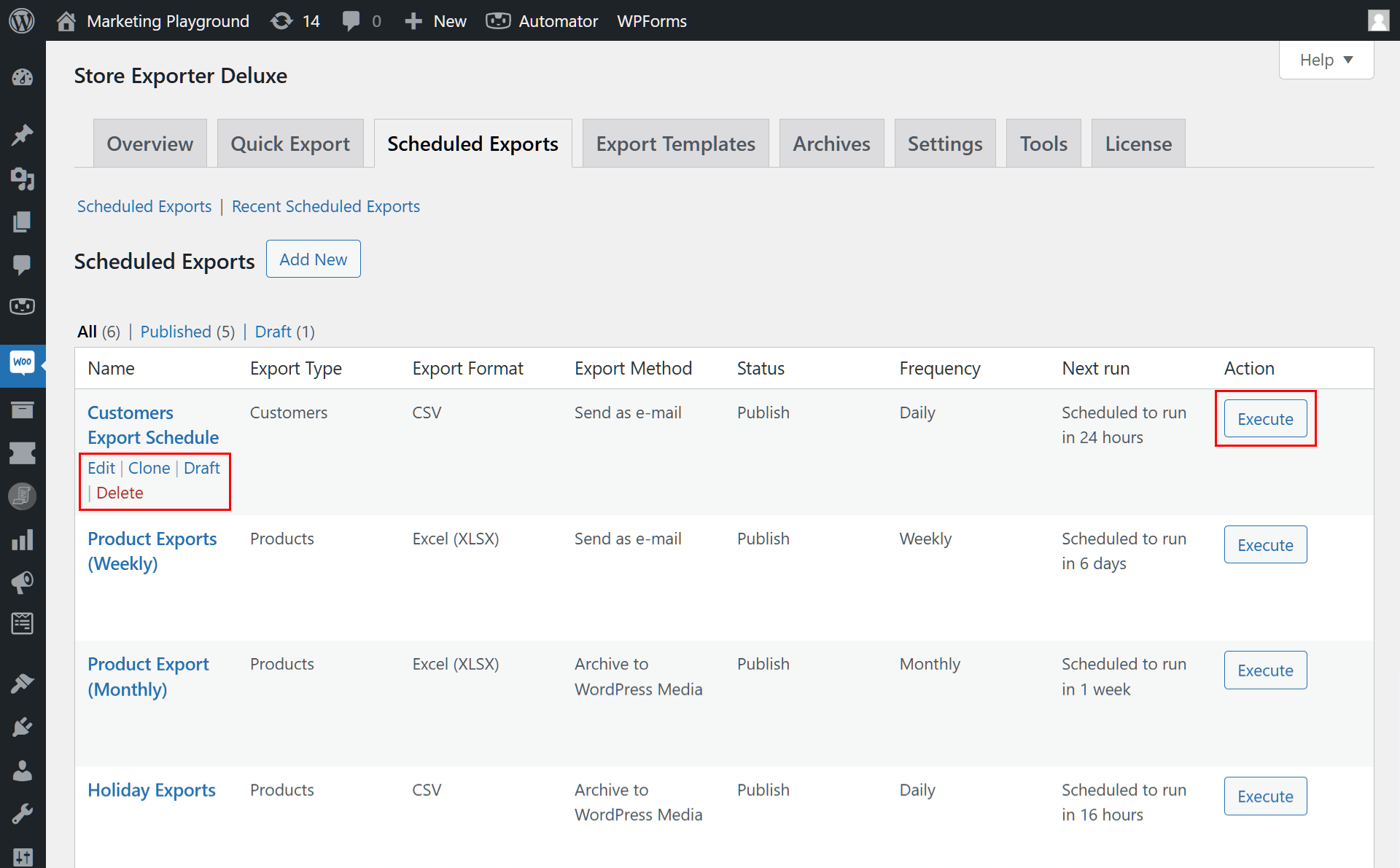
If you regularly export the same data in different formats. Let’s say, a CSV for your inventory system and an XLSX for your bookkeeper. You can set up scheduled exports with different format settings for each. Each scheduled export saves its own configuration, so you configure it once and let it run automatically. Exports can be delivered via email, FTP, SFTP, or cloud storage on whatever schedule you need.
Summary
The right WooCommerce export formats depends entirely on what you’re doing with the data. CSV is the safe default that works with almost everything. XLSX is what you want when a human is opening the file in Excel. XML is for integrations and automated processing. And XLS is there for legacy systems that need it.
Store Exporter Deluxe supports all four formats across every export type — products, orders, subscriptions, customers, coupons, and more. It also supports 85+ plugin integrations, scheduled exports, and multiple delivery methods so you can automate your export workflows regardless of format.
Ready to streamline your WooCommerce exports? View Store Exporter Deluxe pricing. Plans start at $39.50/year for the exporter, or $79/year bundled with Product Importer Deluxe.