

Data accuracy means your store information matches reality. When you ensure data accuracy, product prices reflect what you actually charge, inventory counts stay current, and customer addresses are valid. For WooCommerce stores, that level of accuracy is essential if you want to avoid costly mistakes that damage revenue and customer trust.
A single pricing error can wipe out margins on a popular product. Incorrect stock levels cause overselling, late refunds, and a lot of apologizing to frustrated customers. At the same time, wrong shipping addresses waste money on returns and reshipments while quietly eroding your reputation.
This risk only increases as your catalog grows. Managing 50 products manually is still manageable. Once you are dealing with 500 or 5,000 SKUs, human error becomes inevitable unless you put clear processes and tools in place to ensure data accuracy.
Why Does Data Accuracy Matter For WooCommerce Stores?
When you ensure data accuracy across your WooCommerce store, you directly protect your bottom line and operational efficiency. Here is why it matters most for your store.

1. Inventory management
Inaccurate inventory management usually shows up in two painful ways. First, overselling forces you to refund paid orders and apologize to customers who never received the items they wanted. That experience is hard to recover from.
Second, underselling means you are leaving money on the table. Products show as out of stock when they are sitting on your warehouse shelves, so shoppers buy from competitors instead. In both cases, your WooCommerce store is making decisions based on wrong information.
WooCommerce will not catch these issues by itself. Your system only knows what you enter. If your stock count says 5 units and you actually have 15, those 10 extra units stay invisible and unsold.
2. Order fulfillment
Order data errors tend to ripple through your entire operation. The wrong product variant goes out, the customer requests a return, and suddenly, you are paying shipping both ways and losing the original sale. Your team then spends extra time processing returns and putting items back into stock.
Address mistakes are just as expensive. Parcels get returned by the carrier or lost in transit, so you either reship at your own cost or issue a refund.
Over time, these small errors add up to real margin loss and lower order accuracy rates, which most ecommerce brands try to keep as high as possible.
3. Customer data quality
Customer records sit at the heart of your marketing and retention strategy. When email addresses are invalid, your campaigns never reach the people you paid to acquire. Wrong phone numbers block shipping notifications, so customers feel left in the dark.
Duplicate or incomplete customer profiles also distort your analytics. It becomes harder to build accurate segments, measure lifetime value, or personalize offers. On top of that, incorrect addresses can lead to wrong tax rates and compliance problems during reporting.
What Are Common Data Accuracy Problems In WooCommerce?
Data accuracy problems in WooCommerce usually fall into a few patterns.
- Product attribute inconsistencies appear when you manage data across multiple systems. You might update a price in the WooCommerce admin but forget to sync that change to your ads or marketplaces. Customers then see different prices depending on where they browse. Categories drift out of alignment and descriptions keep old information from past seasons.
- Bulk operations can multiply errors very quickly. If you import 1,000 products with the wrong column mapping, prices may land in description fields and descriptions where prices should be. Fixing that by hand is exactly the kind of tedious work that blocks growth.
- Manual data entry naturally introduces typos and style drift over time. One team member formats titles as “Product Name – Color” while another uses “Color | Product Name”. The catalog still works but looks inconsistent and less professional .
- Migrations and integrations add another layer of risk. When you move between platforms or connect external systems, data formats do not always match, fields map incorrectly, and some values get truncated or lost during transfer. Without checks, these issues can sit in your database for months.
How To Ensure Data Accuracy In WooCommerce
To ensure data accuracy in your WooCommerce store, you need a mix of regular habits and the right tools. Here are seven practical steps to help you maintain clean and reliable data.
1. Audit your data regularly

Regular audits are the foundation of accurate data. Set a monthly schedule to review your WooCommerce store, and increase the frequency if you run a high‑volume operation.
Export your full product catalog into a spreadsheet so you can scan for patterns. Look for obvious red flags such as:
- Negative or zero prices where they do not make sense
- Missing images on live products
- Blank or extremely short descriptions
- Products without categories or with the wrong category
- Variations that are no longer linked to a parent product
Next, compare system inventory against physical stock. Run reports from WooCommerce and your warehouse, then investigate any gaps before they turn into overselling or underselling issues.
An advanced WooCommerce export plugin like Visser Labs’ Store Exporter Deluxe makes this audit process far easier by exporting products, orders, and customer data from WooCommerce into clean CSV or Excel files you can analyse in bulk. Instead of clicking through individual screens, you can see your entire store at once and quickly ensure data accuracy across key fields.
2. Validate data at entry points
It is always cheaper to prevent bad data than to fix it later. Set up validation rules wherever information enters your WooCommerce store.
Useful checks include:
- Enforcing a consistent SKU format
- Setting realistic minimum and maximum prices to flag outliers
- Making key product fields required
- Validating email address format on checkout and account pages
When you run bulk imports, always start with a small test file. Import 10 products, confirm everything appears in the right place, and only then process the full list. This habit alone can protect you from a lot of large‑scale mistakes.
Store Exporter Deluxe also helps here, since it can highlight missing required fields and formatting problems before you complete an export. That extra validation step supports your efforts to ensure data accuracy from the beginning of the workflow.
3. Standardize your data formats

Clear internal standards are essential if more than one person touches your catalog. Create a simple style guide that covers:
- Product titles should be structured
- Categories and tags should be named and used
- Prices, dates, and measurements should be entered
Share this guide with everyone who edits products, and keep it up to date as your store evolves. When your team follows the same rules, your data stays cleaner and much easier to manage.
4. Clean duplicate and outdated data
Duplicates and stale records quietly undermine both reporting and customer experience. Plan regular cleanup sessions where you:
- Search for duplicate SKUs or product names and merge where appropriate
- Find multiple customer profiles with the same email address and combine them
- Mark discontinued products as out of stock and hide them from the catalog instead of deleting them
This approach keeps historical order data intact while removing clutter from the storefront. At the same time, review old customer records against your privacy policy and retention rules, then archive or remove data you no longer need.
5. Use export tools for validation
Exports are not just backups; they are powerful validation tools. When you see your data in rows and columns, problems that were invisible in the WooCommerce admin often become obvious.
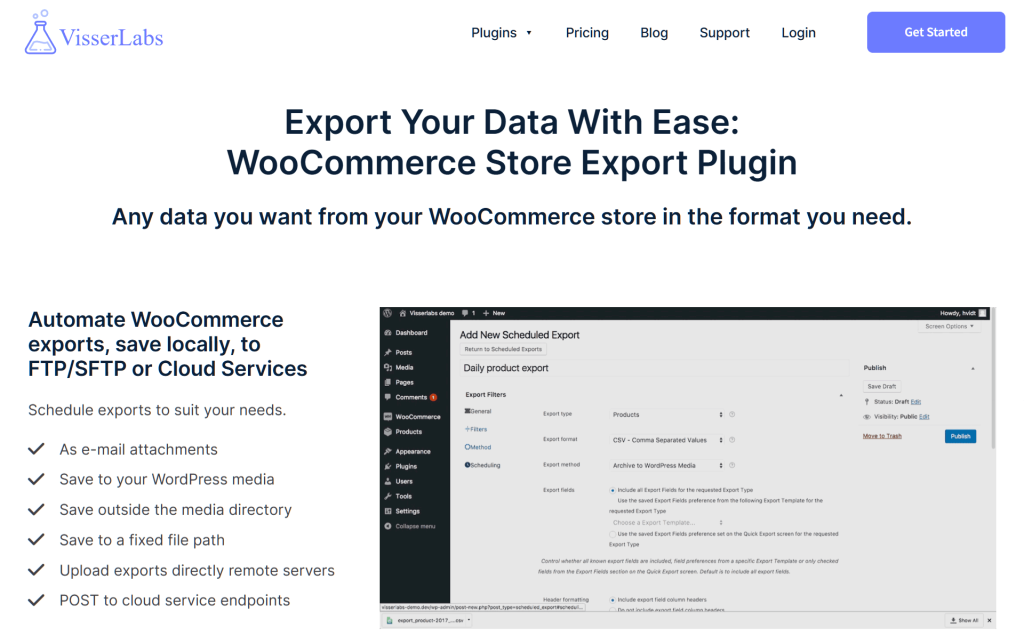
Store Exporter Deluxe can export complete product data, including variations, attributes, categories, and custom metadata, so you can verify that relationships and structures are correct. You can also export detailed order and customer records, then filter or sort them to spot fulfillment issues, missing fields, or strange patterns in real time.
When you build exports into your monthly workflow, you create a repeatable way to ensure data accuracy without relying on manual spot‑checks inside the dashboard.
Related Read:

6. Monitor key data metrics
In addition to scheduled audits, it helps to watch a few simple metrics that highlight data problems early. Useful signals include:
- Products with missing images or descriptions
- Items that have shown zero inventory for a long time
- Orders that remain in “processing” or “on hold” longer than normal
- A sudden spike in failed orders or refund requests
You can set up alerts or saved reports for these patterns so you do not need to check them manually every day. When a threshold is crossed, you review the relevant records, correct the underlying data, and prevent a small glitch from turning into a bigger problem.
7. Implement version control for key updates
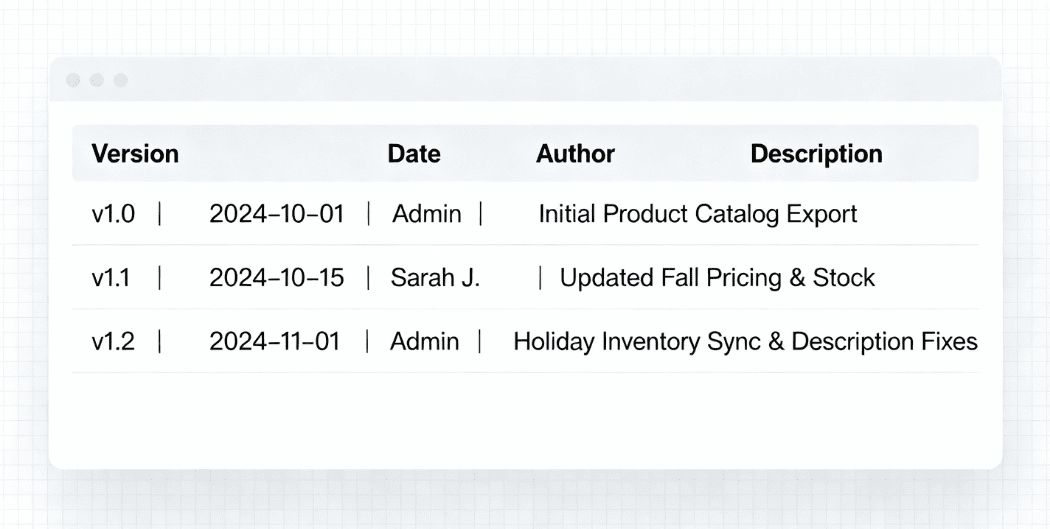
Any time you change large amounts of data, you should have a way to roll back. Before running bulk edits on prices, attributes, or categories, export a snapshot of your current data.
If something goes wrong, you can restore values from that file rather than guessing what they used to be. With Store Exporter Deluxe, you can even schedule regular full‑catalog exports, which act as both backups and a change log for your WooCommerce store.
Conclusion
Ensuring data accuracy in your WooCommerce store is not a one-time task. It requires ongoing effort and the right processes. When you maintain accurate records, you protect your revenue, build customer trust, and streamline your operations.
Here are the key ways to ensure data accuracy:
- Audit your data regularly to catch errors early.
- Validate data at entry points to stop mistakes before they happen.
- Standardize your data formats for consistency across your team.
- Clean duplicate and outdated data to keep your records clear.
- Use export tools for validation to spot patterns and issues quickly.
- Monitor key data metrics to identify problems as they arise.
- Implement version control to track changes and restore data if needed.
Start improving your data accuracy today. With the right tools, you can automate these checks and focus on growing your business. Visser Labs offers solutions like Store Exporter Deluxe to simplify this process. View our pricing plans to find the right fit for your store.
Frequently Asked Questions
How often should I audit my WooCommerce data?
Monthly audits work well for most stores. However, high-volume stores with frequent inventory changes should audit weekly or daily.
Conduct thorough audits immediately after bulk imports, platform migrations, or major system changes. Regular audits help you ensure data accuracy consistently, rather than discovering problems when customers complain.
What data should I prioritize for accuracy?
Focus first on inventory counts, product prices, and customer shipping addresses. These directly impact revenue and customer satisfaction.
Once those core areas are solid, address product descriptions and category assignments. Marketing data comes next since it affects discoverability, but won’t cause immediate fulfillment problems.
Can I automate data accuracy checks in WooCommerce?
Yes. You can use validation rules, scheduled exports, and monitoring tools to catch problems automatically.
Store Exporter Deluxe schedules automatic exports, so you have regular data snapshots without manual work. Review these exports periodically to catch errors systematically and ensure data accuracy without checking individual records one at a time.
How do I fix bulk data errors after a bad import?
First, export your current data as a safety backup before making changes. Then you have options: manually correct the CSV file and reimport it with proper mappings, or use the WooCommerce interface to fix critical fields directly.
For major errors affecting hundreds of products, restore from your most recent clean backup. Then retry the import carefully with corrected mappings to avoid the same mistake.