
If your store has thousands of products, orders, or customers, an export that runs fine on a small catalog can suddenly stall, time out, or finish with no file at all on a bigger one. That’s rarely a fault in Store Exporter Deluxe itself. It’s almost always your server running out of the PHP memory or execution time it’s allowed for a single request.
Quick Export already splits every export into batches, so it isn’t trying to process your whole catalog in one go. Still, a large enough store can need a bit more PHP headroom, and it helps to know where to look when an export doesn’t finish. This article covers how batching works, which PHP settings matter most, and how to use the Audit Log and the WooCommerce logs to find out why an export stopped.
Prerequisites
| Requirement | Details |
|---|---|
| Plugin | Store Exporter Deluxe is active and licensed |
| WooCommerce | Active, since exports pull their data from your WooCommerce store |
| Hosting access | Ability to change your PHP memory_limit and max_execution_time, or a host you can ask to raise them |
| Administrator access | An account with access to the WordPress admin dashboard |
How batching works
Quick Export never loads your whole catalog into memory at once. Instead, it splits the records you’re exporting into batches of 100 by default, then processes one batch per request. So a 5,000-product export runs as 50 separate batches instead of one enormous query, which keeps memory use predictable no matter how large your store grows. Each batch’s progress is saved as it completes, so if you’re watching a Quick Export run, the progress bar you see is ticking up one batch at a time rather than waiting on the whole export to finish before showing anything. Scheduled Exports work differently. See Scheduled Export is not a fix for memory or time-limit errors below.
Recommended PHP settings for large exports
Quick Export: Each Quick Export batch is its own request, and each batch runs under your server’s normal PHP memory_limit and max_execution_time. The plugin doesn’t raise these limits for a batch, and the Script Timeout setting doesn’t change them. So for Quick Export, the two things that help are a smaller Batch Size (below) and higher PHP limits on your host. If exports stop with memory errors, or consistently stop after roughly the same amount of time, ask your host to raise memory_limit and max_execution_time in your server’s PHP configuration.
Scheduled Exports: When a Scheduled Export starts, Store Exporter Deluxe asks PHP to raise its memory limit to your site’s WP_MAX_MEMORY_LIMIT and applies the Script Timeout setting as the execution time limit. WordPress sets WP_MAX_MEMORY_LIMIT to 256MB by default, well above the plugin’s own minimum of 64MB. That said, many hosts block these runtime overrides and enforce their own hard caps regardless of what the plugin requests. If a large Scheduled Export still stops, ask your host to raise memory_limit and max_execution_time directly in your server’s PHP configuration.
Script Timeout: Check Settings → General → Script Timeout before a large Scheduled Export. It ships as Unlimited. If it’s been changed to 10 minutes, 30 minutes, or 1 hour, a Scheduled Export that runs longer stops when it reaches that limit. Set it back to Unlimited before running a large Scheduled Export. This setting doesn’t affect Quick Export batches.
Adjusting the batch size for very large exports
- Open WooCommerce → Store Export from the WordPress admin menu.
- Click Quick Export in the sidebar.
- On the Select Export Type step, choose what you want to export.
- Continue through Export Fields (and Filters & Sorting, if it appears for that type) to reach the Export Options step.
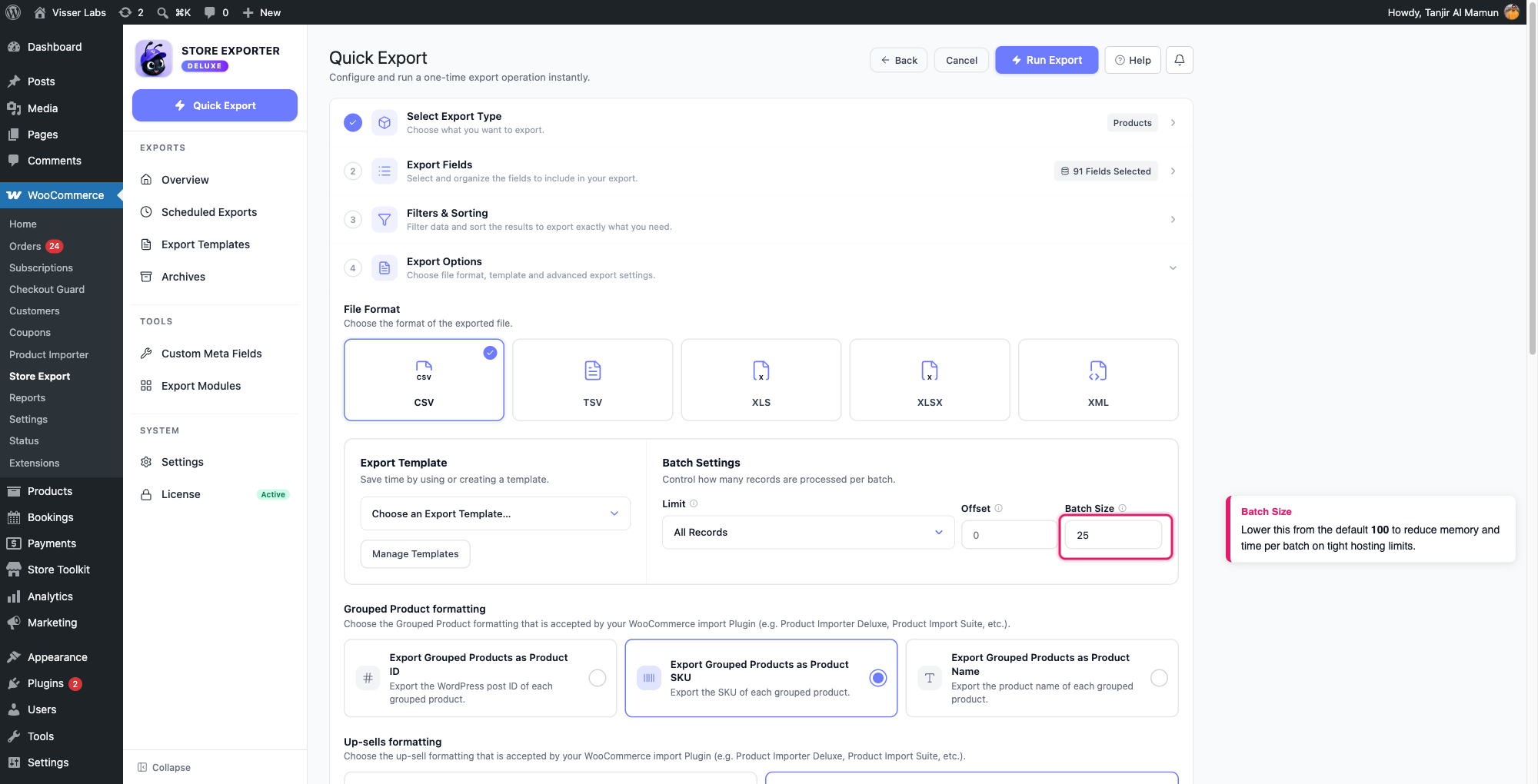
- Under Batch Settings, enter a number in the Batch Size field. It’s empty by default, which uses the plugin’s built-in value of 100 records per batch.
Lowering the Batch Size (for example, to 25 or 50) makes each individual batch request lighter on memory and faster to finish, which helps on a server with a low memory_limit or max_execution_time. The trade-off is more batches overall, so the full export takes more requests to complete. There’s no fixed minimum, so it’s worth testing a smaller value if your default-size exports are the ones timing out.
Using the Audit Log to check a large export
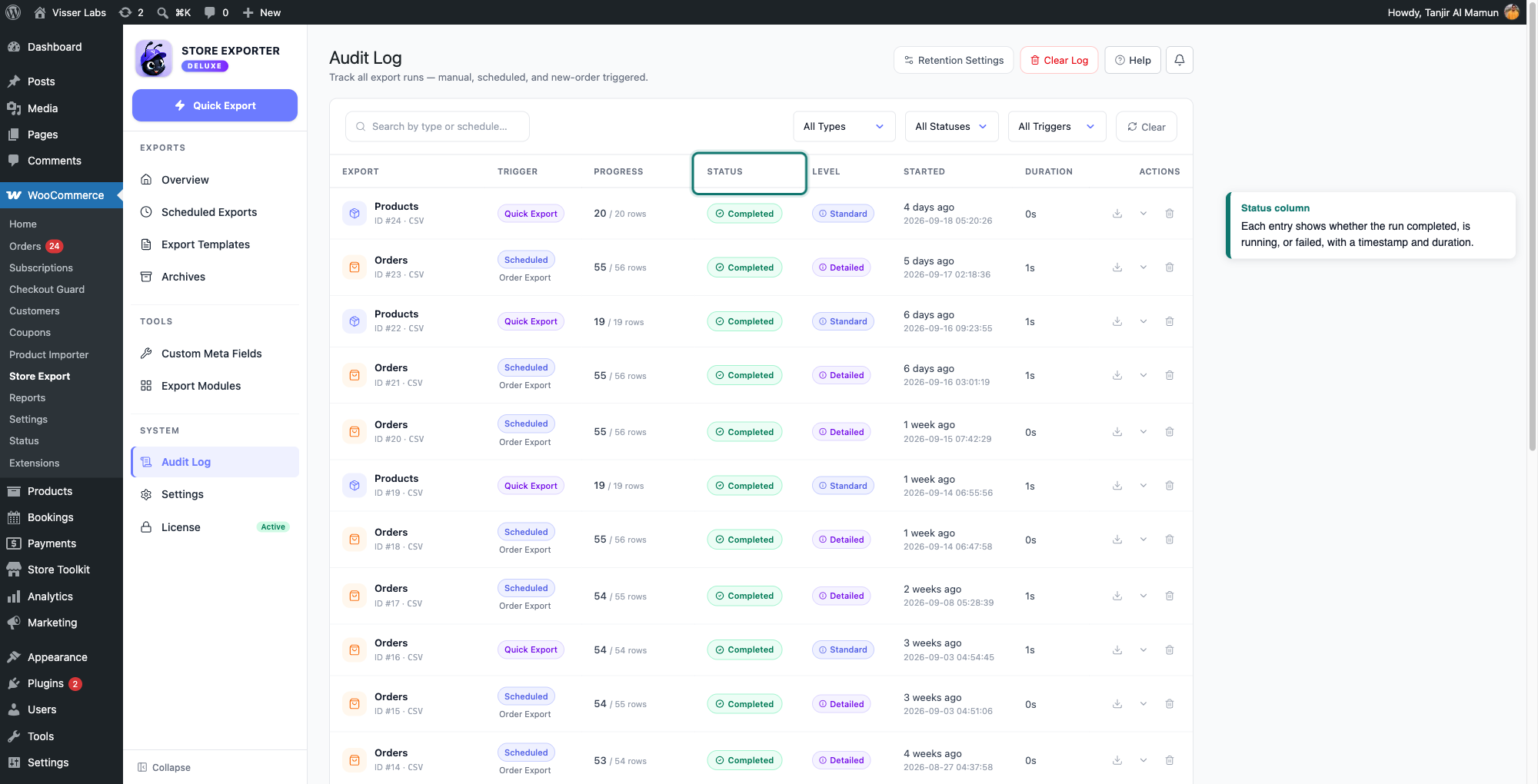
Store Exporter Deluxe keeps a record of every export run in its Audit Log, available from the sidebar under WooCommerce → Store Export. Each entry shows the export type, what triggered it, its status, and timestamps.
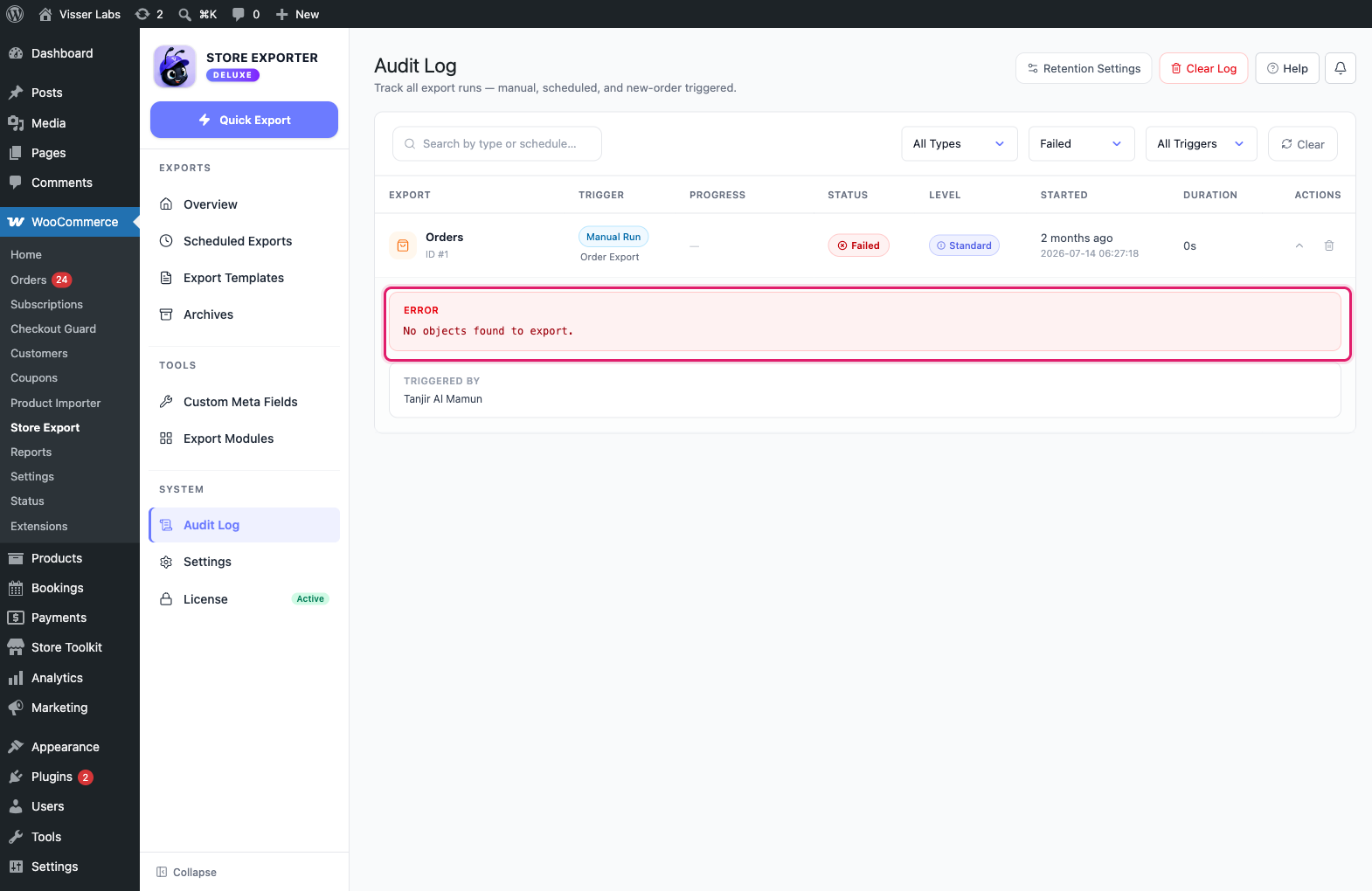
Click an entry to expand it. If the run shows Failed, the expanded view includes the error message.
A memory or time-limit error works differently. When PHP runs out of memory or time, it stops the export at once, before the plugin can record anything. The entry then stays at Running with no error message. To confirm what happened, go to WooCommerce → Status → Logs and look for a log with the source fatal-errors, or ask your host for the PHP error log.
The Audit Log is turned on by default. If it’s missing from your sidebar, someone has switched off the Enable Audit Log toggle under Settings → Audit Log.
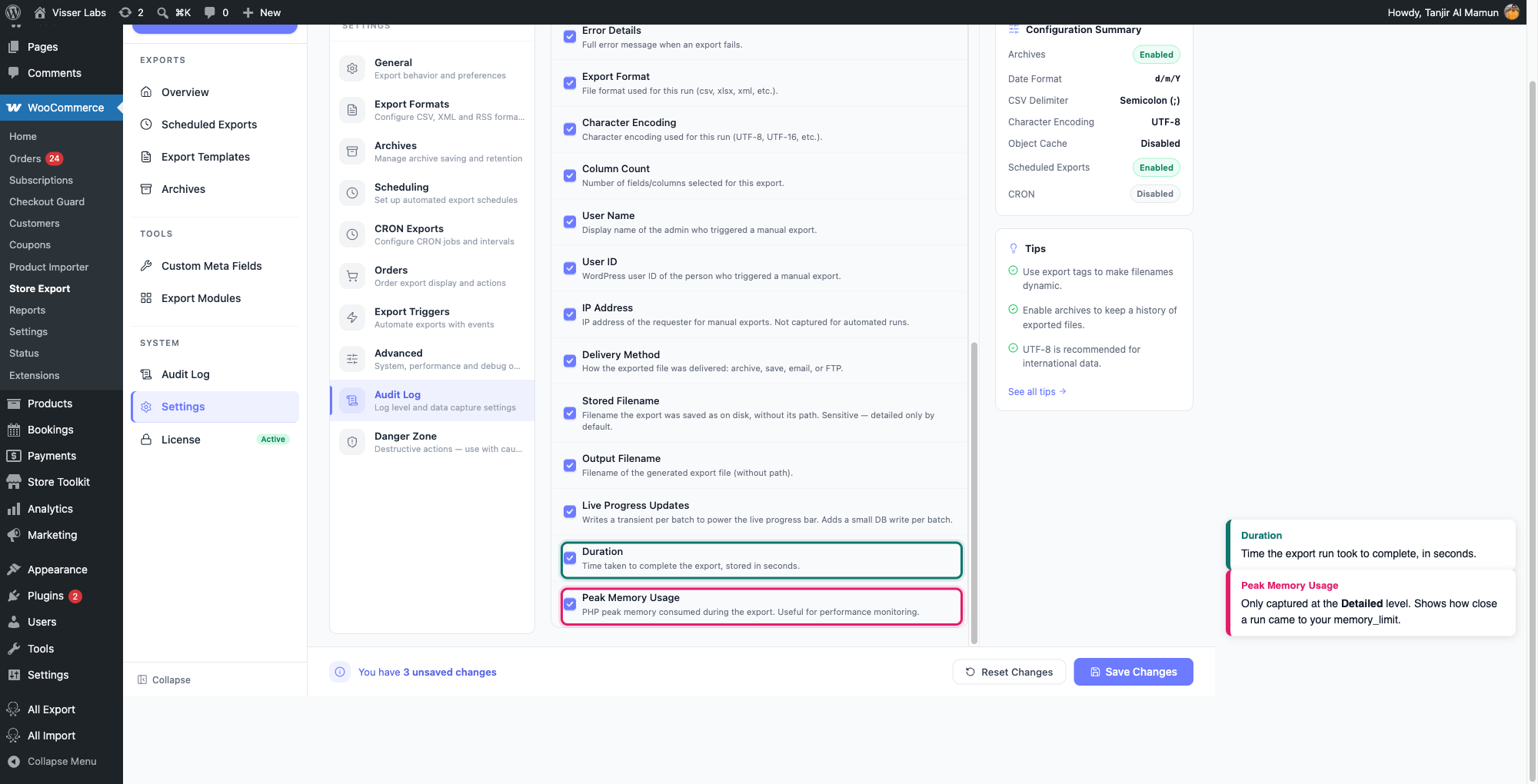
That same Settings → Audit Log section also controls how much detail each entry captures, set separately for Quick Exports and Scheduled Exports. The default Standard level already records Duration. Switch a source to Detailed to also capture Peak Memory Usage.
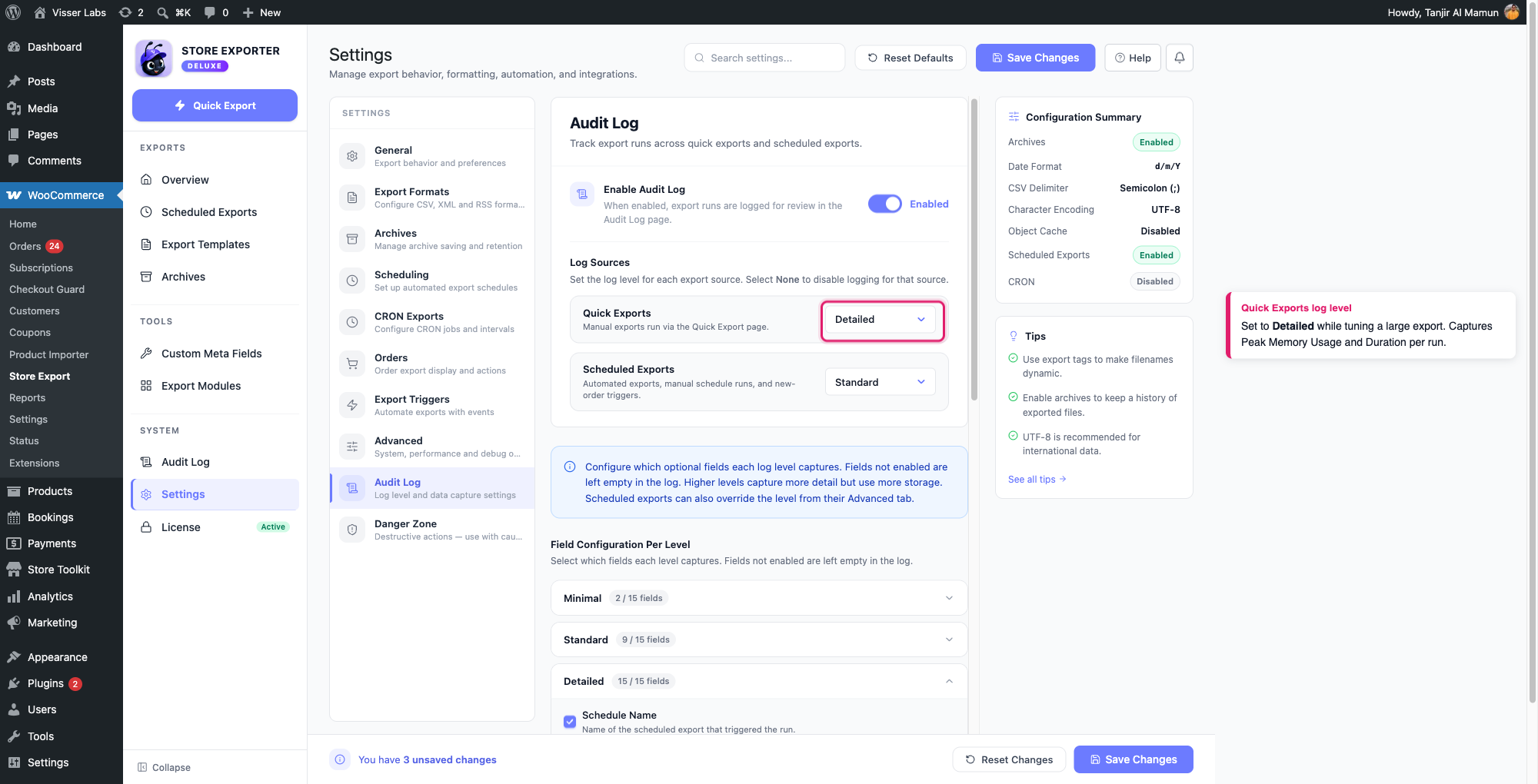
This is worth turning on while you’re tuning a large export, since it tells you how close each completed run came to your memory_limit and how long it took. That shows you how much headroom is left before a bigger export hits the limit.
Scheduled Export is not a fix for memory or time-limit errors
A Scheduled Export doesn’t batch records the way Quick Export does. It processes the entire dataset as a single background job through Action Scheduler. The plugin asks PHP for more memory and applies Script Timeout when the run starts, but if your host blocks those overrides, the job still runs under your host’s limits. As one unbatched job, it typically needs more memory than a batched Quick Export, not less. There’s no Batch Size field on the Scheduled Export form because there’s nothing to batch.
What a Scheduled Export does avoid is the browser tab dependency: since it runs as a background job, it isn’t tied to your browser tab staying open or how long a page request in your browser is allowed to run. If a Quick Export is stalling because you can’t keep the tab open long enough, a Scheduled Export solves that specific problem. If it’s stalling on memory or execution time, lower the Batch Size or raise your PHP limits instead. For detailed instructions, see How to schedule exports in Store Exporter Deluxe.
Troubleshooting
memory_limit or max_execution_time mid-batch. In that case the matching Audit Log entry stays at Running with no error message, because PHP stops before the plugin can record one. To confirm, go to WooCommerce → Status → Logs and open the log with the source fatal-errors, or ask your host for the PHP error log. A line that starts with “Allowed memory size of” or “Maximum execution time of” confirms it. If the entry shows Failed instead, expand it to read the error message.If this was a Quick Export, before you try again, go to Settings → Advanced, find Clear Export Transient under Maintenance, and click Clear. If you skip this step, the next Quick Export shows “An export is already running.” for up to 30 minutes. Then lower the Batch Size and try again. Each batch runs under your server’s PHP limits, so ask your host to raise both PHP settings if the problem continues. If this happens on a Scheduled Export, also check that Settings → General → Script Timeout is set to Unlimited.
memory_limit and max_execution_time directly on the server.FAQ
memory_limit and max_execution_time, with no Batch Size setting to fall back on. A Scheduled Export can actually be more likely to time out on a very large catalog than a Quick Export with a small batch size.Related articles
Need more help?
If you’re using Store Exporter Deluxe and a large export still won’t complete after trying the steps above, open a support ticket and our team will help you get it running.
If you’re using the free Store Exporter plugin, ask on the WordPress.org support forum and our team will get back to you there.
