Your first few WooCommerce orders feel magical. By order number 50, WooCommerce order management feels more like juggling three browser tabs, missing the occasional shipping deadline, and trusting a “system” that’s mostly memory and luck. It’s one of those topics everyone talks around. Plenty of plugin recommendations, almost no one explaining the full workflow.
In this guide, we’ll walk you through the complete picture: statuses, bulk actions, customer communication, fulfillment, refunds, problem orders, reporting, and the integrations worth knowing about. By the end you’ll have a real system instead of a collection of tabs.
The stores that handle this well all make the same shift: they move from reactive order handling to a genuine operation with predictable workflows. It happens once you start seeing order management as a connected lifecycle rather than a scatter of features. Feel free to jump to any section below. They all stand alone, but they also connect end to end when you’re ready to read straight through.
Table of Contents
The 7 WooCommerce Order Statuses Explained
Order statuses are the backbone of every workflow, automation, and report you’ll ever run. If you can’t articulate what each status means and when an order should move between them, everything downstream (customer emails, reporting accuracy, refund handling, fulfillment signals) gets shaky.
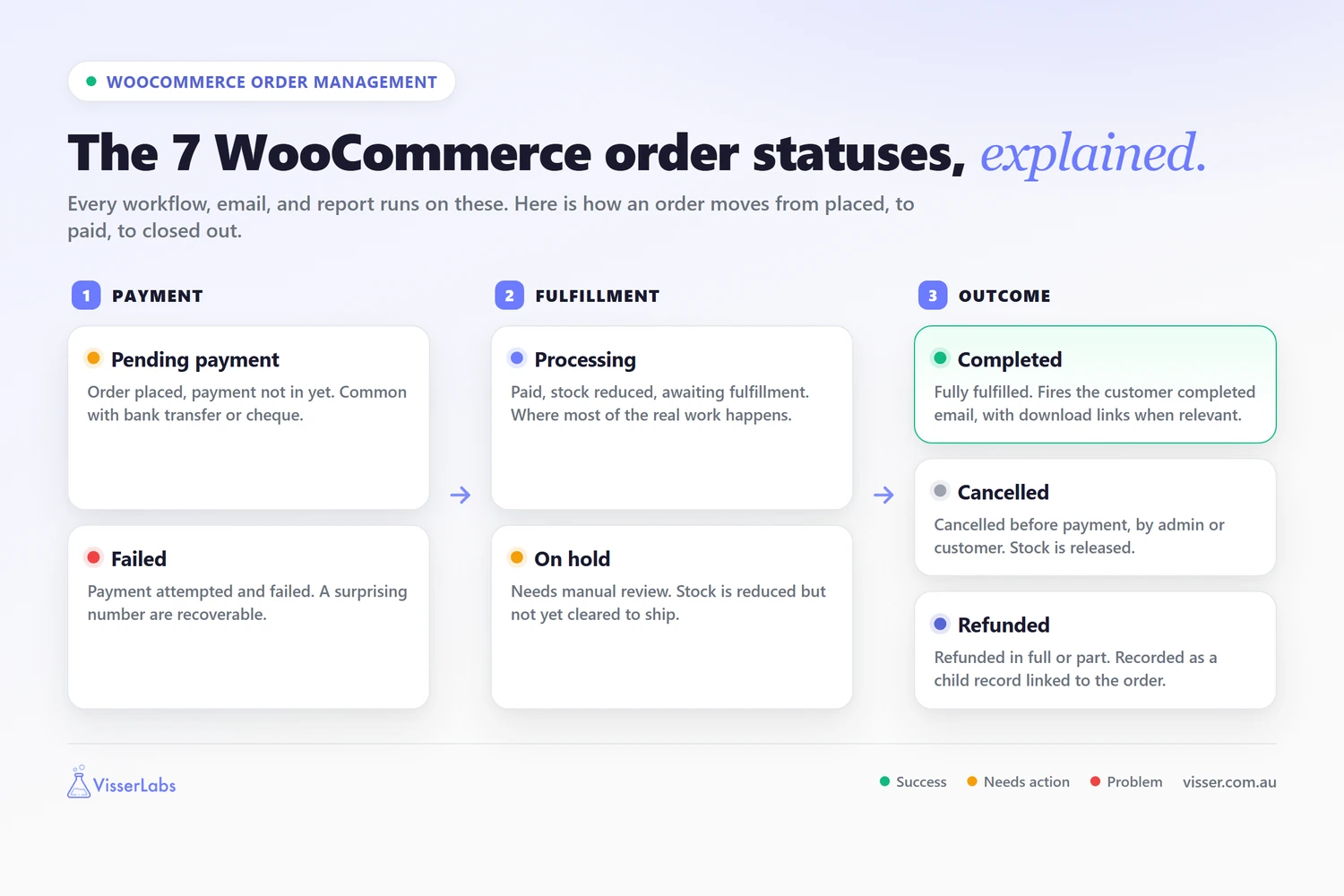
WooCommerce ships with seven native order statuses, and the official WooCommerce order management documentation lays out the normal flow between them. Here’s what each one means in practice:
- Pending payment: The order has been placed but payment hasn’t arrived yet. You’ll see this most often with manual payment methods (bank transfer, check) or when a gateway callback is still in transit.
- Failed: Payment was attempted and failed. Worth reviewing regularly because a surprising number of these are recoverable with a quick customer email.
- Processing: Payment received, stock reduced, order awaiting fulfillment. This is where most of your real operational work happens.
- On hold: Manual intervention required. Awaiting bank transfer, fraud check, or custom review. Stock is reduced but the order isn’t yet cleared for fulfillment.
- Completed: The order is fully fulfilled. Shipped, delivered, or (for downloadable goods) delivered. Triggers the customer-facing completed email with download links when applicable.
- Cancelled: Cancelled before payment, either by an admin or by the customer. Stock is returned to available.
- Refunded: Refunded in full or in part. The refund is recorded as a child record linked to the original order.
You’ll also see less common statuses floating around. Draft (a post status used for block-based product drafts), checkout-draft (a cart awaiting checkout completion), and various plugin-added statuses like “Awaiting Shipment” or “Partially Shipped.” Those last two come from shipping or fulfillment plugins and aren’t native.
Status transitions (the thing that moves an order from one status to the next) are driven by three mechanisms: payment gateway callbacks (Stripe tells WooCommerce payment cleared, order moves from Pending to Processing), admin actions (you click “Mark complete”), and plugin automations (a shipping plugin marks the order Completed when tracking uploads).
What We’ve Seen: The most common status misconfiguration we see is stores leaving orders in Processing after fulfillment because no one taught the team to mark Completed. That breaks reporting (your “unfulfilled” queue fills with ghost orders), breaks customer emails (the completed email never fires), and breaks refund workflows. If your team hasn’t been trained on the transition from Processing to Completed, train them this week.
If you need to export orders filtered by a specific status (for a warehouse picklist, a refund report, or a reconciliation run), see our complete guide to exporting WooCommerce orders. And if you sell through a marketplace, refunded orders behave differently again, so see WC Vendors’ guide to handling chargebacks in a multi-vendor store.
Bulk Order Management In The WooCommerce Admin
Once you cross roughly 20 orders a week, single-order workflows start costing real time. Bulk actions are how you claw that time back, and WooCommerce has more built in than most store owners realize.
Native bulk actions
Head to WooCommerce, Orders in your admin. The checkbox column on the left lets you select multiple orders, and the Bulk actions dropdown at the top gives you these native options:
- Change status (bulk): Move a batch of orders from Processing to Completed in one click after a shipping run. This is the single highest-value bulk action in native WooCommerce.
- Move to trash: For cancelled or test orders you want out of your reporting.
That’s it for native bulk actions. WooCommerce intentionally keeps the core set small and relies on plugins for deeper bulk capabilities.
The bulk workflow
Here’s the flow we recommend:
- Filter the orders screen by status (usually Processing) and date range (the last shipping cycle).
- Select all visible orders with the top-row checkbox.
- Pick “Change status to completed” from the Bulk actions dropdown.
- Click Apply.
That sequence moves the entire shipped batch to Completed, triggers the completed-order email for every customer, and clears your Processing queue in one pass.
Two smaller controls on the same screen make bulk work faster. The search box in the top right finds an order by number, customer name, or email, and the Screen Options tab lets you hide columns you never use and raise how many orders load per page. Set the page count high enough to cover a full shipping cycle and your select-all becomes one action instead of five.
Plugin categories worth knowing about
When native falls short, these plugin categories fill specific gaps. No specific product recommendations here because the right tool depends on your setup, but these are the job-to-be-done categories to search for:
- Bulk order editor plugins: For bulk-updating customer addresses, line items, or custom meta fields beyond what native handles.
- Bulk packing slip and invoice generators: Cut a 50-order packing run from hours to minutes. Essential once you cross 100 orders a week.
- Bulk tracking number uploaders: For stores that use an external shipping platform and need to sync tracking numbers back to WooCommerce orders in batch.
What We’ve Seen: For stores crossing 100 orders a week, bulk-status-change is usually the first workflow upgrade that pays for itself. It’s already in WooCommerce, it just isn’t taught. Before buying any new tools, check whether you’re actually using the native bulk actions.
Store Exporter Deluxe also handles bulk exports filtered by status, which is useful for warehouse picklists or reconciliation reports. We’ll cover that properly in the reporting section so it lands where it belongs.
Customer Communication And Order Notes
Customer communication is where most stores leak support tickets. Every “where is my order?” email is a note someone didn’t write. The native WooCommerce tools for this are more capable than they look.
Native customer emails
WooCommerce ships with transactional emails that fire automatically when order status changes:
- New order (to the admin)
- Processing order (to the customer, when payment clears)
- Completed order (to the customer, when you mark the order Completed)
- Cancelled order (to the admin)
- Refunded order (to the customer)
- Customer invoice (manual, sent on demand)
- Customer note (sent whenever you add a customer-facing note)
To customize any of these, go to WooCommerce, Settings, Emails. You can edit the subject line, heading, email body additional text, and footer. For deeper template customization you’ll edit template files via a child theme, but most stores are well served by the settings-screen customizations alone.
Order notes explained
Inside every order, the right-hand sidebar has an Order notes panel. Notes come in two flavors:
- Private notes: Internal only. Visible to admins and staff. Used for packer instructions, fraud check context, or internal handoffs.
- Notes to customer: Emailed to the customer automatically when you save them. Used for tracking updates, delay explanations, or any touchpoint between Processing and Completed.
The distinction matters. A private note is free. A customer note is free and doubles as customer service. Most stores under-use both.
Once orders are complete, a wishlist-driven email sequence can bring customers back for round two. Our sister brand SaveTo Wishlist covers post-purchase retention flows in depth if that’s the next gap you want to close.
What We’ve Seen: The single most common order management mistake we see is store owners treating order notes as optional. Nine times out of ten, the “where’s my order?” support ticket could have been prevented by a 30-second customer-facing note when the order moved to Processing. Notes are free, emailed automatically, and dramatically cut support volume. Treat them as part of every status change, not an afterthought.
The Fulfillment Workflow: Packing, Shipping, And Tracking
Fulfillment is where WooCommerce deliberately leaves work for third-party systems. The platform handles the order record; shipping platforms handle the actual carrier logistics. That separation is deliberate, and it means you need a clear picture of which job lives where.
The standard fulfillment loop
Regardless of which shipping platform you use, the operational loop is the same:
- Pull the picklist. Filter orders by Processing status (and optionally by date range). This is your warehouse work queue.
- Pack orders. Physical operation, happens outside WooCommerce entirely.
- Generate shipping labels. Usually in your shipping platform: ShipStation, Shippo, Australia Post MyPost Business, or your carrier’s native portal.
- Add tracking numbers to orders. Either as a native custom field (requires a small template customization on the completed-order email to surface it to customers) or through a dedicated shipment tracking plugin that adds a structured tracking field and a customer-facing tracking page.
- Mark orders Completed. Use the bulk action from the section above. This triggers the completed-order email and updates reporting.
Fulfillment plugin categories
These are the categories that genuinely earn their keep for any store doing meaningful volume:
- Shipping platform connectors: Hook WooCommerce into your carrier accounts, print labels in bulk, and sync tracking back.
- Shipment tracking plugins: Add a structured tracking field to orders plus a customer-facing tracking page. Much cleaner than the native custom field approach.
- Delivery scheduling plugins: Let customers pick a delivery date at checkout. Useful for perishables, high-value items, or B2B orders where timing matters.
- Label printing plugins: Advanced label generators, often carrier-specific, for stores with bespoke label requirements.
What We’ve Seen: The cleanest fulfillment setups always separate the shipping system (external, carrier-specific) from the order system (WooCommerce). Trying to make WooCommerce the shipping platform is usually a wrong turn. Let WooCommerce be your order source of truth, use a dedicated shipping platform for the label and carrier layer, and sync tracking numbers back into WooCommerce for the customer-facing tracking link. That architecture scales; an all-in-one approach rarely does.
Refunds, Cancellations, And Returns
Refunds are where your reporting either stays honest or drifts out of sync with your accounting. Get the workflow right from day one and month-end reconciliation becomes a 10-minute job instead of a forensic investigation.
Returns are not a rare event either. According to the National Retail Federation’s 2025 Retail Returns Landscape, an estimated 19.3% of online sales were returned in 2025, and 9% of all returns were fraudulent. That second number is why the refund workflow below matters, and why the next section covers the orders that keep coming back.
Automatic versus manual refunds
WooCommerce supports two refund types inside any order, both documented in the official WooCommerce refunds guide:
- Automatic refund: Calls the payment gateway API (Stripe, PayPal, and most modern gateways support this) to issue the refund directly. Money leaves the gateway and the WooCommerce refund record is created in one action.
- Manual refund: Records a refund inside WooCommerce without touching the gateway. You’ll process the actual refund inside your gateway dashboard separately. Used when automatic refunds aren’t available for your gateway, or when you’re recording an offline refund (cash, bank transfer, store credit).
Always prefer automatic refunds where the gateway supports them. One action, one record, gateway and store stay in sync.
Partial refunds
Refunds don’t have to be all-or-nothing. On the order screen, click Refund, then enter either a quantity refund (3 of 5 units) or a line-item amount. WooCommerce handles the accounting automatically.
Cancellation versus refund
Important distinction for reporting: cancellation is pre-payment, refund is post-payment. If a customer cancels before the payment clears, the order should go to Cancelled. If they cancel after payment has cleared, the order should be refunded, not cancelled. Mixing these up scrambles your revenue reporting.
Returns (RMA)
Native WooCommerce has no RMA (return merchandise authorization) workflow. If you need structured returns (customer requests a return, you review and approve, they send the item back, you refund on receipt), you’ll install a dedicated returns plugin. RMA plugins typically add a customer-facing returns request form, an admin workflow for approving returns, and optional integration with your refund process.
Always record the reason for any refund in an order note. Your future self (and your accountant at year-end) will thank you.
What We’ve Seen: The refund workflow gap we see most often is stores processing the refund in Stripe without recording it in WooCommerce, then wondering why their month-end reports don’t match. Always process the refund through WooCommerce. It records the refund and triggers the gateway in one step, and your reporting stays honest.
How To Handle Problem Orders And Repeat Offenders
Problem orders are handled in four steps: spot the order early, review it by hand, refund it within your written policy, and block the customer only once review has confirmed a repeat pattern. Running those steps in that order is the part of WooCommerce order management most stores skip, and it’s why the same handful of customers keeps costing them money.
The pressure here is real and rising. The Merchant Risk Council’s 2026 Global eCommerce Payments and Fraud Report, based on a survey of 1,278 merchant professionals across 37 countries, found 62% of merchants reporting an increase in first-party misuse disputes and 57% citing more refund or policy abuse over the past year.
Spot problem orders early
The cheapest problem order is the one you catch before fulfillment. Watch for a short list of repeatable signals rather than gut feeling: a billing name that doesn’t match the shipping name, an auto-generated-looking email, several orders from one address within minutes, or a customer whose history already shows a chargeback.
None of those signals proves anything on its own, which is exactly why the next step is review and not auto-cancel. Set the order to On hold so stock stays reserved while you check.
Patterns across customers are much easier to see in a spreadsheet than on the orders screen. A periodic order export sorted by email will surface the one address tied to five refunds long before you notice it by memory, which is the reporting workflow covered in the next section.
Review each flagged order by hand
A flag is a question, not a verdict. Manual review is the step that separates a genuine customer with an odd delivery address from an actual offender, and it’s what keeps you from punishing the wrong person.
Keep the review consistent with a short checklist: billing versus shipping match, whether the email ties to past orders, payment status, and any prior refunds or chargebacks on that customer. Write what you find in a private order note every time.
Those notes are what turn three separate one-offs into a documented pattern. A quick customer-facing note asking to confirm the address also clears most genuine mismatches in minutes.
Refund with discipline
Refund within your stated policy, never beyond it, and log the reason on the order. Consistency protects your margin and stops anyone learning that pressure earns them extra.
Process it through WooCommerce rather than the gateway alone, as covered above, so the refund record and your reporting stay aligned. Cancel and refund junk orders promptly too, because unresolved pending orders quietly distort your revenue numbers.
Block confirmed repeat offenders
Escalate to blocking only after manual review has confirmed a repeat pattern: the same named person, causing the same problem more than once, with no sign of stopping. At that point, refunding and replying is feeding the loop, so the order needs refusing before it exists.
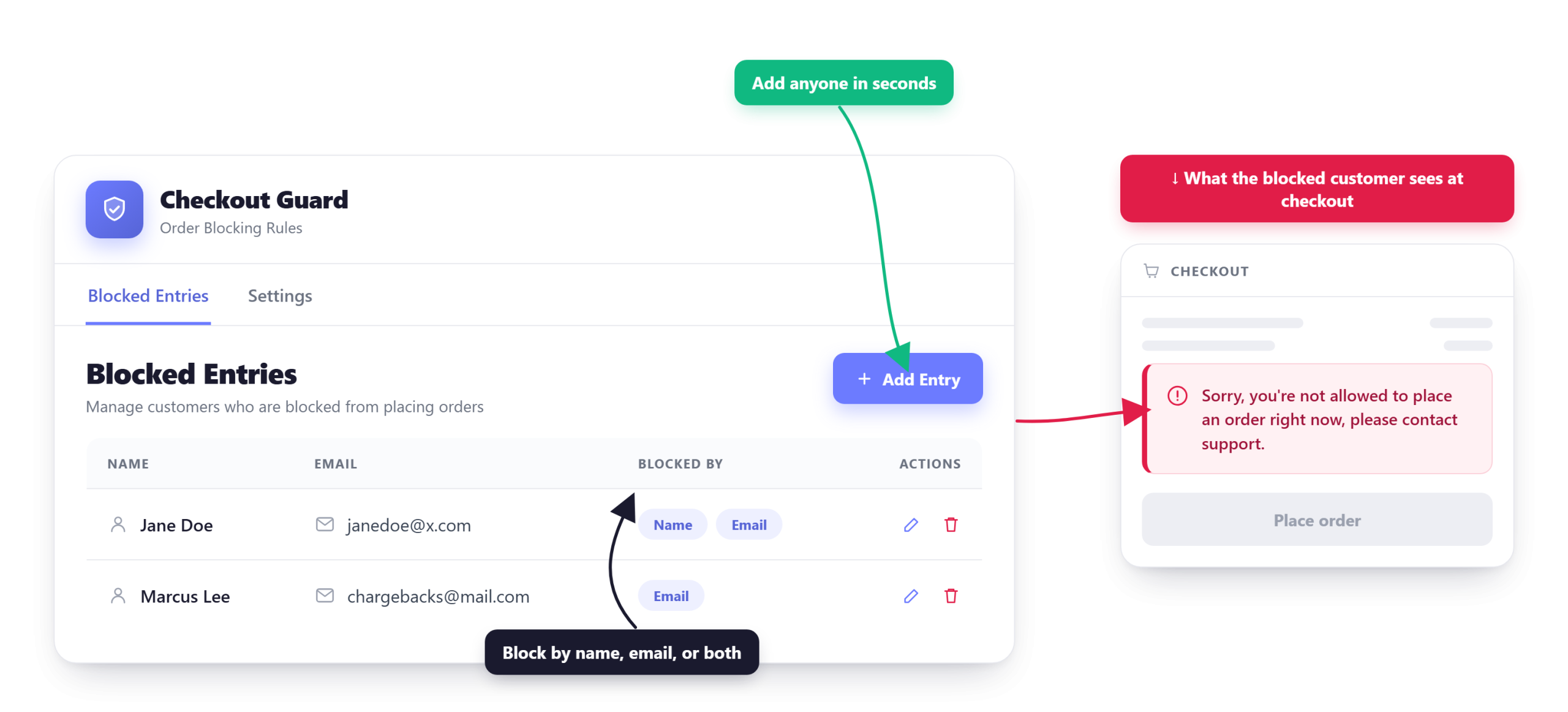
Checkout Guard is built for that final step. It’s a manual block list for people you’ve already identified, not a scanner. You add an entry with a first name and last name, an email address, an IP address, or any combination of those, with a * wildcard where you want one rule to cover a whole email domain, and manage the whole list from one Blocked Entries tab in your WordPress admin.
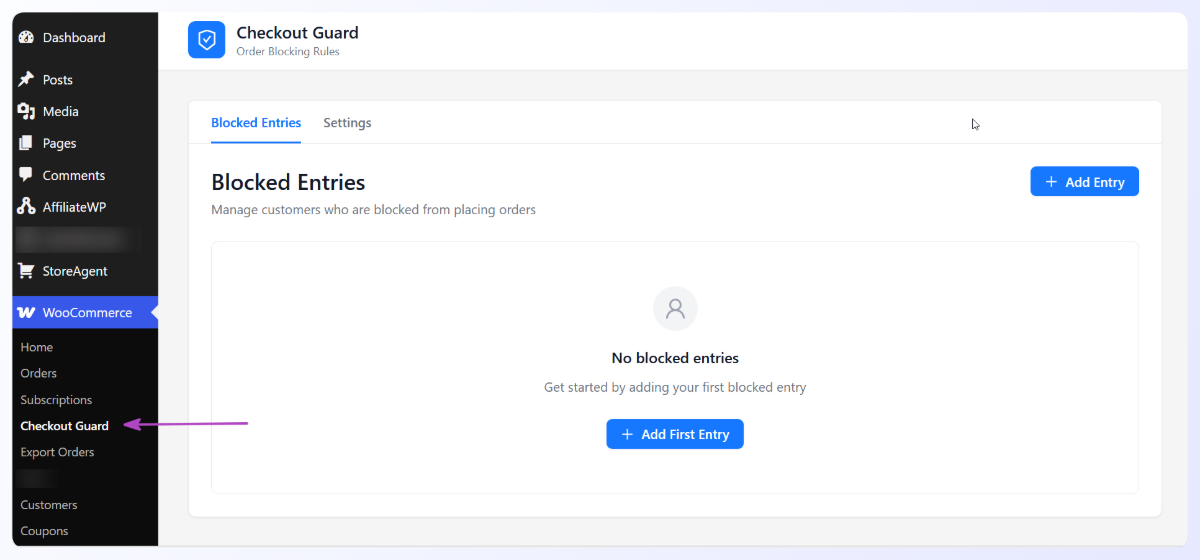
Adding a blocked entry
Open the Blocked Entries tab, click Add Entry, and fill in whatever identifies the customer. Name, email, or both, plus a short note so the next person to read the list knows why the entry exists.
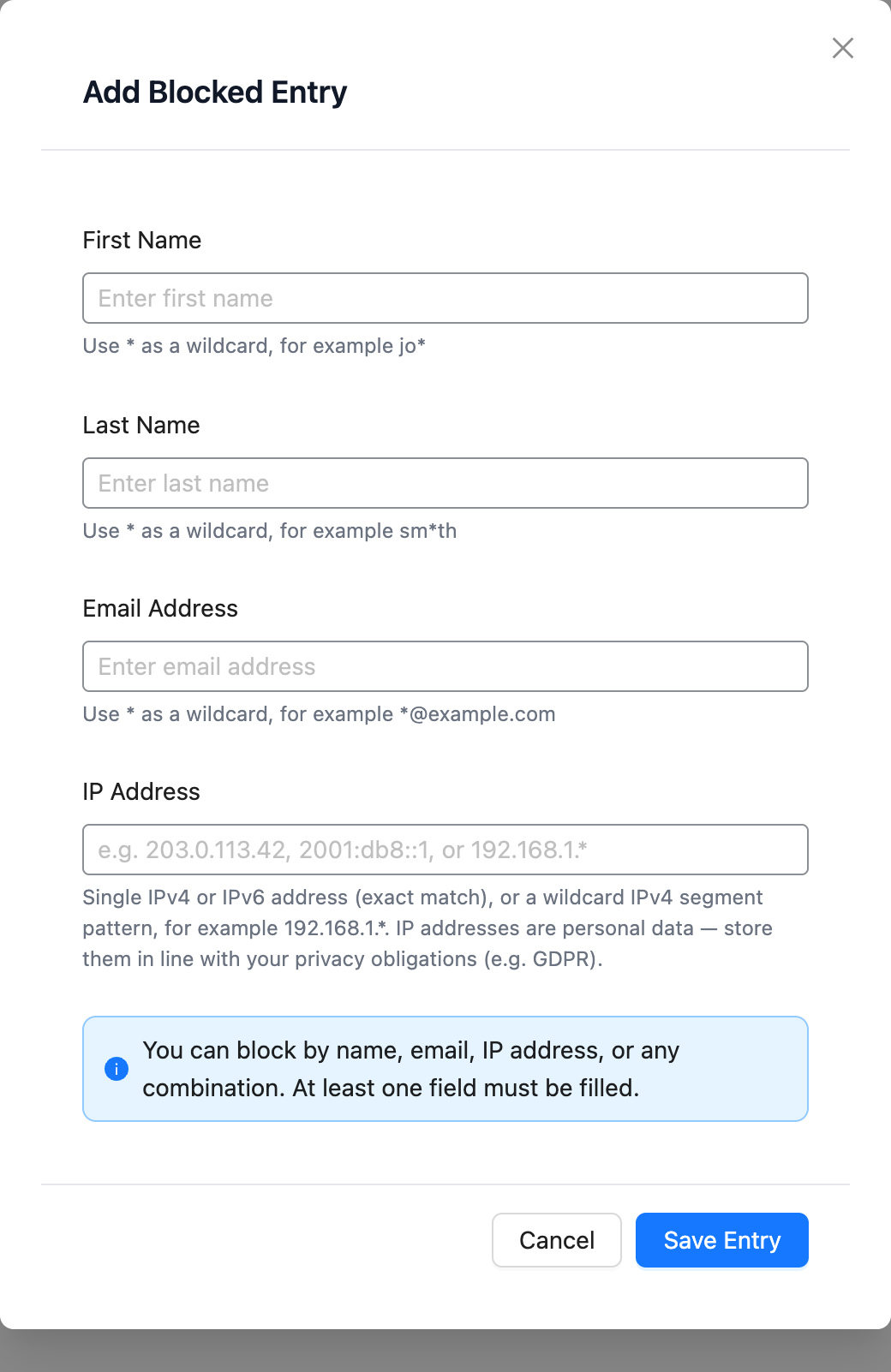
When someone’s billing name or email is an exact match for an entry, the order doesn’t go through. The shopper sees a denial message instead, and nothing lands in your orders screen for you to clean up later.
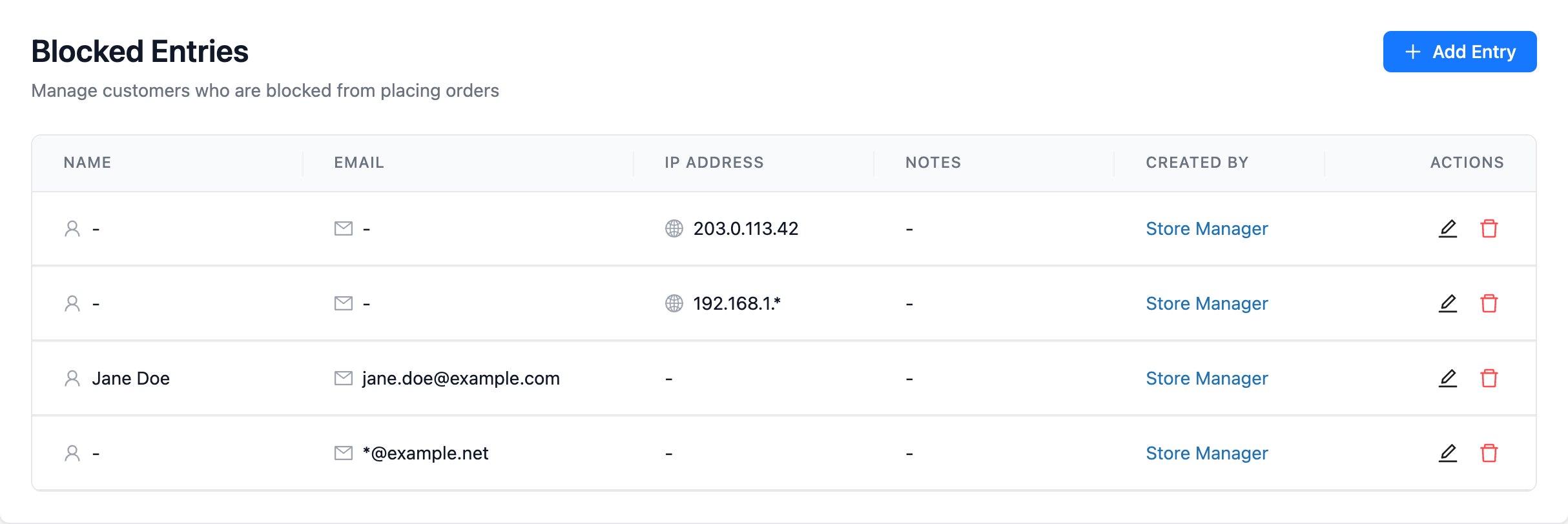
Setting the message a blocked shopper sees
The Settings tab holds the checkout denial message. Write something neutral and final, because a vague error invites a support ticket while a clear line usually ends the conversation.
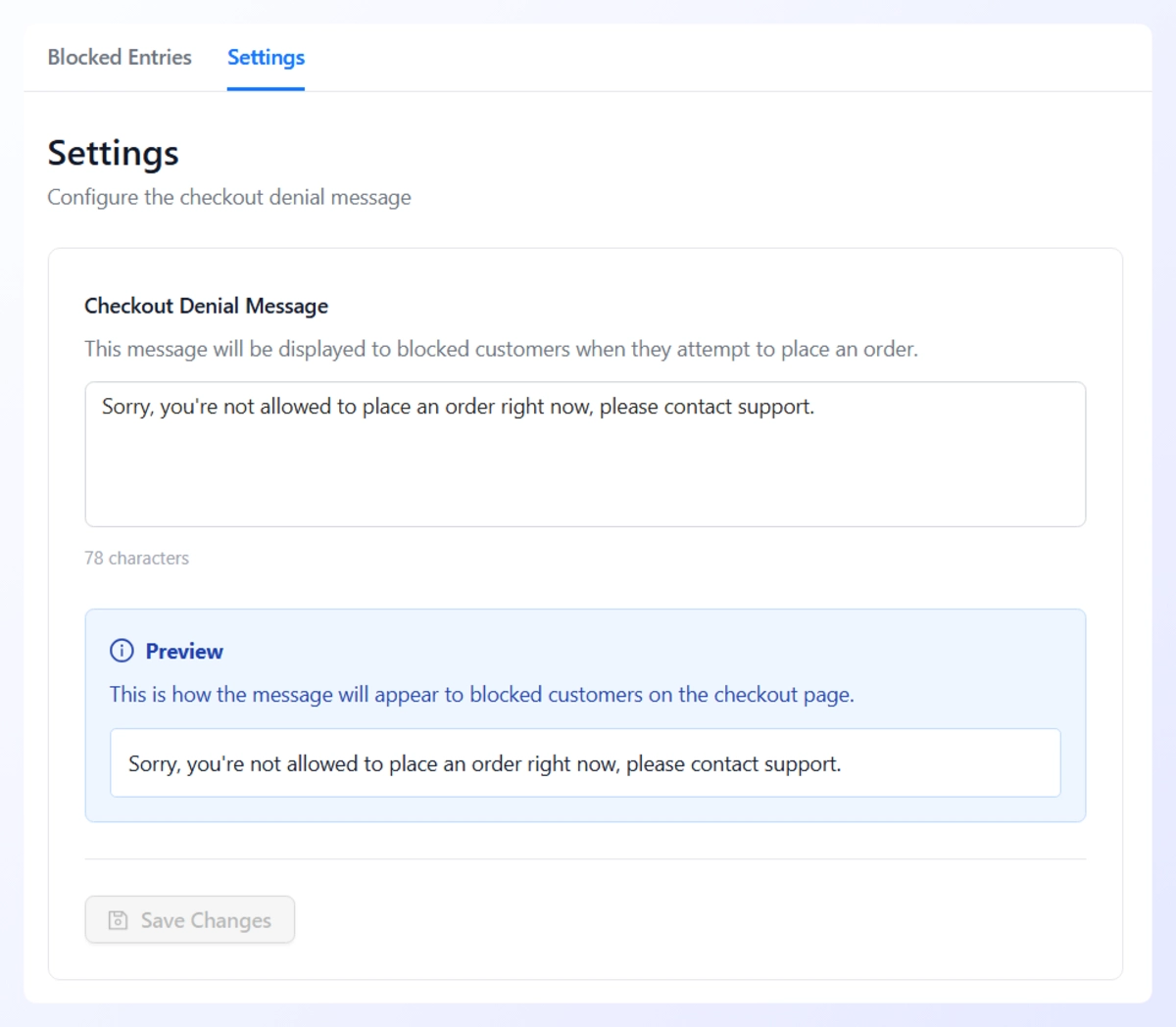
Two details worth knowing. It works on both the classic shortcode checkout and the newer block checkout, and it doesn’t score orders or try to identify anyone automatically. Only the exact entries you add are stopped, so shoppers who aren’t on your list never encounter it.
What We’ve Seen: Store owners reach for a block list at the wrong end of the workflow. Blocking after one bad order costs you customers who had a genuine dispute; blocking after review has documented the same person twice costs you nothing. Keep the entries specific to people your order notes have already confirmed. The Blocked Entries table records who added each entry, so a teammate can tell a confirmed offender from a hunch six months later.
Order Reporting And Analysis (Where Store Exporter Deluxe Fits)
Every store eventually hits a reconciliation wall. Your bookkeeper wants a weekly CSV. Your marketplace wants a daily feed. Your accountant wants a line-item audit at year-end. WooCommerce’s native reporting does some of this, but not all, and this is the gap where dedicated export and reporting tools earn their keep.
What native analytics does well
The WooCommerce Analytics dashboard (WooCommerce, Analytics in admin) handles high-level reporting cleanly:
- Revenue by period (day, week, month, year)
- Top-selling products
- Customer count and new-versus-returning split
- Basic orders and refunds reporting
For a lot of stores, that’s enough to answer “how did we do this month?” at a glance.
Where native analytics runs out of road
Native reporting struggles once you need:
- Granular line-item data (every SKU, every quantity, every tax line) in a spreadsheet you can hand to someone
- Filtering and reconciling by payment method, shipping method, or custom fields
- Scheduled reports delivered automatically to your bookkeeper, accountant, or supplier
- Ad-hoc exports for tax time, supplier reconciliation, or marketplace feed drops
- Any reporting that needs to leave WooCommerce and land inside another system
That’s the slot dedicated export plugins fill.
Store Exporter Deluxe, honestly positioned
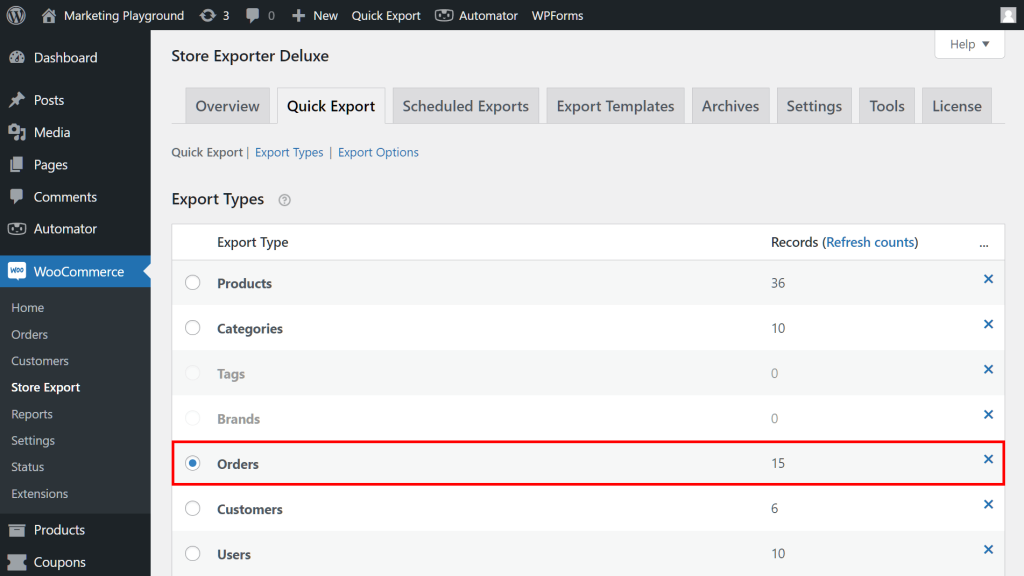
Store Exporter Deluxe is not an order management tool. We want to say that clearly because a lot of plugin positioning blurs the line. It’s the reporting and handoff layer that sits on top of whatever order workflow you’ve built. Your fulfillment, customer comms, and refund handling all happen elsewhere. Store Exporter Deluxe is what gets the resulting order data out of WooCommerce and into the spreadsheet, accounting system, or marketplace feed that needs it.
What it actually does: exports orders (including custom meta fields, line items, tax breakdowns, customer info) in CSV, XLS, XLSX, XML, or TSV, filtered by any criteria (status, date range, payment method, customer, product), delivered via email, SFTP, FTP, or saved straight to your media library.
Use cases where it genuinely earns its keep:
- Weekly bookkeeper exports: Scheduled XLSX to your bookkeeper every Monday. See our guide to connecting WooCommerce to Xero for the complete workflow, and our guide on exporting orders in CSV or XML format for format specifics.
- Monthly supplier reconciliation: A CSV of every order that includes a specific supplier’s products, exported automatically on the 1st of each month.
- Scheduled marketplace feeds: Daily or weekly feed drops to Amazon, eBay, or a third-party marketplace that expects a specific CSV or XML format. See our guide on setting up a scheduled export.
- Year-end accountant audit: A full line-item export for the financial year, with tax breakdowns intact.
What We’ve Seen: Store owners reach for Store Exporter Deluxe again and again, and it isn’t because it’s an order management tool. It’s because every store eventually needs to get order data out of WooCommerce and into something else. Bookkeeping, marketplaces, suppliers, accountants. That’s the slot it fills, and it fills it better than building custom exports or paying for a real-time sync connector before you need one.
Need your order data out of WooCommerce on a schedule? Store Exporter Deluxe is the reporting and handoff layer built for that job, at $49/year for a single site license.
Integrations That Extend WooCommerce Order Management
The right integrations turn order management from a chore into a system that mostly runs itself. The framing that works: think in terms of the job each integration does, not the brand name.
- Accounting integrations: Sync orders, refunds, and tax into your books. Scheduled export (via Store Exporter Deluxe) is the cheap mid-tier option; real-time sync connectors are the enterprise option.
- Shipping integrations: Label printing, carrier rates, tracking sync. Pick a platform that connects to the carriers you already use.
- CRM and email integrations: Post-purchase sequences, win-back campaigns, lifecycle segmentation by order history. High-ROI once you cross roughly 100 orders a month.
- Inventory integrations: Useful if you sell across multiple channels. A central inventory system keeps stock levels honest everywhere.
- Marketplace integrations: Aggregate orders from multiple channels into one WooCommerce backend (or vice versa).
- Support integrations: Surface order context inside your helpdesk so support sees status and tracking without leaving the ticket.
- Checkout protection: A block list like Checkout Guard for the confirmed repeat offenders your review process has already documented.
A decision framework that works: start with accounting and shipping because every store needs both. Layer in CRM once you’re past 100 orders a month and your customer lifecycle is worth automating. Inventory and marketplace connectors come later, when you actively have a multi-channel problem. Don’t buy integrations before you have the workflow they’d integrate with.
Store Exporter Deluxe plays quiet support in this layer. When a dedicated real-time connector is too expensive or too rigid, a scheduled export to CSV or XLSX covers most accounting and marketplace-feed use cases at a fraction of the cost.
Frequently Asked Questions
What’s the difference between Processing and On Hold?
Processing means payment has been received and the order is awaiting fulfillment. On Hold means payment is pending manual review or is delayed (most commonly awaiting a bank transfer). Both reduce stock, but only Processing should appear in your fulfillment picklist. Getting these two right is the foundation of clean WooCommerce order management.
Where are orders stored in WooCommerce?
WooCommerce orders are stored in your WordPress database, in dedicated order tables on stores using High-Performance Order Storage (HPOS), which is the default for new installs. Older stores that haven’t migrated still keep orders as a post type in the posts and postmeta tables. Either way you manage them from WooCommerce, Orders, and any export or reporting tool you use needs to support whichever storage your store runs.
Can I bulk-edit orders in WooCommerce?
Natively, bulk actions handle status changes and moving to trash. For bulk-editing fields like customer addresses, line items, or custom meta, you’ll need a bulk order editor plugin. Stick with native if you’re just doing bulk status changes; reach for a plugin when you need deeper field edits.
How do I send tracking numbers to customers automatically?
Two paths. Either use the native custom field approach (add tracking as a custom field on the order, customize the completed-order email template to include it) or install a shipment tracking plugin that adds a structured tracking field and a customer-facing tracking page. The plugin approach is cleaner for most stores.
When should I block a customer from ordering?
Block a customer only after manual review has confirmed the same named person caused the same problem more than once. A single chargeback or refund request is often a genuine dispute, so blocking on one event risks losing a real customer. Until the pattern is documented in your order notes, refund within policy and keep reviewing. Checkout Guard covers that last step by blocking the specific names and email addresses you add to its list.
What’s the cheapest way to get order data to my bookkeeper?
A scheduled XLSX export via Store Exporter Deluxe ($49/year for a single site) is the cheapest reliable option for most stores doing under 1,000 orders a month, and it costs far less than a real-time sync connector. See our guide to connecting WooCommerce to Xero for the complete workflow.
Does WooCommerce have a built-in RMA (returns) workflow?
No. Native WooCommerce handles refunds but not structured returns. For RMA (return merchandise authorization: a customer-facing returns request form, an approval workflow, and optional refund integration) you’ll install a dedicated returns plugin.
How do I handle partial refunds in reports?
WooCommerce records refunds as child records linked to the original order, so your reporting tool needs to handle that relationship correctly. In Store Exporter Deluxe you can include refund line items and refund totals as export fields, so partial refunds surface in the export instead of being double-counted or missed.
Conclusion
WooCommerce order management is a workflow. Statuses are the backbone. Bulk actions save real time once you cross 20-ish orders a week. Customer notes cut support volume more than any other free tool you have. Fulfillment should stay separate from WooCommerce (let it be the order source of truth, not the shipping platform). Refunds belong inside WooCommerce, not only the gateway. Problem orders get spotted, reviewed, refunded, and only then escalated to a block. Reporting is where month-end sanity lives or dies. And integrations should be chosen by the job they do, not the brand they carry.
Here’s a quick recap of what we covered:
- The seven native order statuses and what each one signals
- Native bulk actions and the filter, select, apply workflow
- Order notes as your cheapest support-deflection tool
- Keeping fulfillment separate from WooCommerce
- Processing refunds inside WooCommerce, not just the gateway
- Handling problem orders in order: spot, review, refund, then block
- Getting order data out cleanly with Store Exporter Deluxe
If you’re ready to close the reporting and handoff gap in your WooCommerce order management (your bookkeeper wants a weekly CSV, your accountant wants a clean line-item export, your marketplace wants a scheduled feed), Store Exporter Deluxe is the tool built for that slot, at $49/year for a single site license.
Build the workflow first, then pick the plugins. The workflow is permanent; the plugins are swappable.